How to Connect Golpo to ChatGPT with MCP: A Step-by-Step Guide
Connect Golpo to ChatGPT with a screenshot-led MCP tutorial, exact OAuth settings, a video walkthrough, and prompts for your first explainer video.

Connect Golpo to ChatGPT, then create videos by describing what you want in a conversation. This guide walks through the setup shown in the screenshots: open MCP from Golpo’s homepage, add the Golpo server in ChatGPT, sign in, and try your first video prompt. You can follow the video below or work through each illustrated step.
Watch the step-by-step video
Prefer to watch in a separate tab? Open the Golpo + ChatGPT walkthrough on YouTube.
The connection flow at a glance
- 01Open MCPGolpo homepage
- 02Add GolpoChatGPT Plugins
- 03Sign inOAuth + Google
- 04Create a videoA new conversation
Keep this server URL handy:
https://mcp.golpoai.com/mcp
MCP stands for Model Context Protocol. It lets ChatGPT use Golpo’s connected tools, so you can request a video, check its progress, and retrieve a share link from the same conversation.
Before starting, sign in to ChatGPT and have your Golpo account ready. You will connect that account through Google sign-in during setup. The screenshots show ChatGPT’s Plugins interface; custom-server access can depend on your account and workspace settings.
Step 1: Open Golpo and click MCP in the top menu
Go to the Golpo homepage. In the top navigation, click MCP, between API and Guides.
This opens the Golpo MCP page. Make sure the ChatGPT tab is selected. The heading reads “Generate videos in ChatGPT with Golpo MCP.”
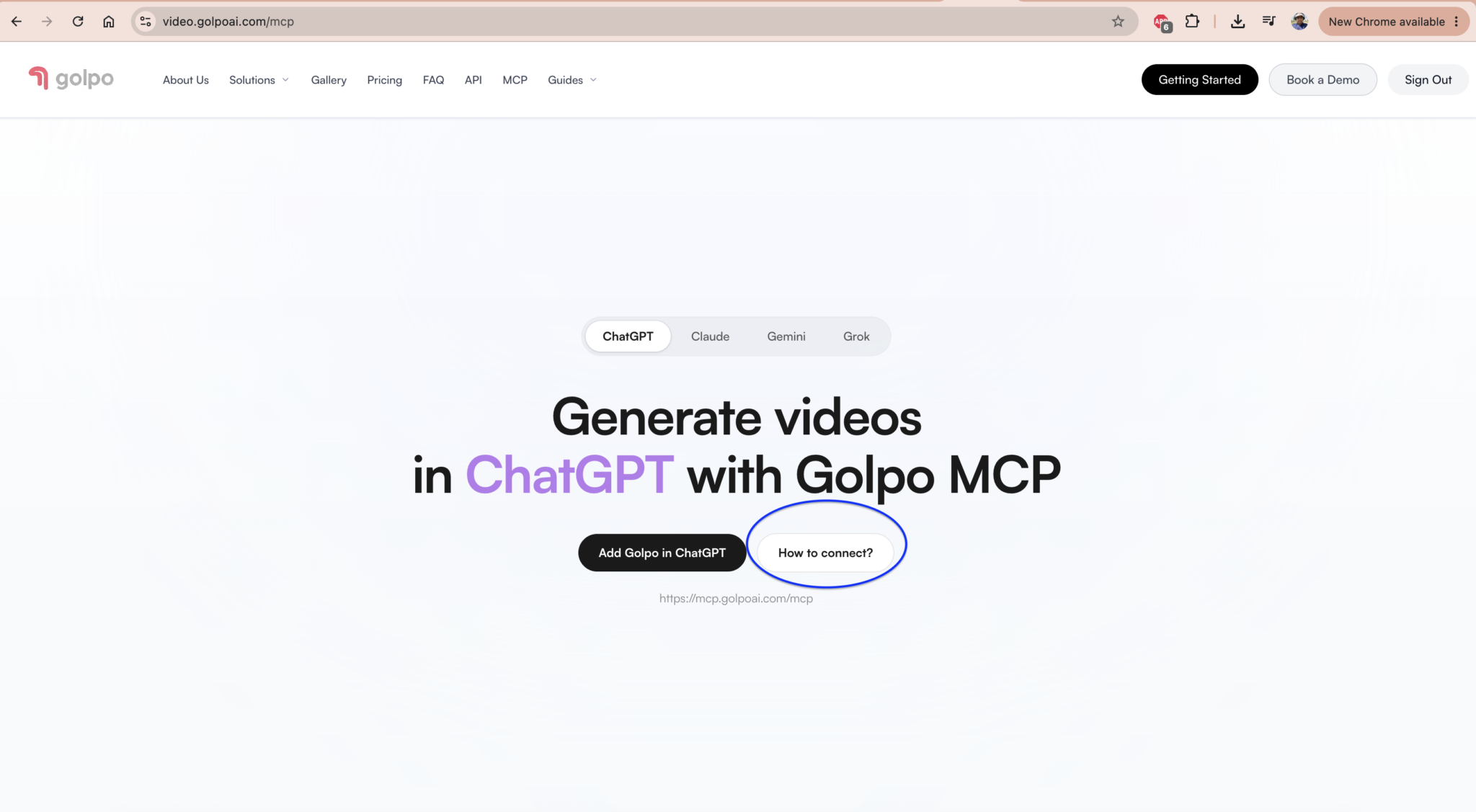
Step 2: Click How to connect?
On the ChatGPT tab, click How to connect? beside Add Golpo in ChatGPT.
The Connect Golpo in ChatGPT window explains the setup and provides a link to ChatGPT Plugins. You can also download the Golpo logo here if you want to use it as the plugin’s icon.
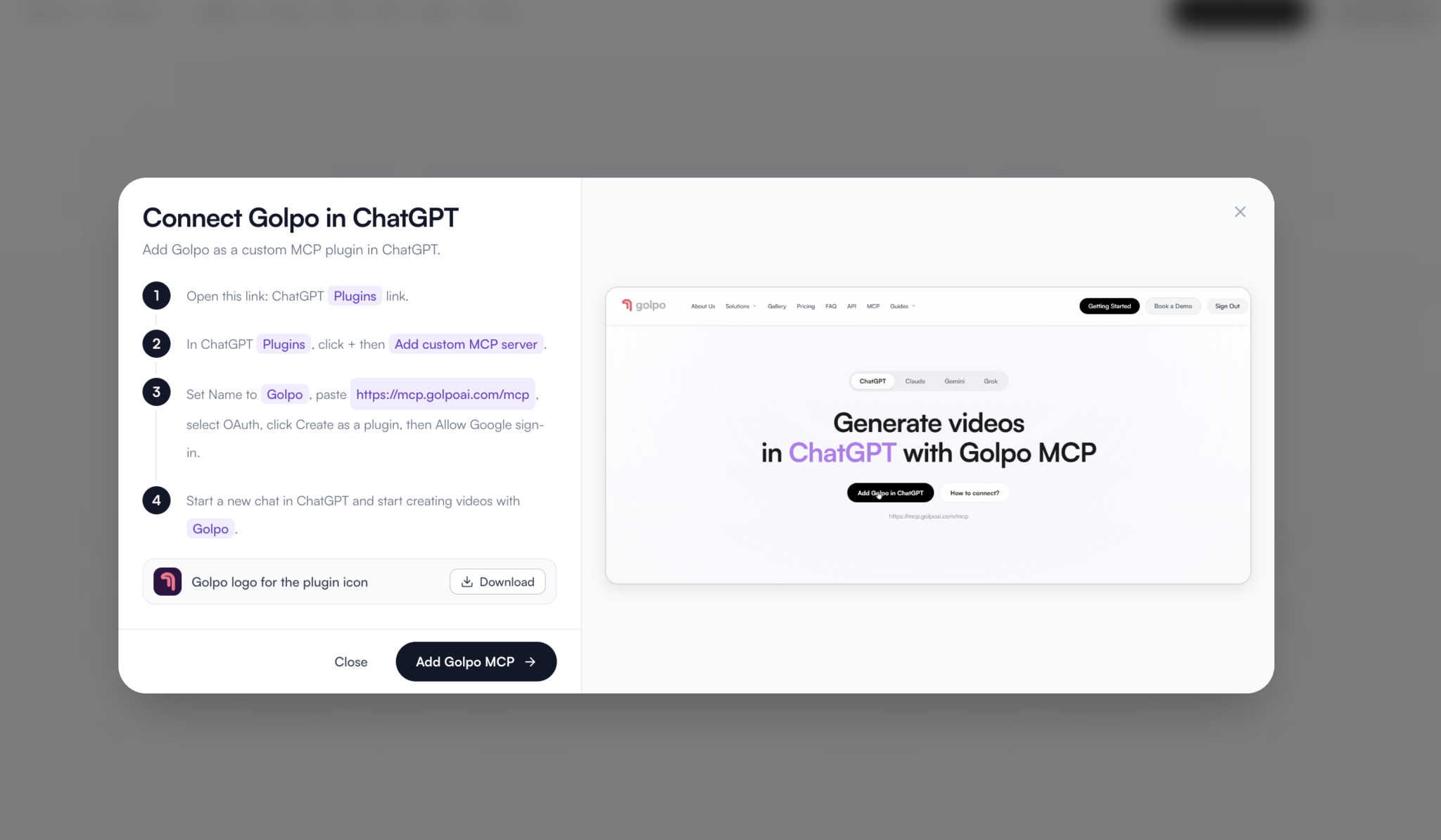
Click the Plugins link in the instructions or the Add Golpo MCP button at the bottom of the window. Both take you to ChatGPT Plugins.
Step 3: In ChatGPT, add a custom MCP server
On the Plugins page, open Add in the top-right corner, then choose Add custom MCP server. In layouts that show a + button, use that button to open the same option.
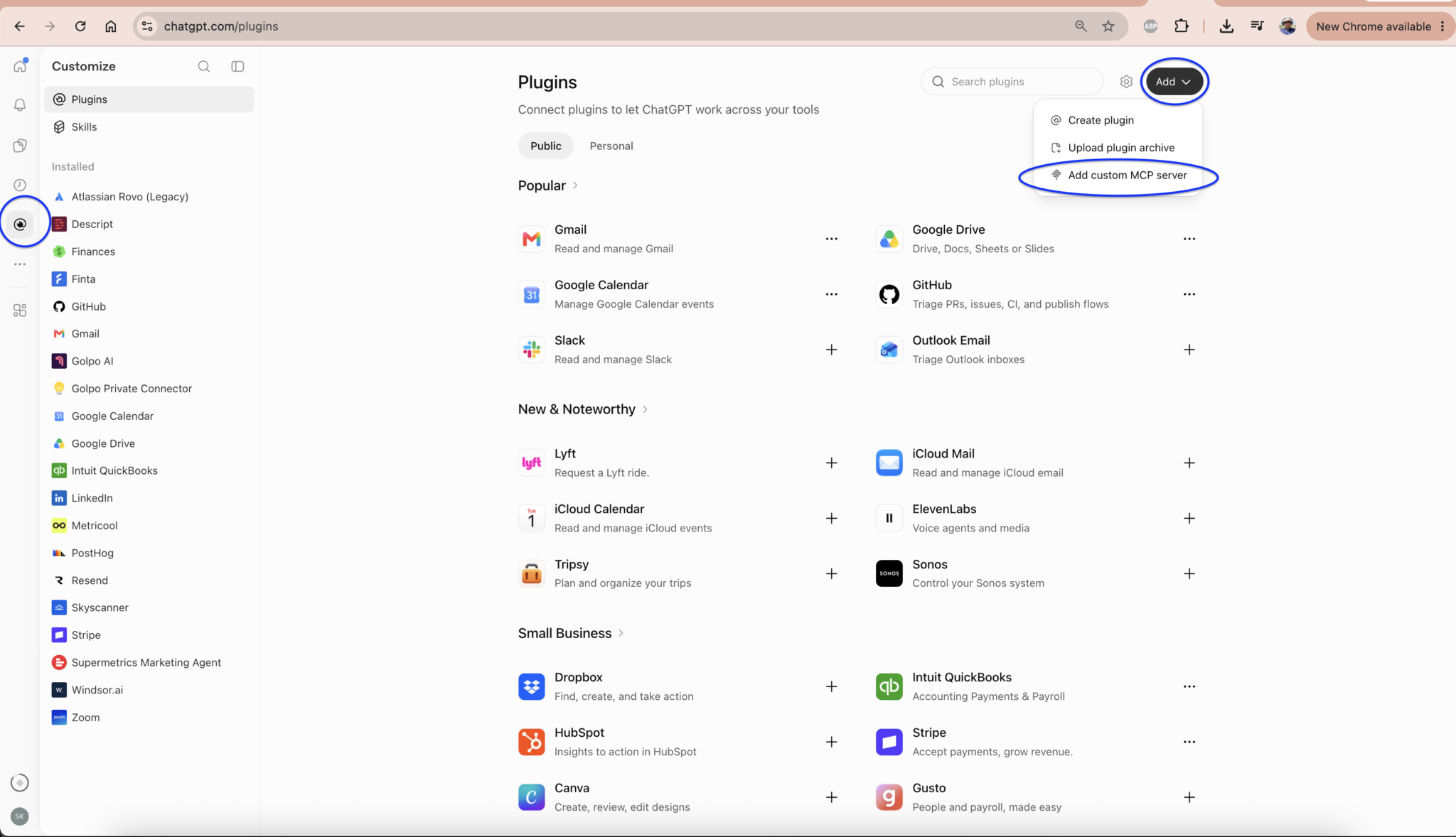
You should now see the Add custom MCP server form.
Step 4: Enter Golpo’s connection details
Fill in the form with these values:
| Field | What to enter or select |
|---|---|
| Name | Golpo. The screenshot uses Golpo AI, which is also a clear display name. |
| Icon | Optional. Upload the Golpo logo downloaded in Step 2. |
| Description | Optional. For example: “Create explainer videos with Golpo from ChatGPT.” |
| Connection | Select Server URL. |
| Server URL | https://mcp.golpoai.com/mcp |
| Authentication | OAuth |
Copy the full server URL, including the final /mcp. The address of the setup page, https://video.golpoai.com/mcp, is different from the server URL you enter in ChatGPT.
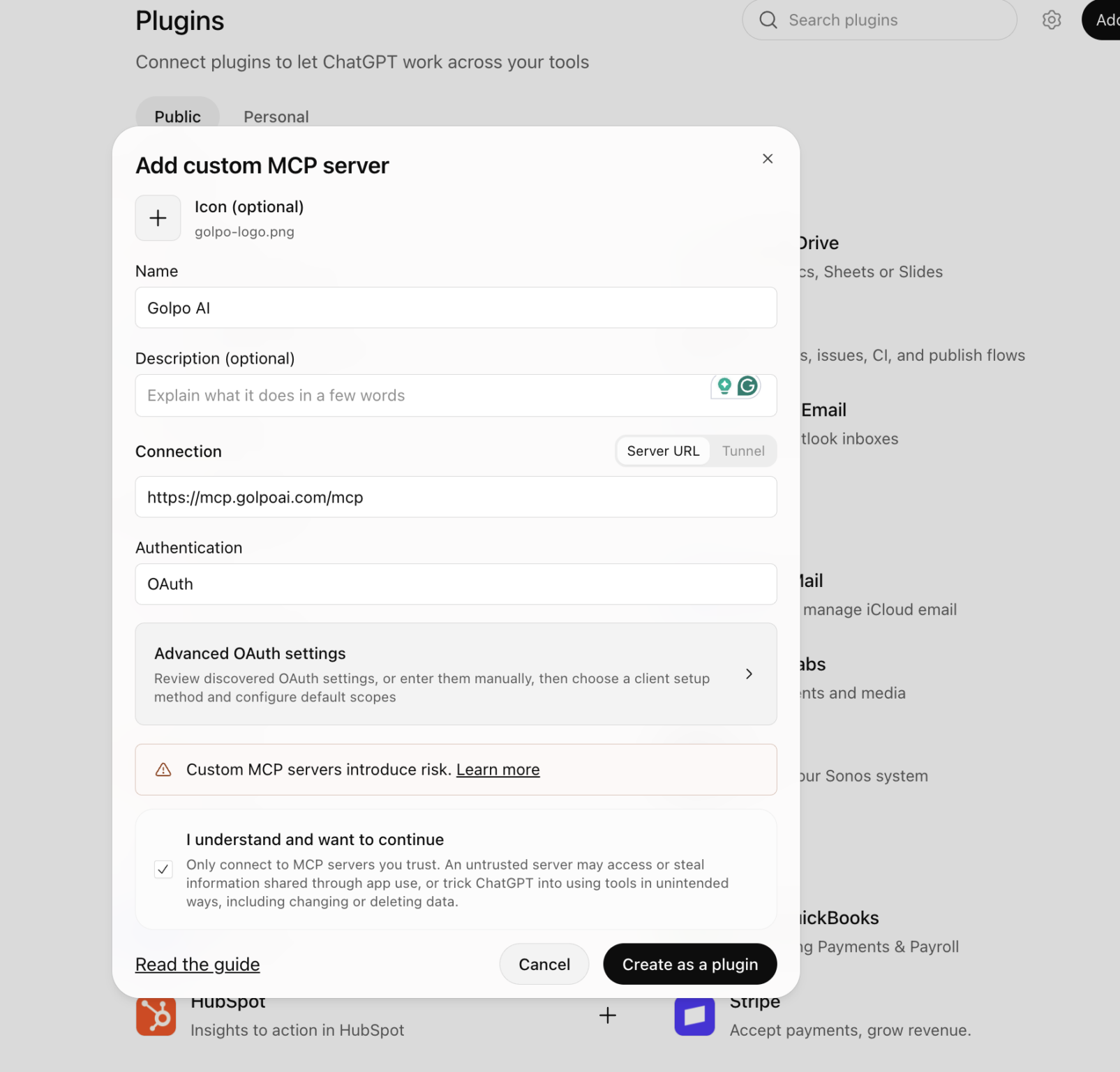
Keep OAuth selected so the next step can connect your Golpo account through sign-in.
Step 5: Create the plugin and sign in to Golpo
At the bottom of the form:
- Read ChatGPT’s custom-server notice.
- Select I understand and want to continue when you are ready to connect Golpo.
- Click Create as a plugin.
- Follow the Google sign-in flow using the account you use for Golpo.
- Review the authorization screen and click Allow to complete the connection.
Return to ChatGPT after sign-in. If ChatGPT presents an install or enable action for the newly created plugin, complete it so Golpo is available in your chats.
Golpo’s How to connect instructions specify the server URL, OAuth, and Google sign-in. The custom-server form and creation steps also follow OpenAI’s connection documentation.
Step 6: Start a new chat and check the connection
Open a new ChatGPT conversation. If your interface asks you to choose a plugin, select Golpo or the display name you used in Step 4.
Start with a connection check:
Use Golpo to check whether I am signed in. Tell me whether the connector is connected.
This is a useful first check before asking for a video. If ChatGPT asks you to connect or sign in again, complete that step and retry in a new chat.
Step 7: Create your first Golpo video from ChatGPT
Once the connection is working, try this prompt:
Use Golpo to create a 30-second explainer video about how rainbows form.
Use a friendly whiteboard style, English narration, and a female voice.
Explain it for a curious 10-year-old, with simple visual examples.
This prompt gives ChatGPT a topic, length, visual style, language, voice, and audience. You can replace those details with your own lesson, product explanation, or story. If ChatGPT presents an action confirmation, review it and approve the generation when you are ready.
After generation starts, you can ask:
Check the status of the Golpo video we just created.
If it is finished, give me its share link.
Wait for Golpo to report that the video is complete, then open the returned link to review it. Connecting the plugin is the setup step; generating the video is a separate request.
What can you do after connecting Golpo?
Golpo’s MCP page lists six connected tools. You can ask for them in everyday language:
| What you want | Example request |
|---|---|
| Create a video | “Use Golpo to make a one-minute introduction to our new product.” |
| Add a file | “Upload my logo from this public HTTPS link to Golpo for use in a video.” |
| Find recent videos | “Show my five most recent Golpo videos with their share links.” |
| Retrieve a video | “Get this Golpo video by its ID and include its script if available.” |
| Check a generation | “Is the Golpo video we just started finished?” |
| Check the connection | “Check whether the Golpo connector is signed in.” |
For a first project, describe one video clearly. Review the result, then use a follow-up message to decide what you want to create next. See the current tool list on Golpo’s MCP page for the available actions.
Troubleshooting the connection
I cannot find MCP on Golpo’s homepage
Open the Golpo MCP page directly, select ChatGPT, and click How to connect? to continue from Step 2.
ChatGPT does not show Add custom MCP server
Make sure you are on ChatGPT Plugins and check the Add or + menu. If the option is unavailable, your account or workspace settings may restrict custom MCP servers. OpenAI notes that account and workspace policies apply to this feature; in a managed workspace, check with your administrator.
The server does not connect
Check that Connection is set to Server URL, the URL is exactly https://mcp.golpoai.com/mcp, and Authentication is OAuth. Then retry the sign-in flow. If it still fails, note the error message before contacting support so the connection issue can be investigated.
Google sign-in finishes, but Golpo is not available in my chat
Return to Plugins and check that Golpo has been created and is available to use. Complete any remaining install or enable action, then start a new conversation. Select Golpo if your chat interface offers a plugin picker and run the connection-check prompt from Step 6.
My video is still generating
Ask ChatGPT to check the existing video’s status. A video that is still processing may not have a finished result yet; you can request its share link once generation completes.
Frequently asked questions
What is the Golpo MCP server URL for ChatGPT?
Use https://mcp.golpoai.com/mcp in the Server URL field. Keep the final /mcp in the address.
Should I choose OAuth or another authentication method?
Choose OAuth. Golpo’s ChatGPT setup instructions then direct you to complete Google sign-in and click Allow.
Does the plugin have to be named Golpo?
Golpo’s setup instructions use Golpo, while the supplied form screenshot uses Golpo AI. The name helps you recognize the connection; use the correct server URL and OAuth settings for the actual setup.
Do I need to write code to connect Golpo to ChatGPT?
The illustrated setup uses a form in ChatGPT Plugins. Enter the server URL, select OAuth, create the plugin, and complete sign-in; no code is needed for these steps.
Can I create a video and retrieve its link in ChatGPT?
Yes. Golpo’s MCP tools support video generation, status checks, and retrieving video share links. Ask for a video, then check its status and request the link when it is complete.
Where is the video walkthrough?
Watch the embedded video near the top of this guide or open the Golpo + ChatGPT walkthrough on YouTube.
Keep going with Golpo
- Golpo’s complete tutorial: Explore the video-creation workflow in more detail.
- Prompt Mode vs. Script Mode: Decide whether to describe an idea or supply the exact narration.
- Video Instructions: Learn how to describe the visuals you want.
- The Golpo MCP server guide: Explore the broader MCP integration workflow.
Ready to connect? Open Golpo MCP, choose ChatGPT, and click How to connect?.
Tags


