How to Create a Custom Style in Golpo Canvas and Golpo Sketch Using an Image, Video, or Description
Create a reusable visual style for Golpo Canvas or Golpo Sketch from an image, a video, or a written description. This step-by-step guide shows the complete workflow and six real Custom Style examples.

What if the style you want is not in a preset menu?
Custom Style lets you give Golpo its own visual direction. Upload an image, upload a video, or describe the look in words, and Golpo uses that reference to shape the scenes in your animation. Save the style once and it appears under My Styles, ready to use again later.
New: Custom Style started out as a Golpo Canvas feature. It now works in Golpo Sketch too, so the hand-drawn Sketch pipeline can follow your own reference instead of a built-in Sketch style. Jump to the three Sketch examples.
This makes it possible to build videos around a visual world that is specific to a topic, campaign, lesson, or brand—without manually designing every scene.
In this guide: Canvas examples · Sketch examples · Create a Custom Style · Choose the right reference · Use the feature well
Three Custom Style examples in Golpo Canvas
Example 1: A style created from a description
This movie-review video was created from written art direction alone:
Use a cinematic mythological animation style inspired by ancient Greek pottery, weathered parchment, and dramatic ocean landscapes. Blend heroic character illustrations, stormy sea transitions, and golden-blue lighting to capture the epic, mysterious journey of The Odyssey.
Watch the description-inspired Odyssey example →
Example 2: A style created from an image
The source image establishes a black canvas, luminous hand-drawn lettering, and a bright cyan-magenta-orange palette.
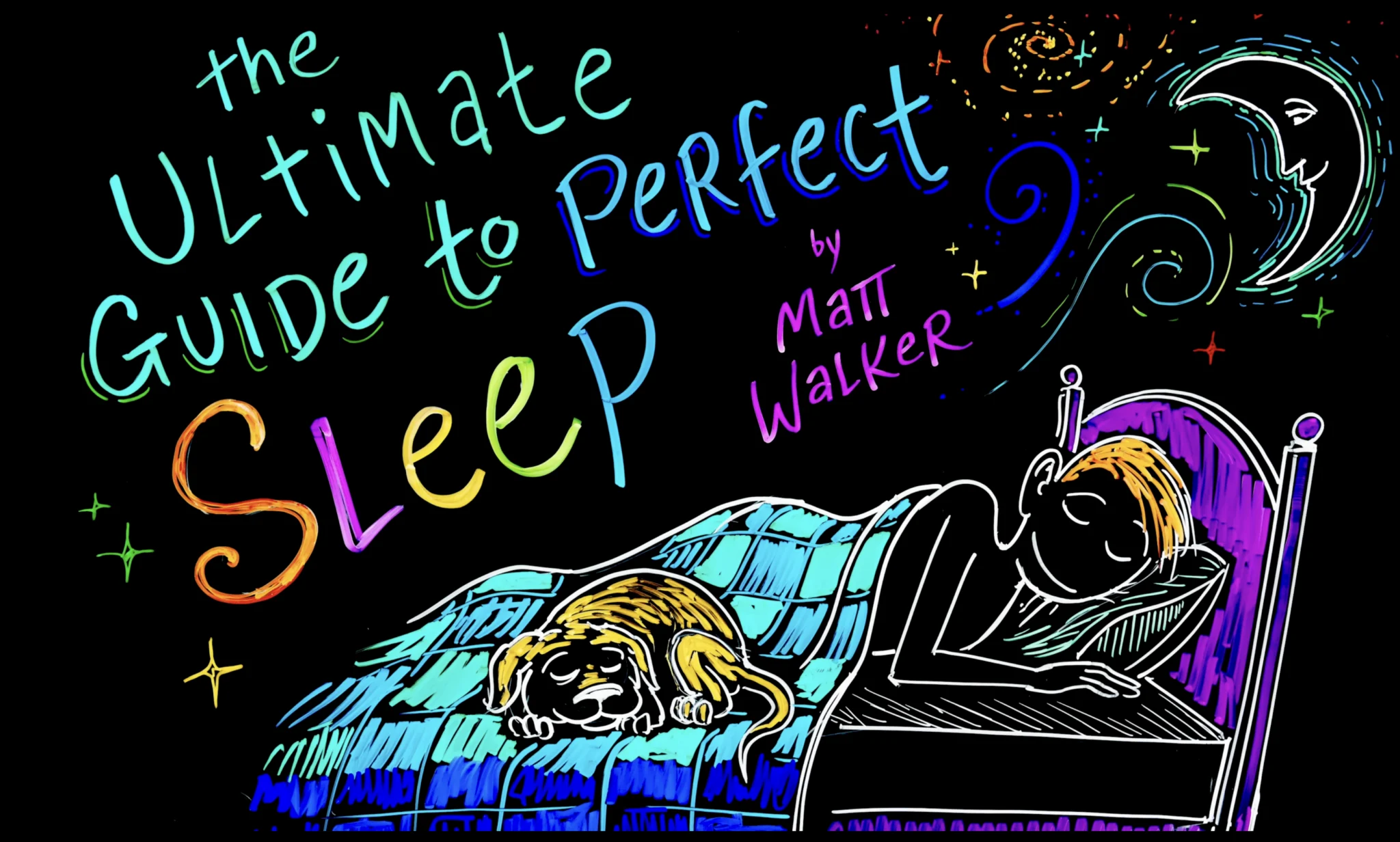
Watch the image-inspired Sleep example →
Example 3: A style created from a video
This example uses InspiredBy.mp4 as the reference. Its ancient Greek pottery figures, flat black-and-gold forms, decorative borders, and parchment-like palette become the visual foundation for a new Iliad animation.
Watch the video-inspired Iliad example →
Three Custom Style examples in Golpo Sketch
Custom Style is no longer Canvas-only. Golpo Sketch now takes the same three kinds of reference—an image, a video, or a written description—from the same Style dropdown. Instead of picking a built-in Sketch style such as Classic or Infographics, you hand Sketch the look you want and it draws in that direction.
The three videos below were all produced this way, one for each kind of reference.
Example 4: A Sketch style created from a video
The reference clip is a glossy 3D fairytale sequence: saturated pinks and violets, luminous gowns, polished cinematic interiors, and stylized characters with oversized expressions. Lila's Story keeps that palette and character language while staying a Golpo Sketch render.
Watch the video-inspired Lila's Story example →
Example 5: A Sketch style created from a description
This one needed no reference file at all—just two sentences of art direction that split the treatment between characters and everything else:
Use stickman figures for characters. For all other objects, use realistic images with solid colors filled in.
The result is a deliberately mixed visual grammar: minimal stick-figure people alongside detailed, solidly colored props such as an anatomical heart and a bold doorway. It is a good illustration of how specific a description can get—Custom Style will follow a rule that applies to one class of subject and not another.
Watch the description-inspired Love Triangle example →
Example 6: A Sketch style created from an image
The reference is a sheet of Ganesha line art: flowing single-weight black strokes on white, calligraphic curves, and no shading or color. Ganesha and Sage Vyasa reproduces that continuous-line ink language across every scene.
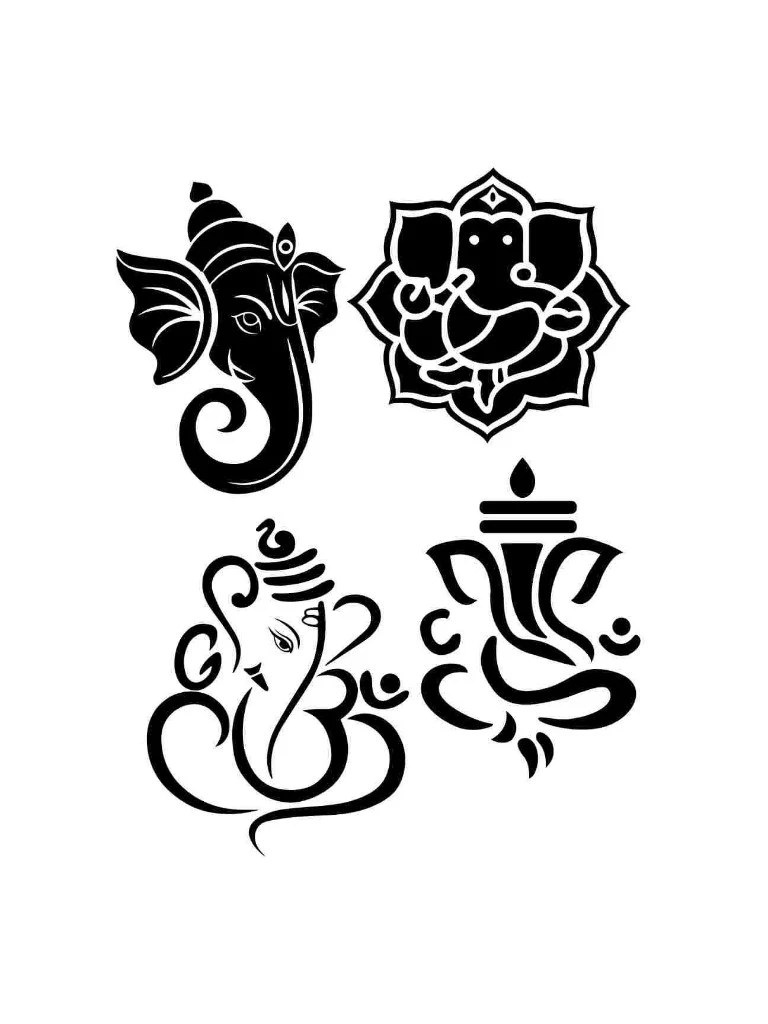
Watch the image-inspired Ganesha example →
What is Custom Style?
Custom Style is a reusable style definition for your Golpo videos, available in both Golpo Canvas and Golpo Sketch. Instead of choosing only from built-in looks—Chalkboard, Editorial, Technical, or Illustration on Canvas, or Classic, Infographics, and the rest on Sketch—you can create a new style from one of three inputs:
Plan availability: Custom Style is available starting with the Business plan and is included on higher subscription tiers. See the full Golpo pricing breakdown for a plan-by-plan comparison.
- An image whose colors, drawing language, texture, typography, or composition you want the animation to evoke
- A video whose overall art direction and visual treatment you want to use as inspiration
- A description that tells Golpo the medium, palette, lighting, mood, setting, and other visual qualities you want
Once saved, the style appears under My Styles. You can select it for the current video or return to it later, which is useful when a series of videos should feel visually related.
The same reference will not produce identical results in both engines. Canvas interprets a reference as a full illustrated scene; Sketch interprets it through its hand-drawn line-art pipeline. The Ganesha example above is the clearest case—a pure line-art reference suits Sketch naturally, while a richly shaded painting usually has more to give Canvas.
How to create a Custom Style, step by step
Step 1: Select your video engine
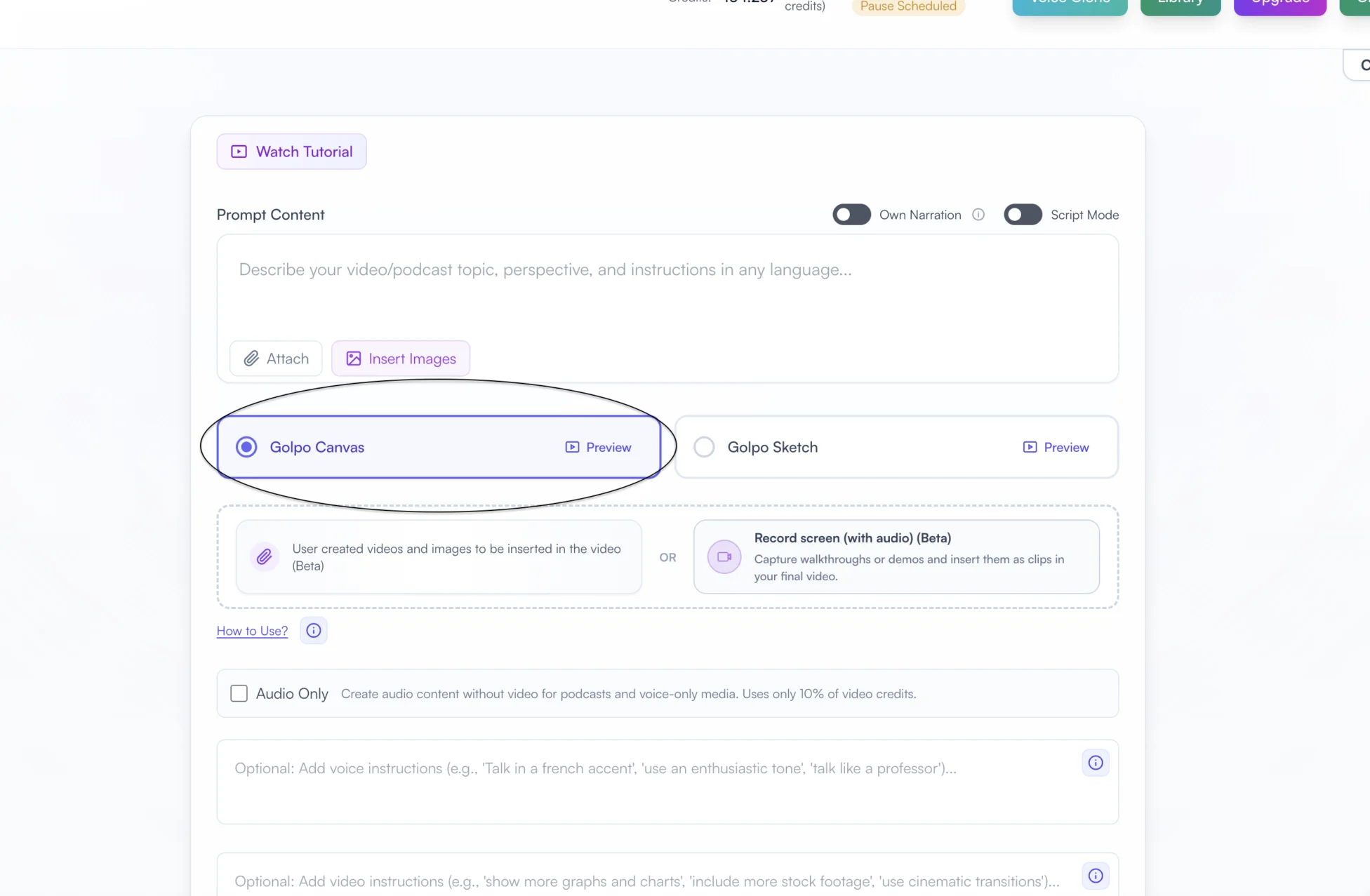
Start a new video as usual: enter your prompt or script and add any source material you need. Then select Golpo Canvas or Golpo Sketch as the video engine. Custom Style is available in both. The screenshots below show the Canvas flow; the steps are the same in Sketch.
Step 2: Open the Style menu
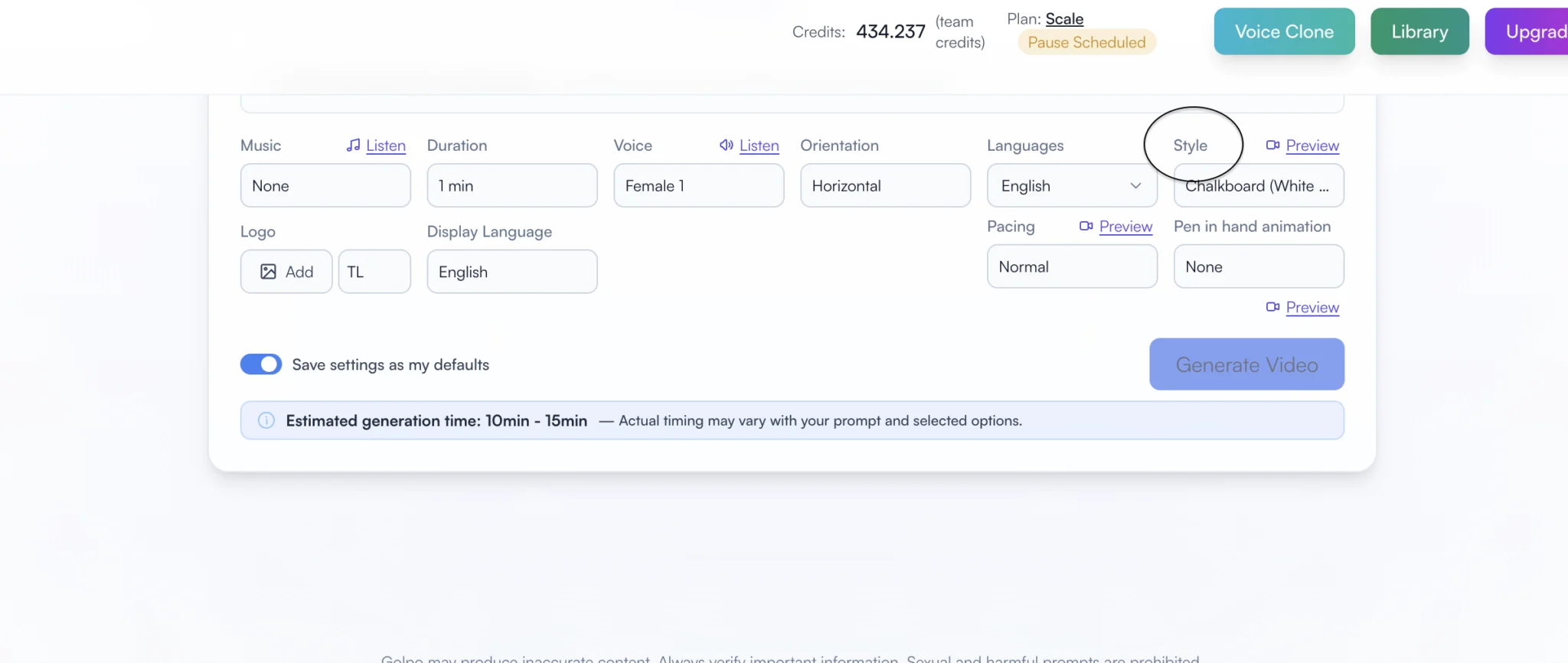
Scroll to the video configuration controls. Locate Style beside the other settings, then open the dropdown. This is the same dropdown you would use to pick a built-in style in either engine.
Step 3: Choose + Custom Style
The menu shows Golpo's preset styles for the engine you selected first. Select + Custom Style. Any styles you have already created appear beneath it in the My Styles section.
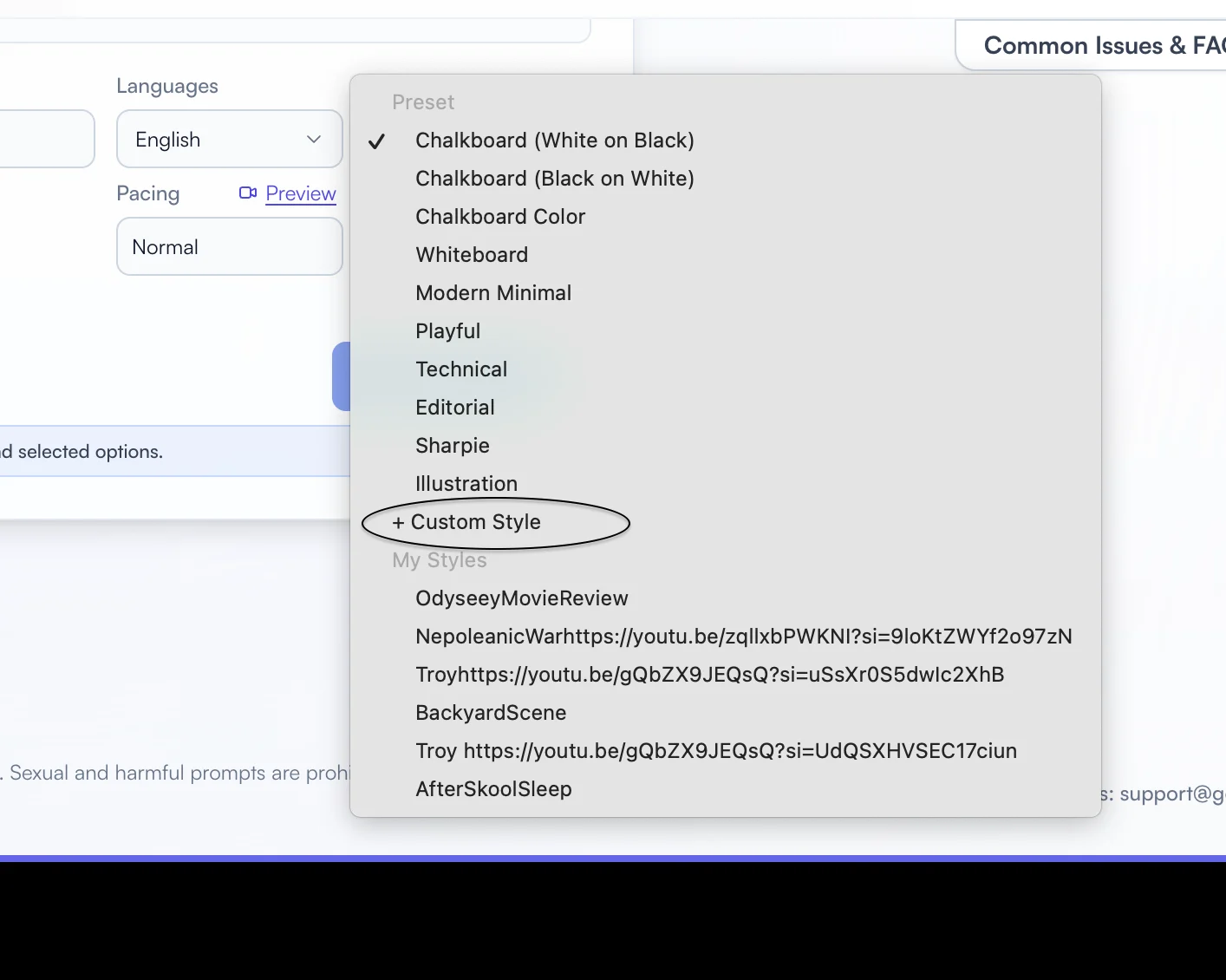
Step 4: Name the style and add its inspiration
The Add Custom Style modal opens. Give the style a clear name—up to 60 characters—so you can recognize it later. Then choose how to create it:
- Image or Video: click the upload area or drag in a reference file. The modal accepts an image or video up to 10 MB.
- Description: switch to the Description tab and write the art direction you want Golpo Canvas to follow.
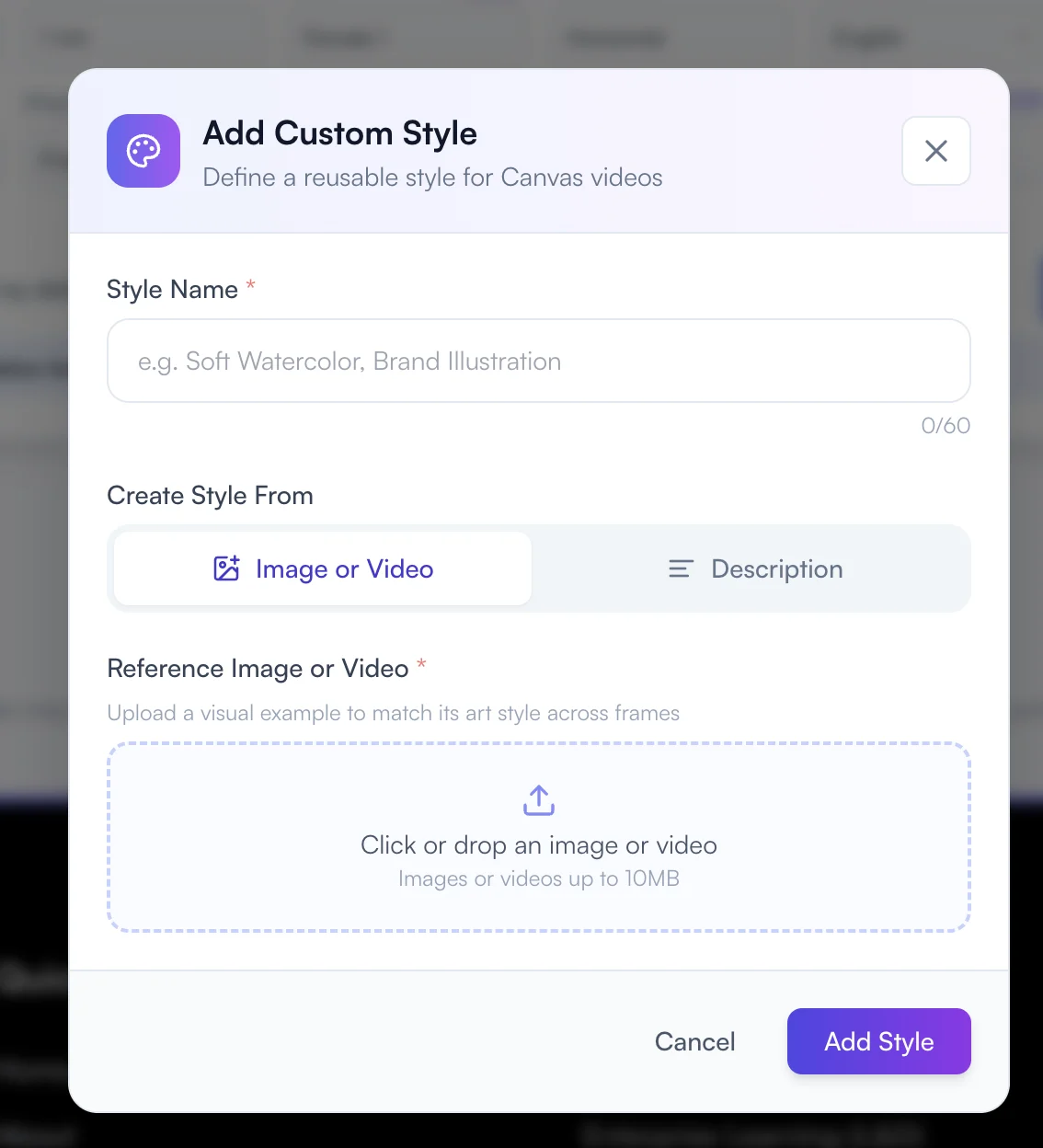
A useful naming pattern: describe the visual system, not the current topic. Names such as “Neon Chalk on Black,” “Greek Pottery Parchment,” or “Soft Editorial Watercolor” will still make sense when you reuse the style months later.
Step 5: Add and select the saved style
Select Add Style. The new style is saved to My Styles and becomes available in the Style dropdown. Select it for the current video, finish the other video settings, and generate.
You do not have to rebuild the style the next time you need it. Return to the Style menu and choose it from My Styles.
Step 6: Review what influenced a finished video
After the video is created, open it in Library and view its configuration. Golpo keeps the provenance visible: you can see the image, video, or written description that influenced the animation. That makes it easier to audit a result, understand why it looks the way it does, and recreate a consistent series later.
Should you use an image, video, or description?
Use an image when one visual says it all
An image is the fastest choice when you have a strong, representative example: a brand illustration, a poster, a classroom drawing, a texture study, or a frame whose palette and line work already capture the look you want.
Choose an image that contains the qualities you want repeated across scenes. A clean reference with an intentional palette and recognizable drawing language is usually more useful than a busy collage of unrelated ideas.
Use a video when motion has a visual language
A video reference is useful when the overall treatment develops over time—perhaps the palette, borders, transitions, recurring motifs, or composition style are clearer across several frames than in one still image. The Lila's Story example above came from a reference whose palette and character styling were consistent across the whole clip.
The reference does not need to cover the same topic as the new video. It needs to communicate the visual world you want the new Canvas animation to inhabit.
Use a description when you can articulate the art direction
A description gives you precise control without finding a reference asset. It is also the only option that lets you set different rules for different subjects, the way the Love Triangle example asks for stick figures for people and solid-color realism for everything else. The strongest descriptions usually combine several concrete visual dimensions:
- Medium: ink illustration, cut paper, watercolor, cel animation, chalk, collage
- Surface or texture: weathered parchment, grainy film, clean vector shapes, rough paper
- Palette: muted earth tones, neon cyan and magenta, gold and deep blue
- Lighting: dramatic side light, soft daylight, high-contrast stage lighting
- Composition: cinematic landscapes, centered diagrams, magazine-like layouts
- Mood: epic, playful, calm, mysterious, technical, archival
A practical template is:
Use a [medium] style inspired by [visual references or era]. Combine [character or object treatment], [background or transition treatment], and [palette or lighting] to create a [mood] feeling.
Tips for better Custom Styles
- Use one coherent visual reference. A focused image, clip, or description gives the style a clearer direction than several conflicting aesthetics.
- Name for reuse. “Black-and-Gold Greek Pottery” is easier to find later than “History Video Style.”
- Describe visible qualities. Words such as “beautiful” or “professional” are subjective. Medium, palette, texture, lighting, and composition give Golpo something concrete to work with.
- Match the reference to the job. A single image is ideal for a stable graphic language; a video is useful when the treatment unfolds across frames; a description is best when you already know the art direction you want.
- Check Library before a sequel. Review the saved inspiration and configuration from an earlier video before generating the next installment in a series.
- Match the reference to the engine. Line art, ink drawings, and flat graphic references translate well into Golpo Sketch. Painted, textured, or fully rendered references usually have more for Golpo Canvas to work with.
- Use references you are allowed to use. Upload your own material or content you have permission to use as visual inspiration.
Build a visual library, not just one video
The most powerful part of Custom Style is persistence. A style is not trapped inside one generation. Save a strong visual direction once, give it a memorable name, and it becomes part of your Canvas toolkit.
That opens up repeatable looks for course modules, episodic stories, customer-education series, campaigns, internal training, and branded explainers—while keeping the original inspiration visible in Library for future reference.
Open Golpo and create a Custom Style →
Related guides
- Video Instructions in Golpo — control composition, pacing, text placement, and other scene-level rules.
- Every Golpo Video Style: Sketch, Canvas and Pen-in-Hand
- Every Visual Style Available on Golpo Canvas
- How to Insert Your Own Images into Golpo AI Videos
Tags


