How to Connect Golpo to Claude with MCP: A Step-by-Step Guide
Connect Golpo to Claude with a screenshot-led MCP tutorial, the correct sign-in settings, a narrated video walkthrough, and prompts for your first explainer video.

Connect Golpo to Claude, then create explainer videos by describing what you want in a conversation. This guide shows the full setup: open MCP from Golpo’s homepage, add the Claude connector, sign in, and try your first video prompt. The narrated walkthrough and five screenshots below follow the actual Claude connection flow shown on Golpo’s MCP page.
Watch the step-by-step video
This walkthrough was created with the Golpo API using the Claude setup screens shown below. Open the video in a separate tab if you prefer to follow along beside Claude.
The connection flow at a glance
- 01Open MCPGolpo homepage
- 02Add GolpoClaude Connectors
- 03Sign inOAuth + Google
- 04Create a videoA new conversation
Keep this server URL handy:
https://mcp.golpoai.com/mcp
MCP stands for Model Context Protocol. It lets Claude use Golpo’s connected tools, so you can request a video, check its progress, and retrieve a share link from your conversation.
Before starting, sign in to Claude and have your Golpo account ready. You will use Google sign-in to connect your Golpo account. If you use Claude through a managed Team or Enterprise workspace, your organization may need to add or enable the connector first.
Step 1: Open Golpo and click MCP in the top menu
Go to the Golpo homepage. In the top navigation, click MCP, between API and Guides.
On the Golpo MCP page, select Claude. The heading changes to “Generate videos in Claude with Golpo MCP.”
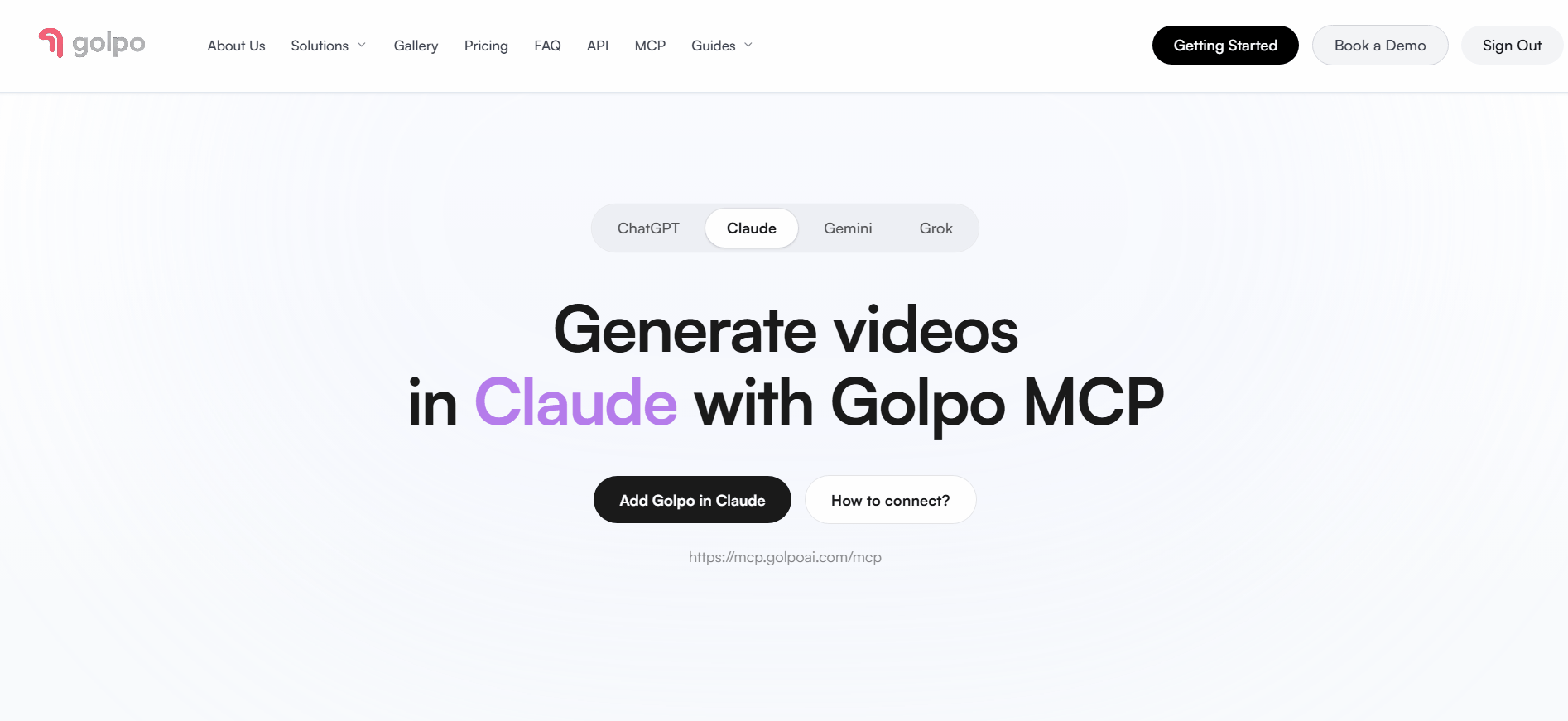
Step 2: Click How to connect?
Click How to connect? beside Add Golpo in Claude. This opens Golpo’s Claude-specific instructions and a recording of the setup.
Keep those instructions open as you continue. The connection uses this combination:
| Setting | Value |
|---|---|
| Connector name | Golpo or Golpo AI |
| Remote MCP server URL | https://mcp.golpoai.com/mcp |
| Authentication | Sign in now |
| OAuth client | Use Claude’s published identity |
The connector name is a display label. The server URL and authentication settings are the important connection details.
Step 3: Open Claude’s custom connector form
Click Add Golpo in Claude on the MCP page, use the Claude connector link in the connection instructions, or open the prefilled Golpo connector form. Golpo’s link opens the custom connector form with the name and server URL filled in.
For the manual route, go to Claude’s Connectors page. Open Customize → Connectors, click + Add, then choose Add custom connector.
Check the form:
- Set the name to Golpo or Golpo AI.
- Enter
https://mcp.golpoai.com/mcpas the remote MCP server URL. - If you arrived through the Golpo link, review the prefilled details.
- Click Continue.
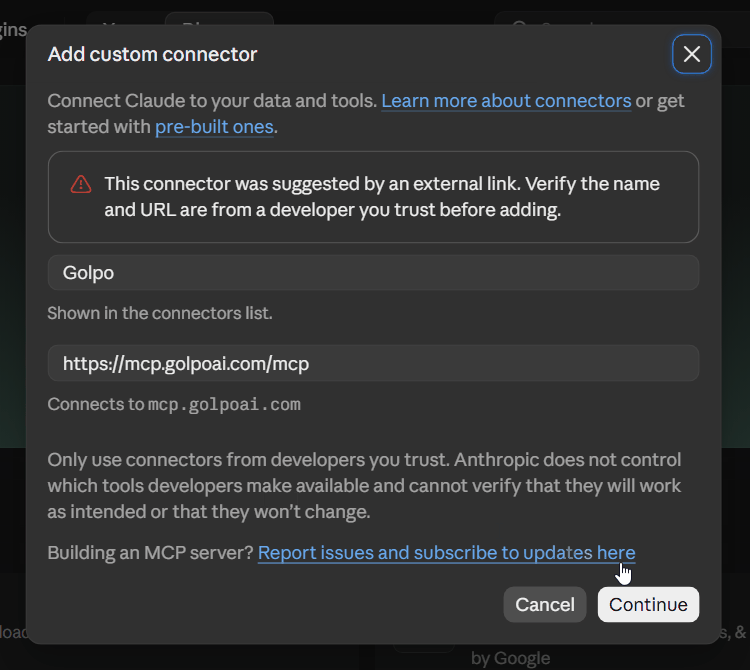
Copy the complete server URL, including the final /mcp. The setup page at https://video.golpoai.com/mcp and the connector server at https://mcp.golpoai.com/mcp are different addresses.
Step 4: Keep the detected authentication settings
In the next part of the form, confirm these two settings:
- Under Authentication, select Sign in now.
- Under OAuth client, select Use Claude’s published identity.
These are the settings shown in Golpo’s Claude connection instructions. The screenshot shows them selected in Claude’s connector form.
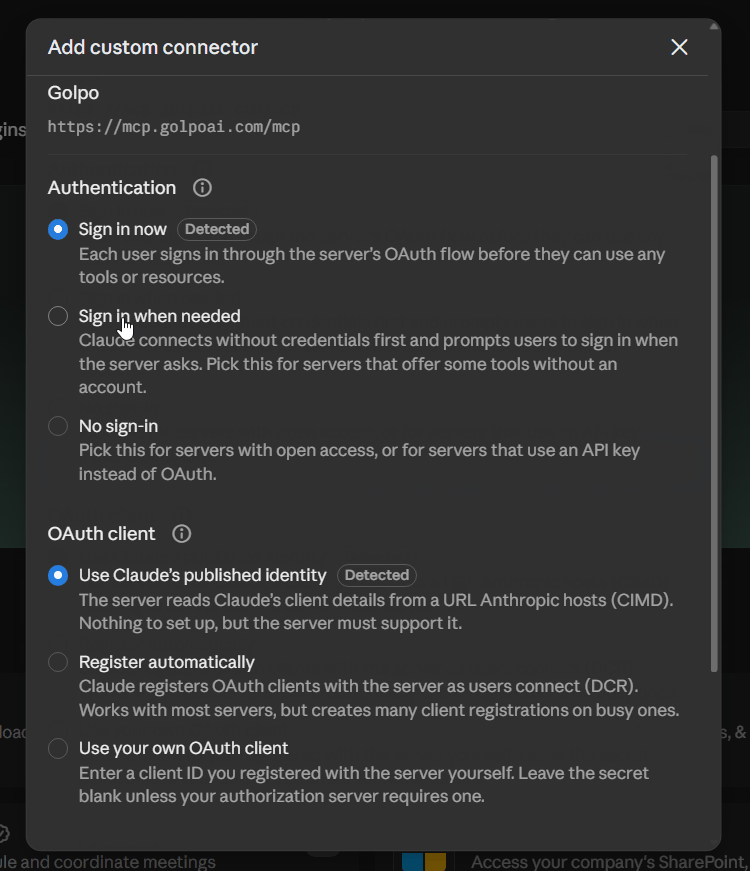
For this setup, you can keep the detected OAuth configuration. You do not need to enter your own OAuth client ID, client secret, or Golpo API key in this form. If Claude shows an additional review screen, check the connection details and continue.
Step 5: Add the connector and sign in to Golpo
Scroll to the bottom of the connector form and click Add.
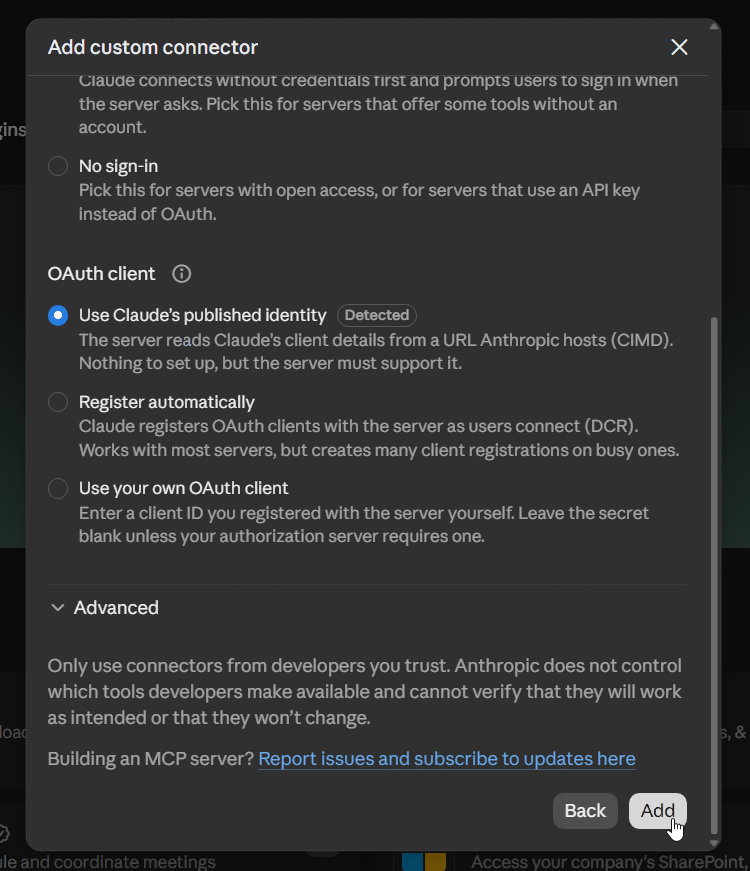
Complete the sign-in flow that opens:
- If Claude presents a Connect button for Golpo, click it.
- Sign in with the Google account you use for Golpo.
- Review the authorization screen and allow the connection.
- Return to Claude when sign-in finishes.
The configured connector page shows Golpo’s tools. In the screenshot below, Disconnect is available at the top, indicating that the recorded account is connected.
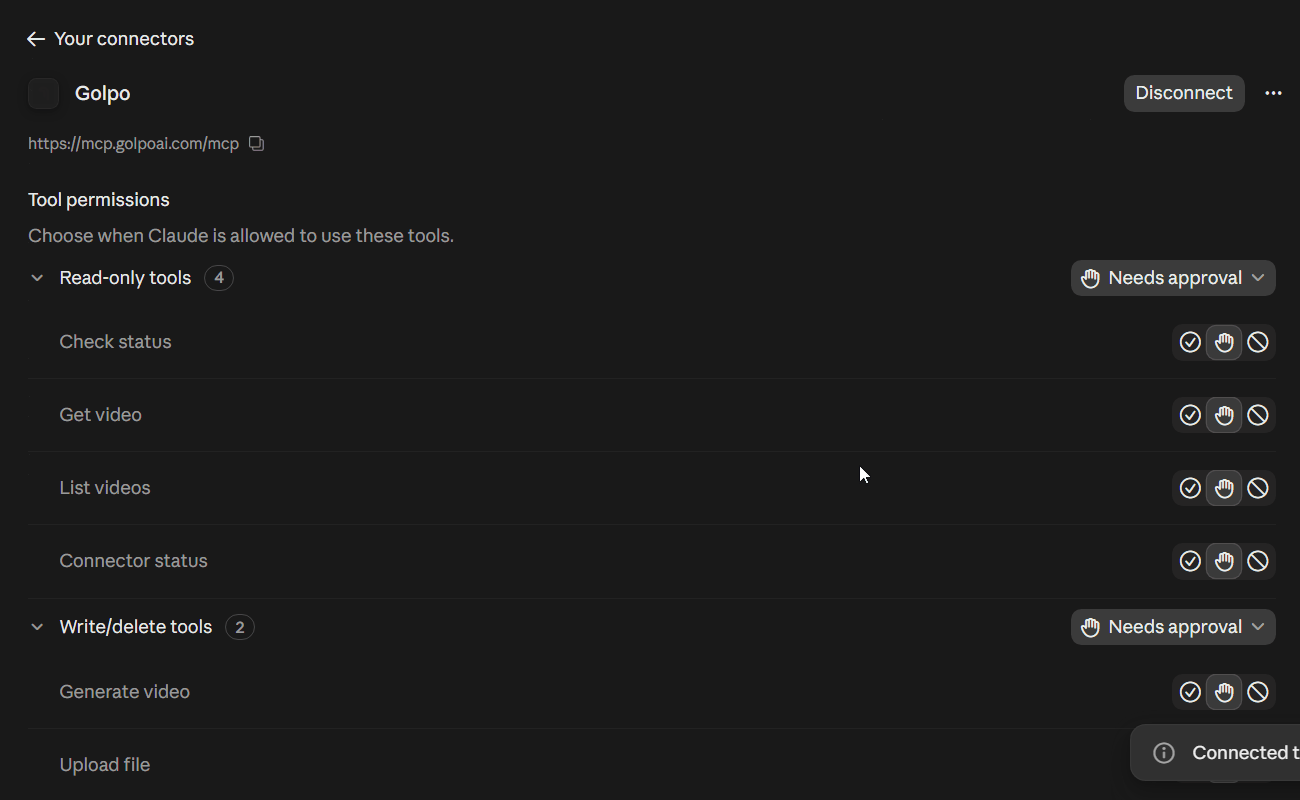
The setup screenshots are frames from the walkthrough on Golpo’s MCP page. The form screenshots are cropped to the relevant controls for readability. Claude’s custom connector documentation also covers adding and enabling connectors.
Step 6: Start a new Claude chat and check the connection
Open a new Claude conversation. If Golpo is not enabled for that conversation, click the + button beside the message box, open Connectors, and enable Golpo.
Start with a connection check:
Use Golpo to check whether I am signed in. Tell me whether the connector is connected.
You can also try a read-only request:
Use Golpo to show my five most recent videos, including their titles and share links.
If Claude asks you to sign in or connect Golpo, complete that step and try again. If it presents a tool approval request, review the action before allowing it.
Step 7: Create your first Golpo video from Claude
Once the connection is working, describe a video you want to make. For example:
Use Golpo to create a 10-minute explainer video about how rainbows form.
Use a friendly whiteboard style, English narration, and a female voice.
Explain it for a curious 10-year-old, with simple visual examples.
This gives Claude the topic, length, style, language, voice, and audience. Choose a duration supported by your Golpo account; you can replace 10-minute with a shorter length for a first test.
Review any generation confirmation Claude presents. After the video starts processing, ask:
Check the status of the Golpo video we just created.
If it is finished, give me its share link.
Wait for Golpo to report completion, then open the returned link to review the finished video. If it is still generating, check the existing video again when you are ready.
What can you do after connecting Golpo?
Golpo’s MCP connection provides six tools. Ask for them in everyday language:
| What you want | Example request |
|---|---|
| Create a video | “Use Golpo to make a one-minute introduction to our new product.” |
| Add a file | “Upload my logo from this public HTTPS link to Golpo for use in a video.” |
| Find recent videos | “Show my five most recent Golpo videos with their share links.” |
| Retrieve a video | “Get this Golpo video by its ID and include its script if available.” |
| Check a generation | “Is the Golpo video we just started finished?” |
| Check the connection | “Check whether the Golpo connector is signed in.” |
See the current tools on Golpo’s MCP page. For your first project, describe one video clearly, review the result, and use the next message to decide what to create next.
Troubleshooting the connection
I cannot find MCP on Golpo’s homepage
Open the Golpo MCP page directly, select Claude, and click How to connect?.
I cannot find Add custom connector in Claude
Open Customize → Connectors and check the + Add menu. For a managed Team or Enterprise account, your organization’s owner or an administrator with the relevant permissions may need to add the connector. You can then connect your own Golpo account to it.
Claude opens a form with Golpo already filled in
That is the shortcut from Golpo’s Add Golpo in Claude button. Confirm the name and https://mcp.golpoai.com/mcp URL, then continue to the authentication settings.
The connection fails after I enter the URL
Check the URL character by character, including the final /mcp. Confirm Sign in now and Use Claude’s published identity, then complete the sign-in flow. If it still fails, keep the error message so support can investigate the specific problem.
Golpo is connected but Claude does not use it
Start a new conversation and check that Golpo is enabled in the chat’s + → Connectors menu. Ask explicitly to use Golpo, then run the connection-check prompt from Step 6.
My video is still generating
Ask Claude to check the existing video’s status. Once it is complete, request the share link and review the result.
Frequently asked questions
What is the Golpo MCP server URL for Claude?
Use https://mcp.golpoai.com/mcp. Enter the complete address in Claude’s remote MCP server URL field.
Which authentication settings should I use?
Use Sign in now under Authentication and Use Claude’s published identity under OAuth client, as shown in Golpo’s Claude connection instructions.
Do I need a Golpo API key to connect Claude?
The illustrated MCP connector flow uses account sign-in through OAuth. You do not need to paste a Golpo API key into this connector form.
Does the connector have to be named Golpo AI?
Golpo’s instructions use Golpo AI, while its shortcut and recorded form use Golpo. Either is a clear display name. Keep the server URL and authentication settings correct.
Can I create a video and get its link in Claude?
Yes. Golpo’s MCP tools support generation, status checks, and video share links. Request a video, then check its status and ask for the link when it is complete.
Is there a guide for ChatGPT too?
Yes. Follow the Golpo + ChatGPT connection guide for ChatGPT’s custom MCP plugin flow.
Walkthrough script and video settings
View the exact narration and video settings
Script
Here is how to connect Golpo to Claude, so you can create an explainer video just by chatting.
Start at the Golpo homepage and click MCP in the top menu. Select Claude, then click How to connect to see the setup instructions.
Click Add Golpo in Claude. This opens Claude's custom connector form. For the manual route, open Customize, choose Connectors, then select Add custom connector.
Use Golpo as the connector name and paste the server address shown here. Make sure it ends with slash mcp. Check the details, then click Continue.
For Authentication, keep Sign in now selected. For OAuth client, keep Use Claude's published identity selected. These are the settings in Golpo's Claude connection instructions. You do not need to supply your own client ID for this flow.
Scroll down and click Add to create the connector. If Claude shows a Connect button, click it. Complete the Google sign-in for your Golpo account and allow the connection.
When the connector is connected, you can see Golpo's available tools. Start a new Claude conversation and enable Golpo from the plus menu if it is not already enabled.
First, ask Claude to check whether the Golpo connector is signed in. You can also ask it to show your recent videos and their share links.
Then try a request such as: Use Golpo to create a ten-minute explainer video about how rainbows form, in a friendly whiteboard style. Choose a duration available to your Golpo account.
Review any action confirmation before generation begins. After it starts, ask Claude to check the video's status. When the video is complete, request its share link and open it to review the result.
That is the full flow: open MCP on Golpo, add the Claude connector, sign in, then create videos in a new chat.
Video settings
Created with the Golpo API using English narration, voice solo-female-3, Golpo Canvas Sharpie, Normal pacing, and five real screenshots inserted as static images. The requested duration was Auto; the finished length is 2 min 15 sec.
{
  "timing": "auto",
  "video_type": "long",
  "language": "en",
  "style": "solo-female-3",
  "use_2_0_style": true,
  "image_style": "marker",
  "pacing": "normal",
  "script_only_text": true,
  "use_as_is": [
    true,
    true,
    true,
    true,
    true
  ],
  "skip_animation": [
    true,
    true,
    true,
    true,
    true
  ]
}
Keep going with Golpo
- Golpo’s complete tutorial: Explore the video-creation workflow in more detail.
- Prompt Mode vs. Script Mode: Choose between describing an idea and supplying exact narration.
- Video Instructions: Learn how to describe the visuals you want.
- The Golpo MCP server guide: Explore the broader MCP integration workflow.
Ready to connect? Open Golpo MCP, choose Claude, and click How to connect?.
Tags


