Introducing Golpo Avatar: Turn a Selfie into a Talking AI Presenter
Golpo now supports talking AI avatars. Create a custom presenter from a selfie or choose a stock Golpo Avatar, explore layouts, and watch ten examples. Stock Avatar videos use 3 credits/min; custom avatar videos use 5 credits/min.

Golpo now supports talking AI avatars. Upload a portrait or selfie to create your own presenter, or choose a ready-to-use stock avatar from Golpo. Then bring that presenter into a video alongside the visuals that explain your story.
Your avatar can sit beside a whiteboard explanation, appear in a round overlay, take the full screen, or share a vertical frame with your content. You choose the presentation—or let Auto choose among your approved layouts for each scene.
Combine your presenter with Golpo, the world's best AI explainer video maker, for a winning combination. Your presenter brings a face to the story, while Golpo's animated visuals help explain the idea. Together, they give you a personal way to teach, introduce a product, share a founder update, or walk an audience through something new.
Stock Golpo Avatar videos use 3 credits per minute. Custom avatar videos use 5 credits per minute.
Two ways to choose your presenter
Start with a stock Golpo Avatar
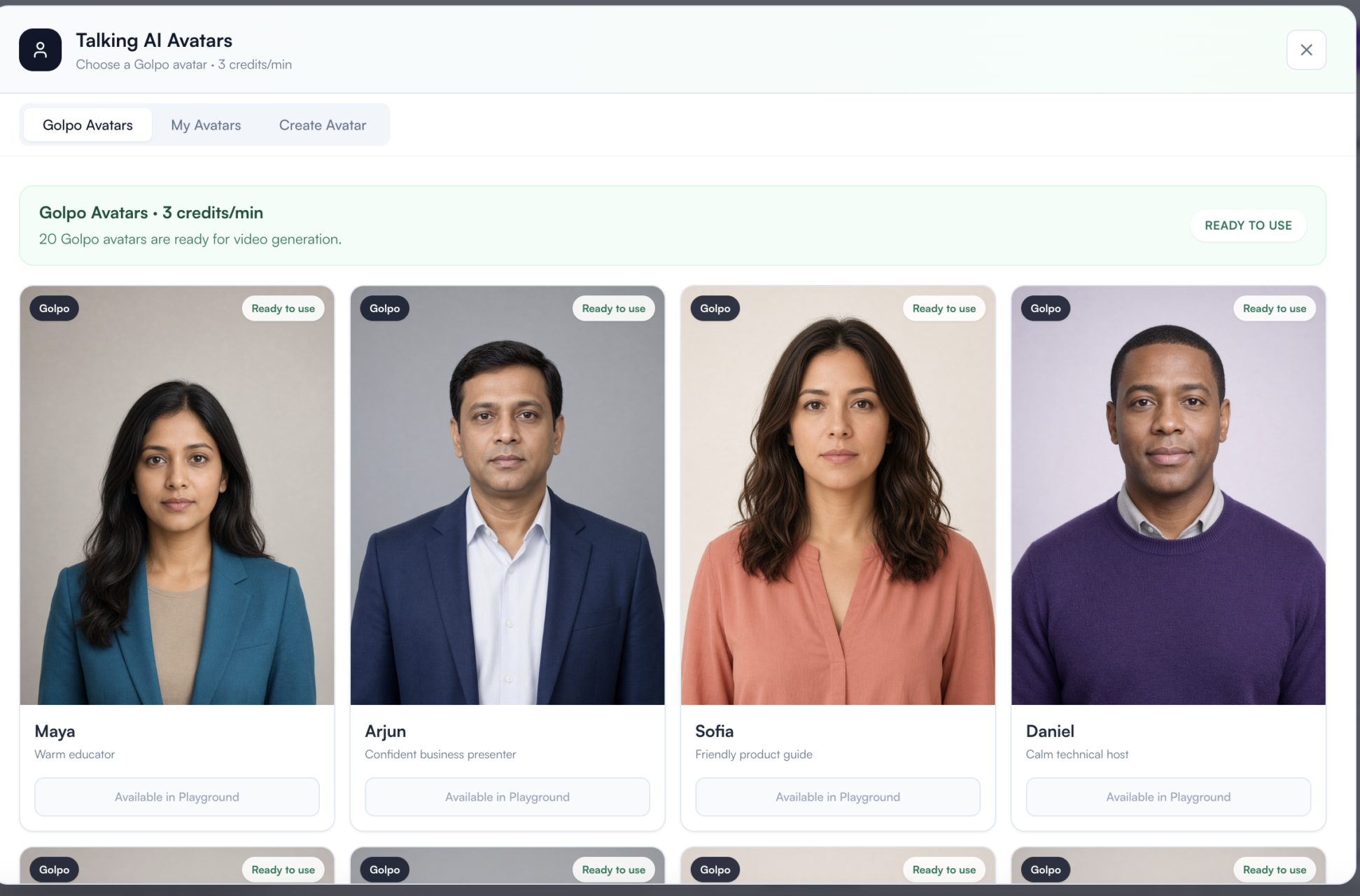
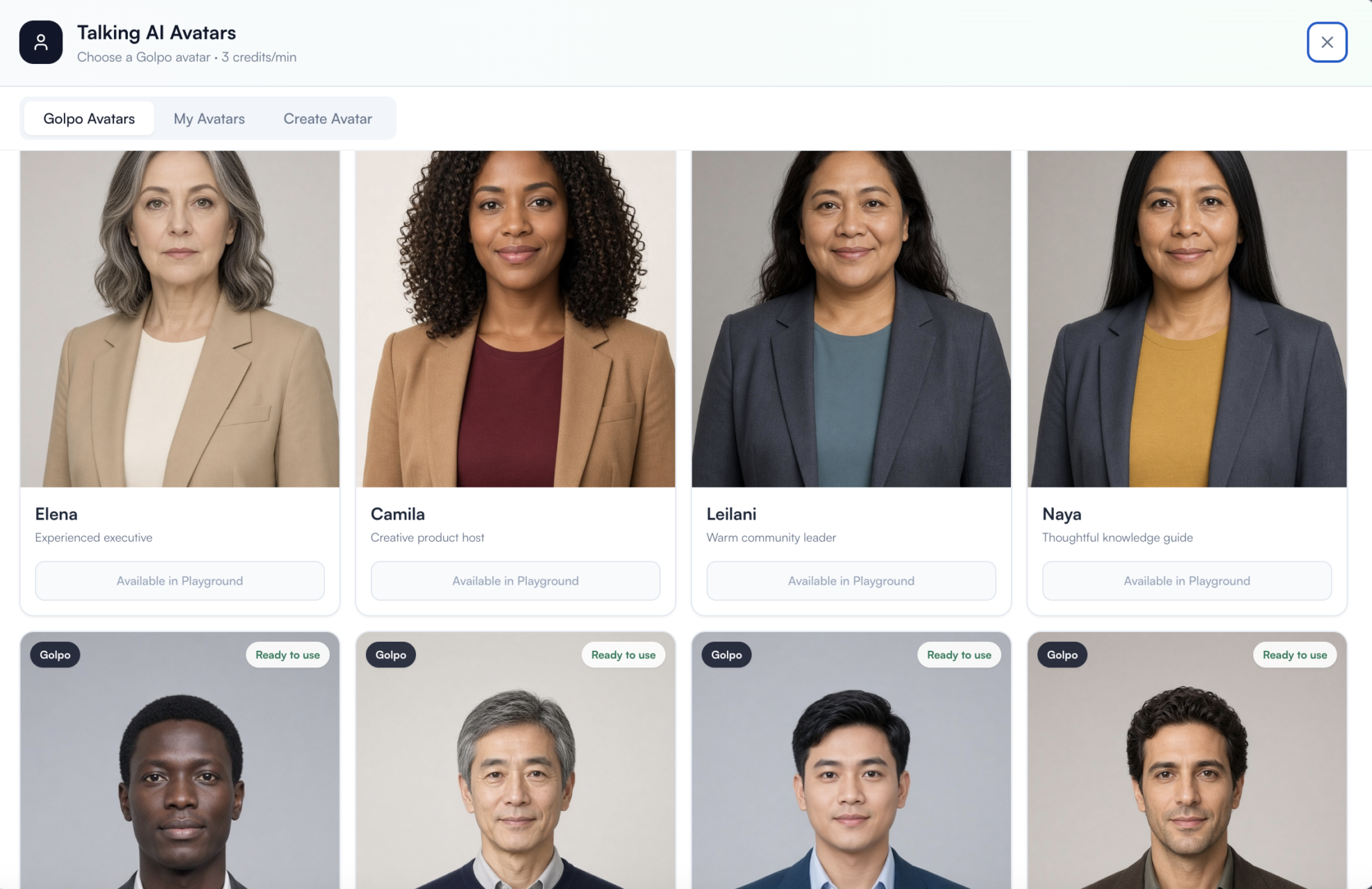
Open Talking AI Avatars and choose Golpo Avatars. The library shown here contains 20 presenters ready for video generation, with options such as Maya, Arjun, Sofia, and Daniel.
A stock avatar is a useful starting point for a lesson, product explanation, onboarding video, or business update when you want a presenter without uploading a portrait. Videos using these avatars cost 3 credits per minute.
Create a custom avatar from your image
Want to put yourself in the video? Choose Create Avatar and upload a portrait or selfie. Golpo lets you frame the image, review its presentation, name the avatar, and save it for reuse in My Avatars.
This is a useful way to give a founder update, teach a lesson, or introduce a product with your own on-screen identity. Videos using a custom avatar cost 5 credits per minute.
How to create an avatar from a selfie
1. Upload and frame a clear portrait
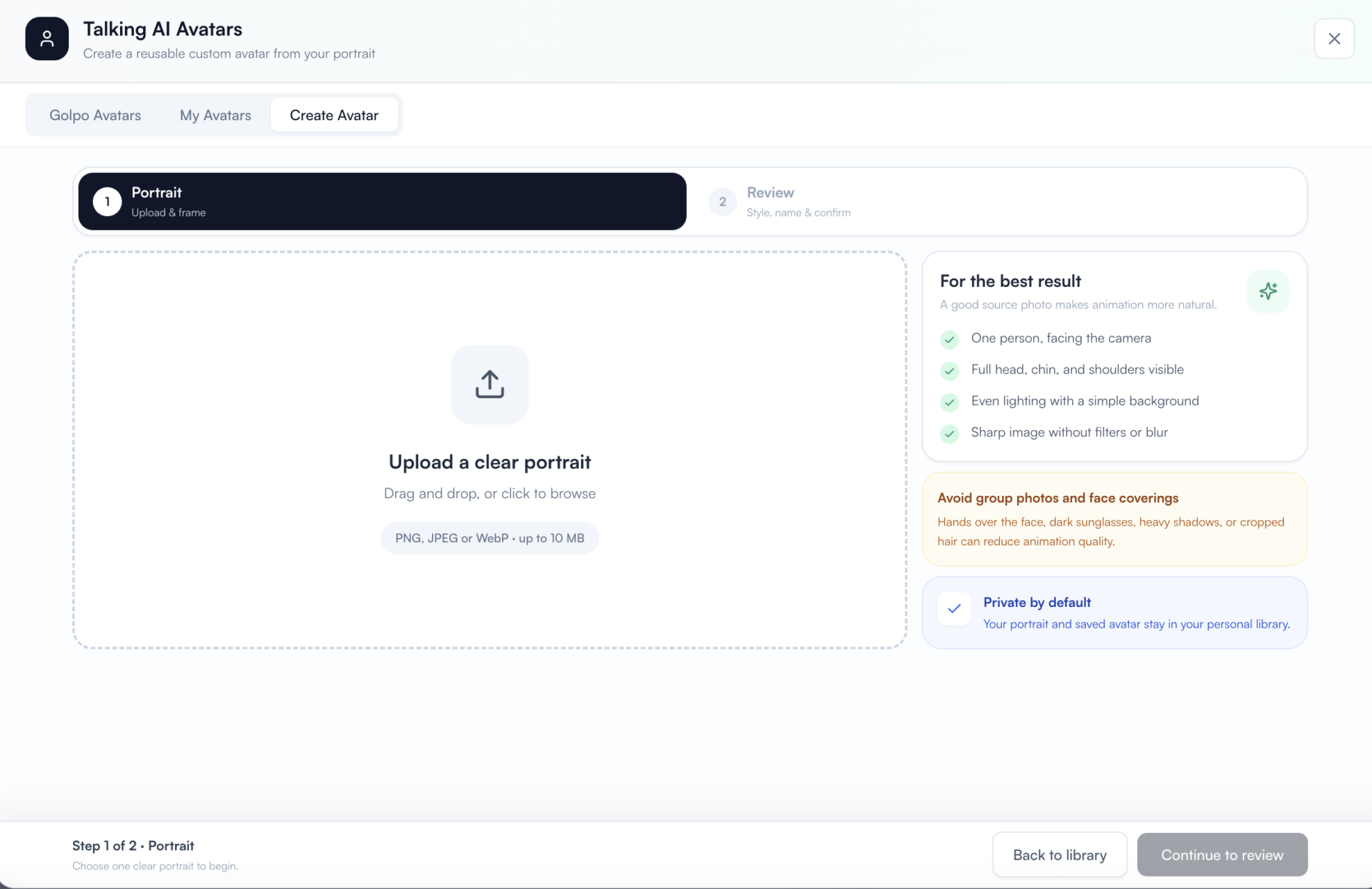
In Talking AI Avatars → Create Avatar, drag your image into the upload area or click to browse. The upload screen accepts PNG, JPEG, or WebP files up to 10 MB.
Use a photo with one person facing the camera, with the full head, chin, and shoulders visible. Even lighting, a simple background, and a sharp image help the animation. Avoid group photos, hands covering the face, dark sunglasses, heavy shadows, blur, and cropped hair.
Frame the portrait, then choose Continue to review.
2. Choose Natural or Polished
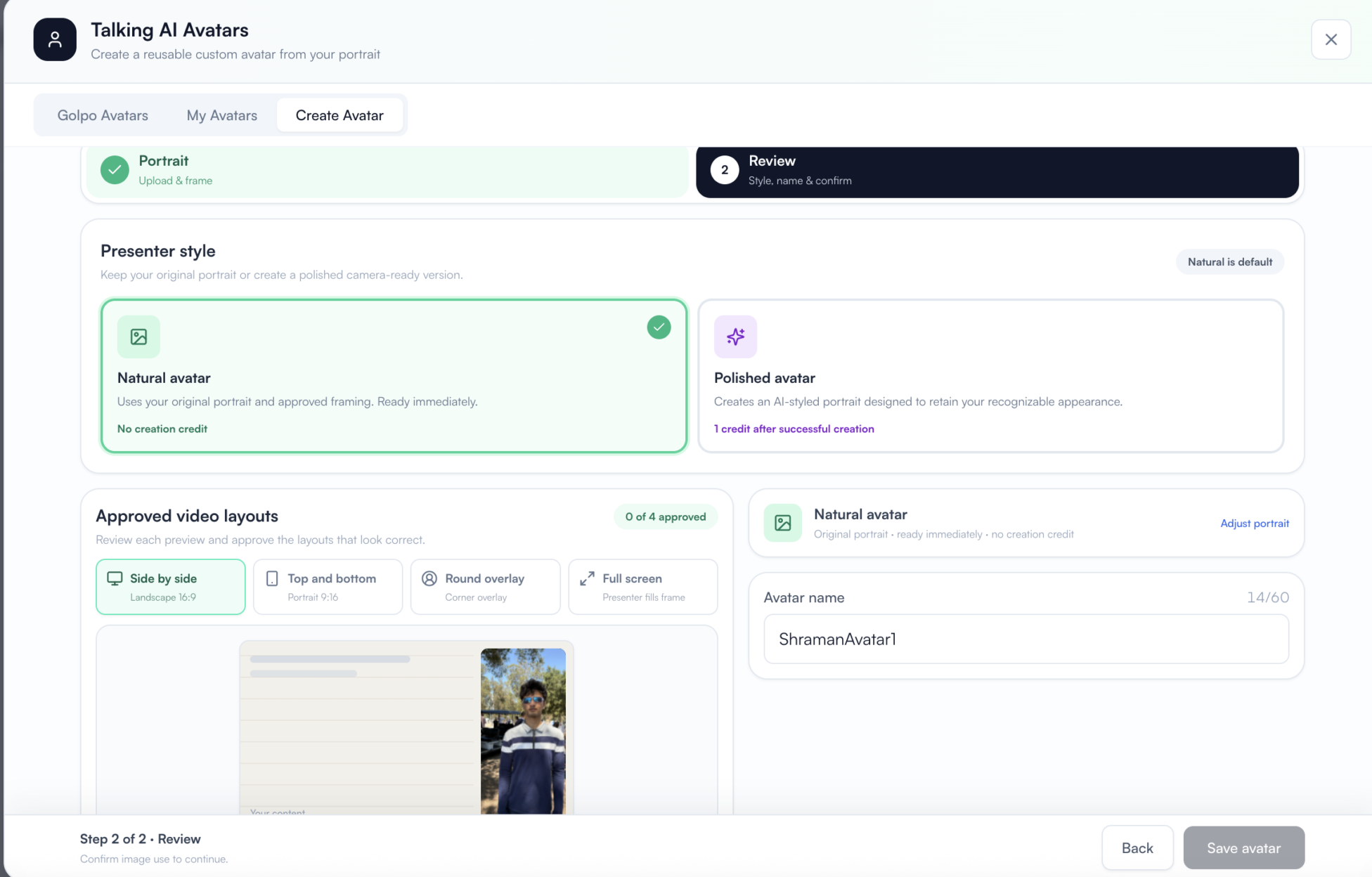
The review screen offers two presenter styles:
- Natural avatar: uses your original portrait and approved framing. It is ready immediately and has no avatar creation credit charge.
- Polished avatar: creates an AI-styled portrait designed to retain your recognizable appearance. It costs 1 credit after successful creation.
That optional creation charge is separate from the 5 credits per minute used to generate a video with a custom avatar.
3. Review layouts, name your avatar, and save
Preview the layouts you want to use: Side by side, Top and bottom, Round overlay, and Full screen. Approve the layouts that look correct, adjust the portrait if needed, enter an avatar name, and complete the image-use confirmation before saving.
The review screenshot below shows this stage with another portrait. The ten gallery videos later in this guide use Shraman's black T-shirt selfie shown in the gallery introduction.
4. Select the avatar for your video
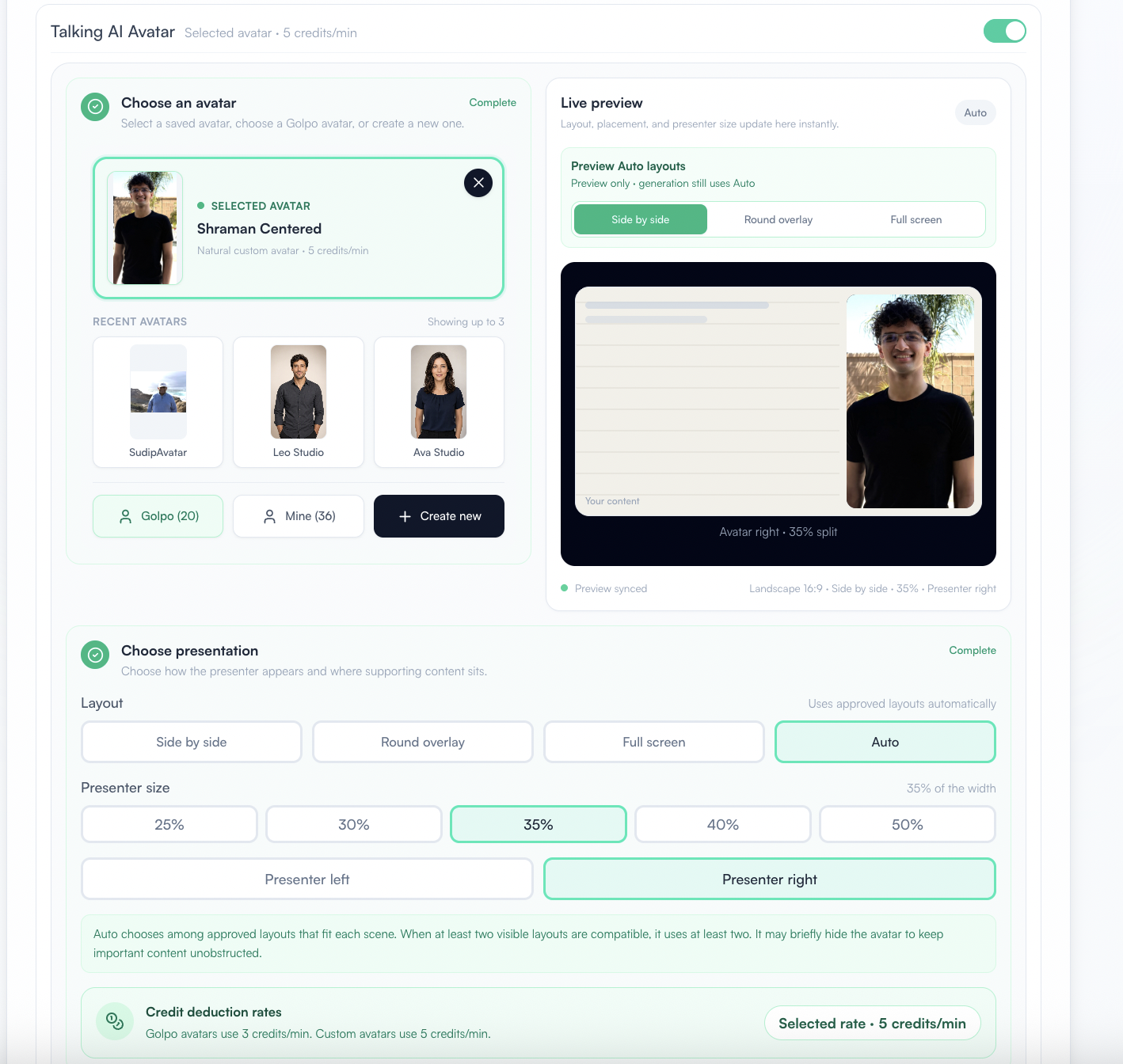
Enable Talking AI Avatar in your video settings. Choose a saved custom avatar from Mine / My Avatars, select a stock presenter from Golpo / Golpo Avatars, or use Create new.
Choose your presentation settings and check the live preview before continuing with video generation. The selected avatar card and credit-rate panel show the applicable rate.
Choose how your avatar shares the screen
The avatar adds a presenter to your explanation. The layout determines how much space that presenter and your supporting visuals receive.
| Layout | How it works | A useful starting point |
|---|---|---|
| Side by side | Presenter and content sit beside each other in a landscape 16:9 frame. | Lessons, explainers, and founder updates. |
| Top and bottom | Presenter and content share a portrait 9:16 frame vertically. | Shorts, Reels, and other vertical explanations. |
| Round overlay | The presenter appears in a round corner overlay. | Demos and explanations where the main content needs space. |
| Full screen | The presenter fills the frame. The gallery includes an example with visual insets. | A direct introduction or presenter-led message. |
| Auto | Golpo chooses among approved layouts to suit each scene. | A video that benefits from changes in presentation. |
Adjust presenter size and placement
For the landscape split shown in the settings screenshot, the presenter can use 25%, 30%, 35%, 40%, or 50% of the width, with placement on the left or right.
Use a 50/50 split when you want the presenter and content to have equal space. A smaller presenter leaves more room for diagrams, labels, and visual explanations. The gallery includes both 50/50 and 35% presenter examples, including vertical videos.
Let Auto adapt the presentation
Auto chooses among the approved layouts that fit each scene. When at least two visible layouts are compatible, it uses at least two. It may briefly hide the avatar to keep important content unobstructed.
The Preview Auto layouts tabs let you inspect appearances such as Side by side, Round overlay, and Full screen. Switching those preview tabs does not change the generation setting: it still uses Auto.
One selfie, ten Avatar video examples
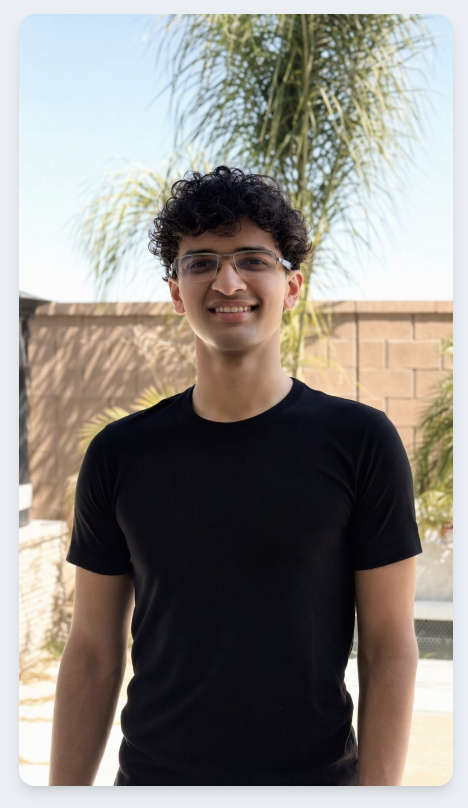
These ten videos were created using Shraman's selfie below. They show how one custom avatar can appear across landscape and vertical formats, different screen layouts, and Golpo visual styles.
Watch the complete ten-video Avatar playlist →
1. Side-by-Side AI Avatar: Presenter Left (Formal Sketch)
Put the presenter on the left and pair the explanation with Formal Sketch visuals.

2. Side-by-Side AI Avatar: Presenter Right (Playful Canvas)
Place the presenter on the right alongside a Playful Canvas explanation.

3. 50/50 AI Avatar Layout for Founder Videos
Give the presenter and supporting content equal space in a landscape frame.

4. AI Avatar Layout with More Visual Space (Dry Erase)
Use a smaller presenter area to leave more space for the Dry Erase explanation.
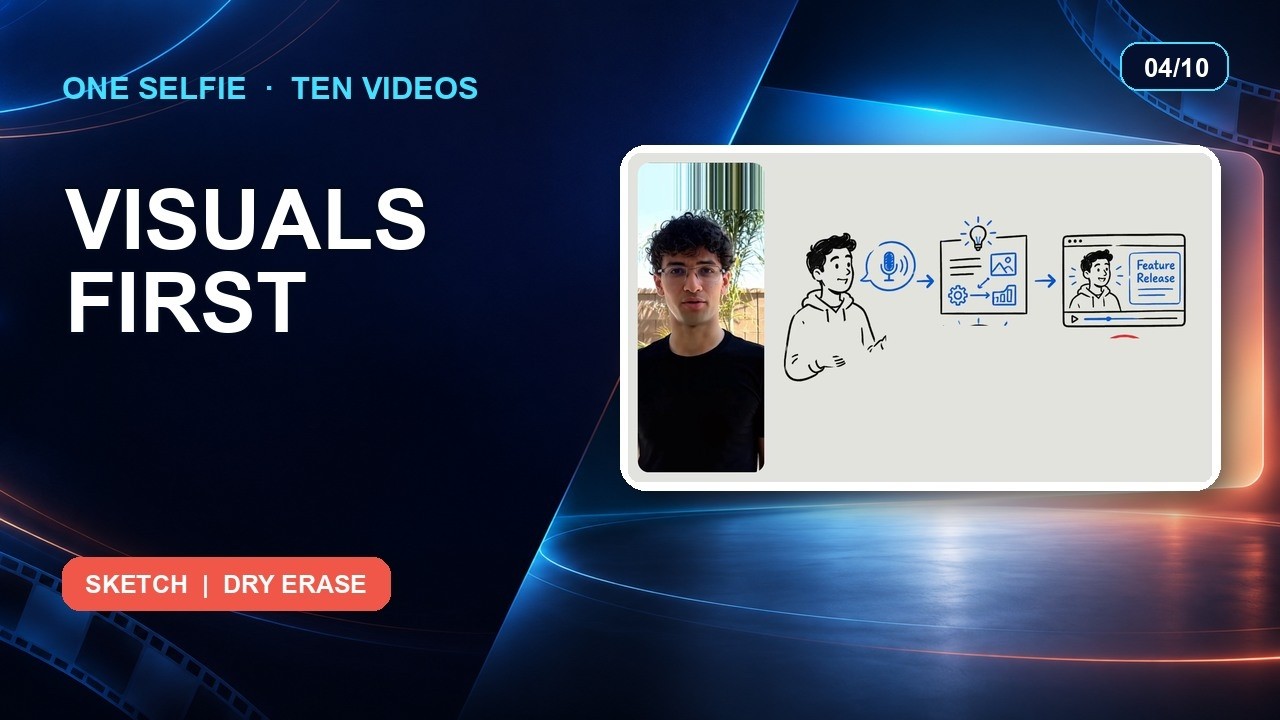
5. Golpo AI Auto Layout: Whiteboard + Avatar
See how Auto presents a custom avatar together with whiteboard visuals.

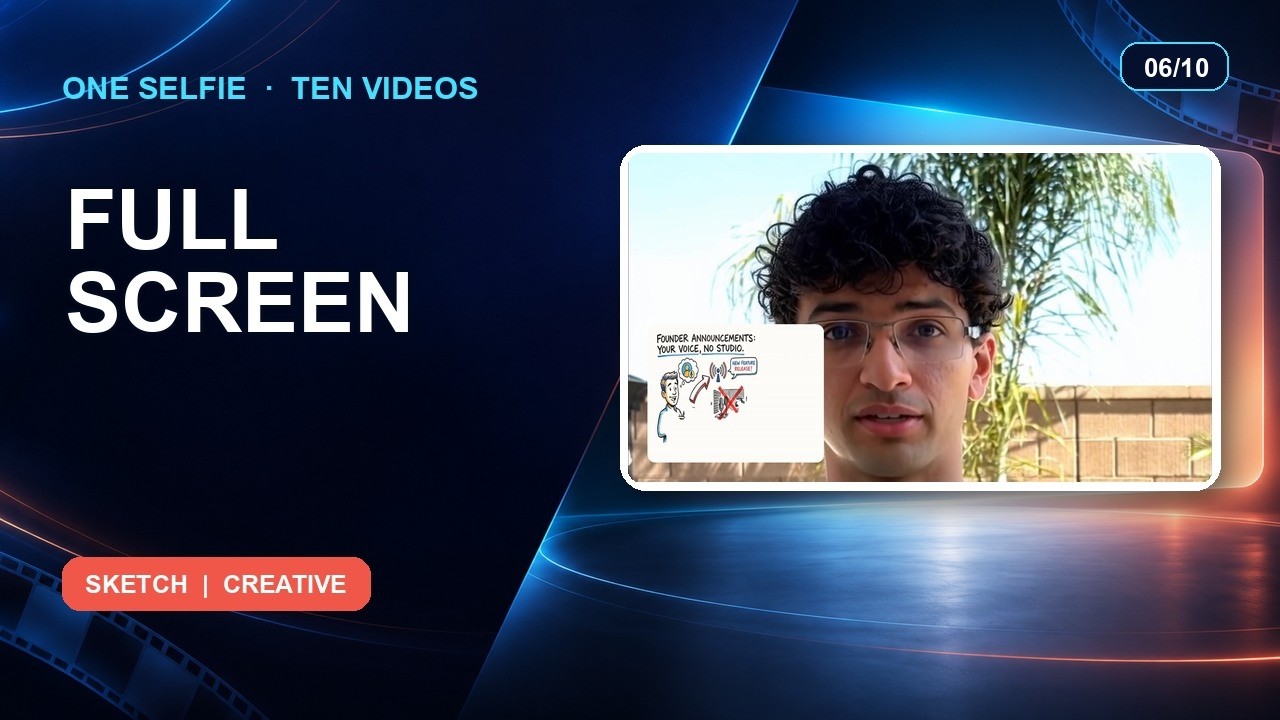
6. Full-Screen AI Avatar with Visual Insets
Make the presenter the focus of the frame, with supporting visuals in insets.
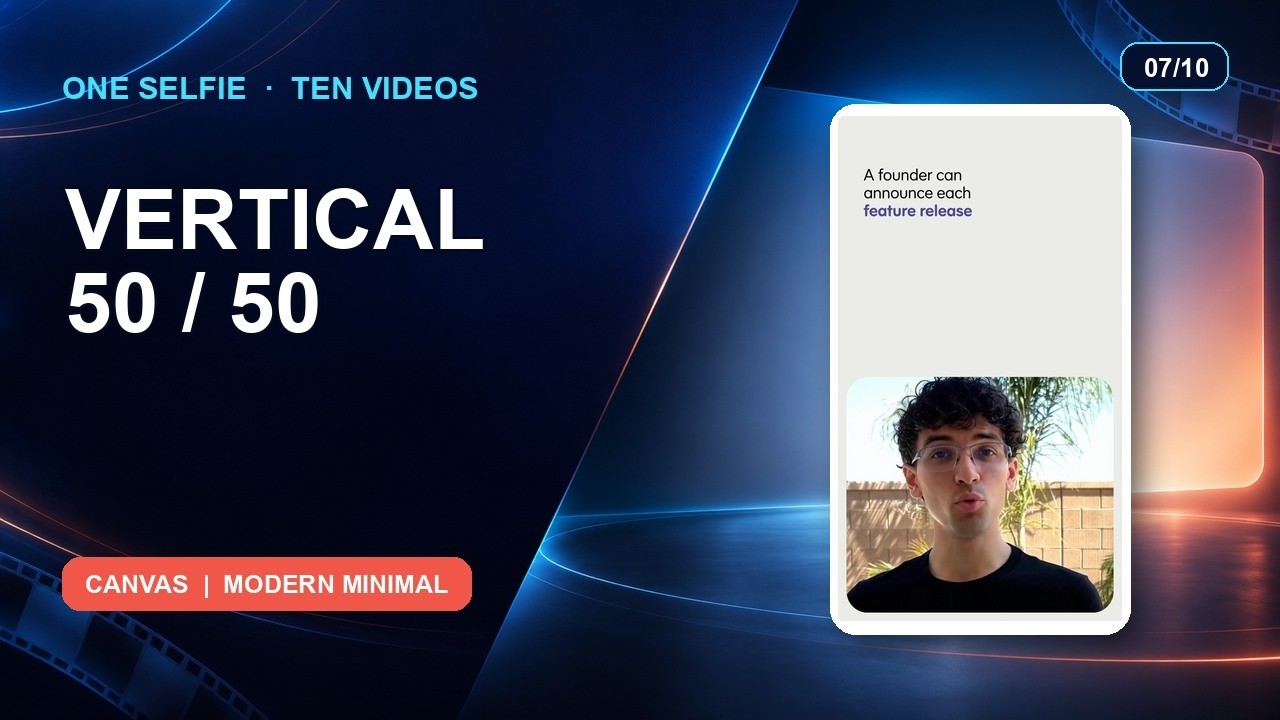
7. Vertical AI Avatar for Shorts: 50/50 Split
Share a vertical frame equally between the avatar and the explanation.
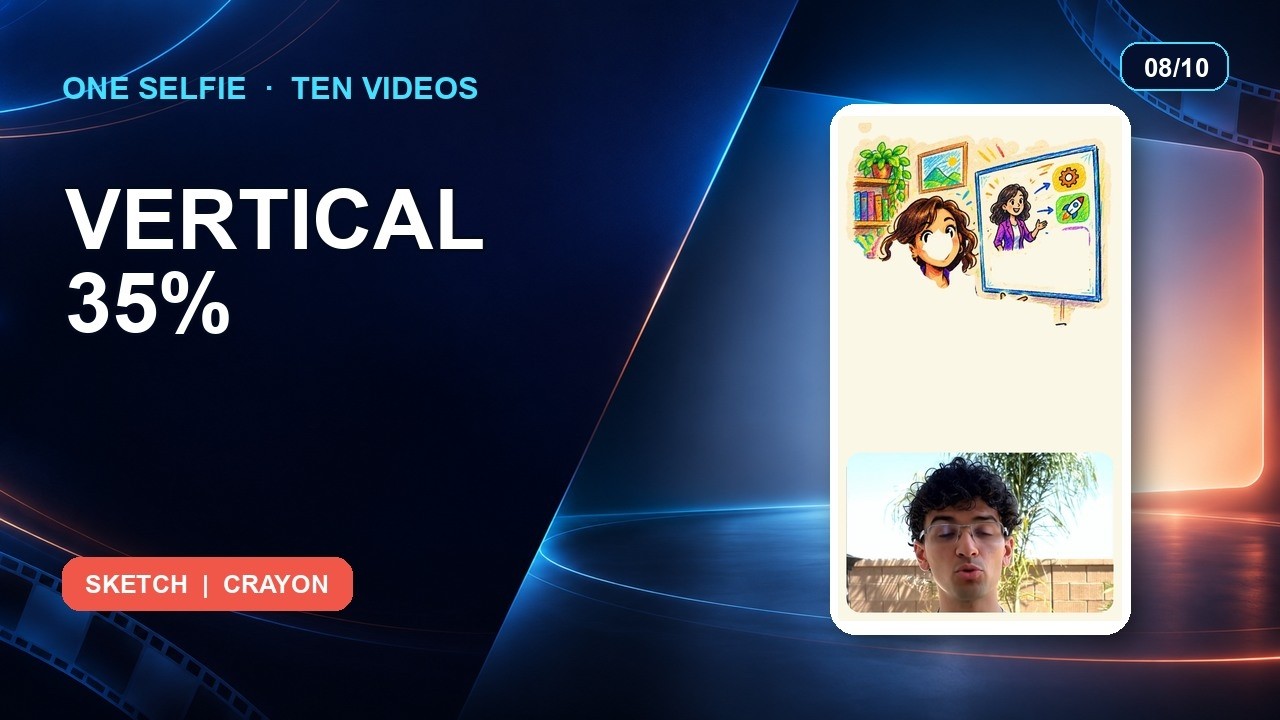
8. Vertical AI Avatar for Shorts: 35% Presenter
Keep a presenter in the vertical video while giving more space to the visuals.
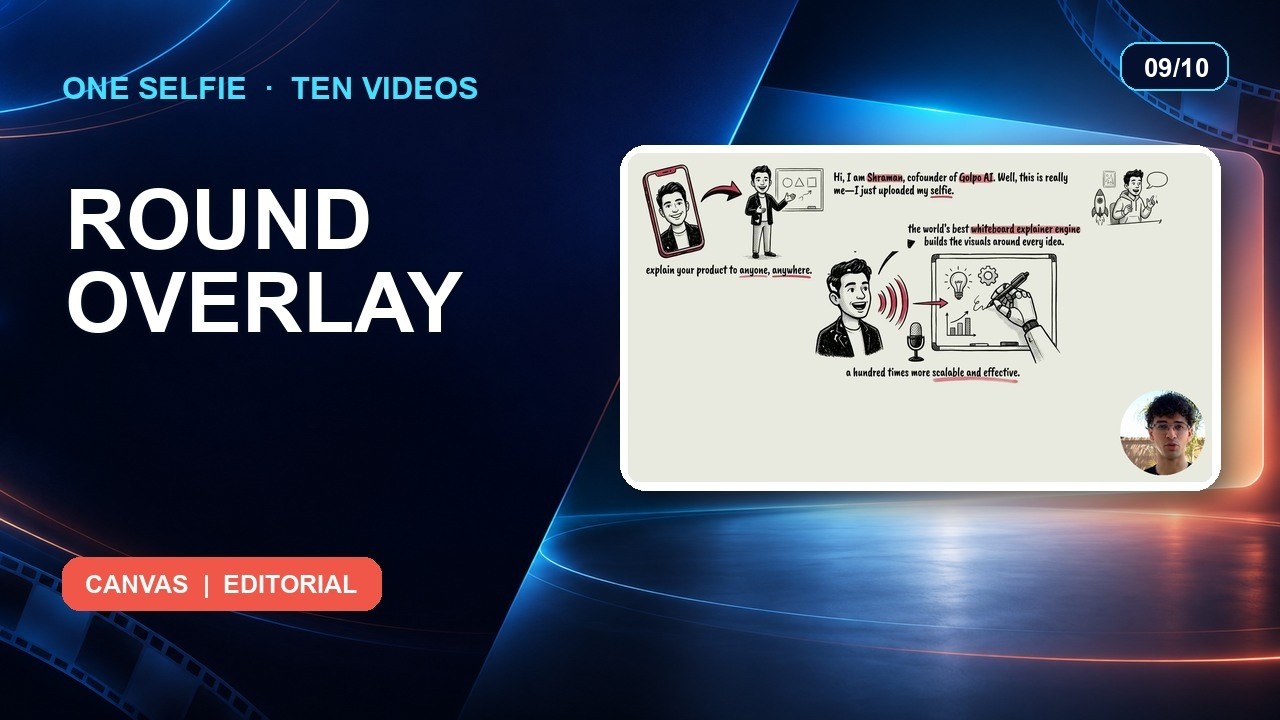
9. Round AI Avatar Overlay for Demos
Add a round presenter overlay while keeping the main content prominent.
10. Golpo AI Vertical Auto Layout: Chalkboard Sketch
Combine a vertical Avatar video, Auto presentation, and Chalkboard Sketch visuals.

How many credits do Avatar videos use?
The video rate depends on which avatar you choose:
| Video duration | Stock Golpo Avatar: 3 credits/min | Custom avatar: 5 credits/min |
|---|---|---|
| 1 minute | 3 credits | 5 credits |
| 2 minutes | 6 credits | 10 credits |
| 4 minutes | 12 credits | 20 credits |
These examples apply the Avatar video rate to the stated duration. Creating a Natural avatar has no creation credit charge. Choosing a Polished avatar adds 1 credit after successful portrait creation, separately from video generation.
For example, a two-minute video with an existing custom avatar uses 10 credits. If you first create a new Polished avatar successfully, the portrait creation uses 1 credit and that two-minute video uses 10 credits.
Frequently asked questions
Can I create an avatar from a selfie?
Yes. Upload a clear portrait or selfie in Create Avatar, frame it, review and approve suitable layouts, name it, and save it to your library.
Do I need to upload my own photo?
No. Choose a ready-to-use presenter from Golpo Avatars. Videos using a stock Golpo Avatar cost 3 credits per minute.
What is the difference between Natural and Polished?
Natural uses your original portrait and approved framing, with no creation credit charge. Polished creates an AI-styled portrait designed to keep your recognizable appearance and uses 1 credit after successful creation. Both are custom avatar options; their videos use 5 credits per minute.
Can I reuse my custom avatar?
Yes. Save it in My Avatars, then select it for another video. You do not need to start from the upload screen each time.
Does uploading a selfie clone my voice?
A selfie supplies the avatar's appearance. Set the narration voice separately. For Golpo's voice workflow, see how to clone your voice for AI video.
Can I make vertical Avatar videos?
Yes. The gallery includes vertical split layouts and a vertical Auto example. Preview Top and bottom when reviewing your avatar's portrait 9:16 presentation.
Will the avatar appear throughout an Auto video?
Auto may briefly hide the avatar to keep important content unobstructed. It chooses among the layouts you approved that fit the scene.
Where does my uploaded portrait go?
The creation screen states that your portrait and saved avatar stay in your personal library by default.
Bring a presenter into your next Golpo video
Choose a stock presenter for a quick start, or upload a selfie to create your own reusable avatar. Pick a layout, preview the balance between presenter and visuals, and turn your next explanation into an Avatar video.
Combine your presenter with the world's best AI explainer video maker—and bring that winning combination to your next story.
Create your Avatar video in Golpo →
Related guides
Tags


