document to video
Turn a one-page Weekly Team Update SOP into a real Golpo video. Follow the screenshots, download the source, and copy the exact prompt and settings.

Weekly Team Update SOP is the one-page document used in this guide. We turn its four steps—collect accomplishments, list blockers, choose next priorities, and share before the weekly meeting—into a real narrated Golpo video. You can download the source, copy the exact prompt, follow the screenshots, and watch the finished output below the steps.
Jump to the finished video · Preview a frame from the actual output · Download the source PDF
Turn your document into a video
Attach your document to start. You can add instructions if you want to focus on a particular section or audience.
Review your document and settings in Golpo before generating. Open the full document creator.
How to turn a document into a video in Golpo
This sample was generated with Golpo’s API using the document and settings below. The screenshots show the matching web inputs and settings.
1. Prepare a short document with a clear structure
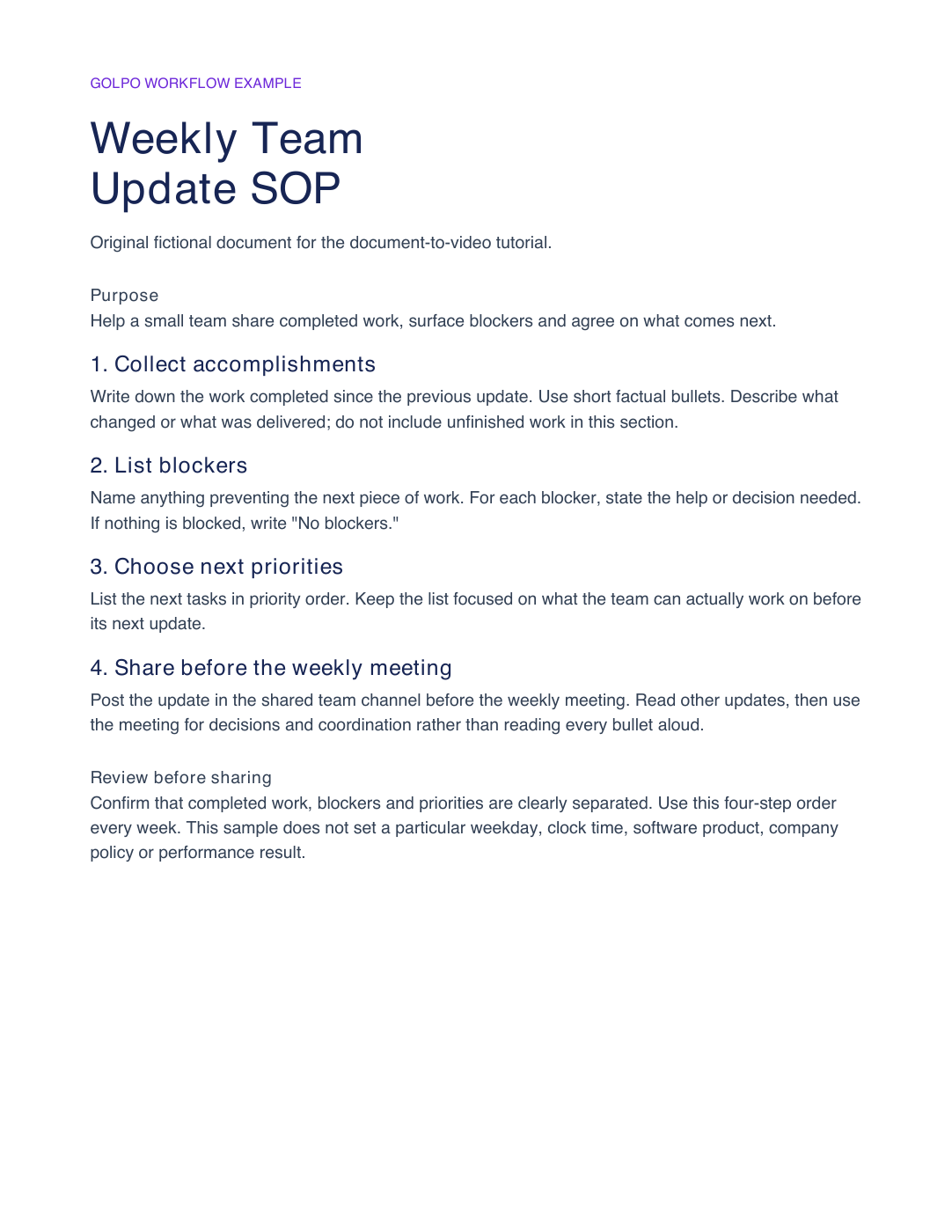
Start with one procedure rather than a whole handbook. Open the sample PDF and read the four numbered headings. The first section describes work already completed; the third describes work that comes next.
2. Open Golpo and attach the PDF
Choose Attach a document in the upload control above and select the sample PDF, or drop your file into that area. Check the attached filename. Instructions are optional: you can continue with the document alone, then review it in the Golpo playground before generation.
3. Tell Golpo which source and sections to use
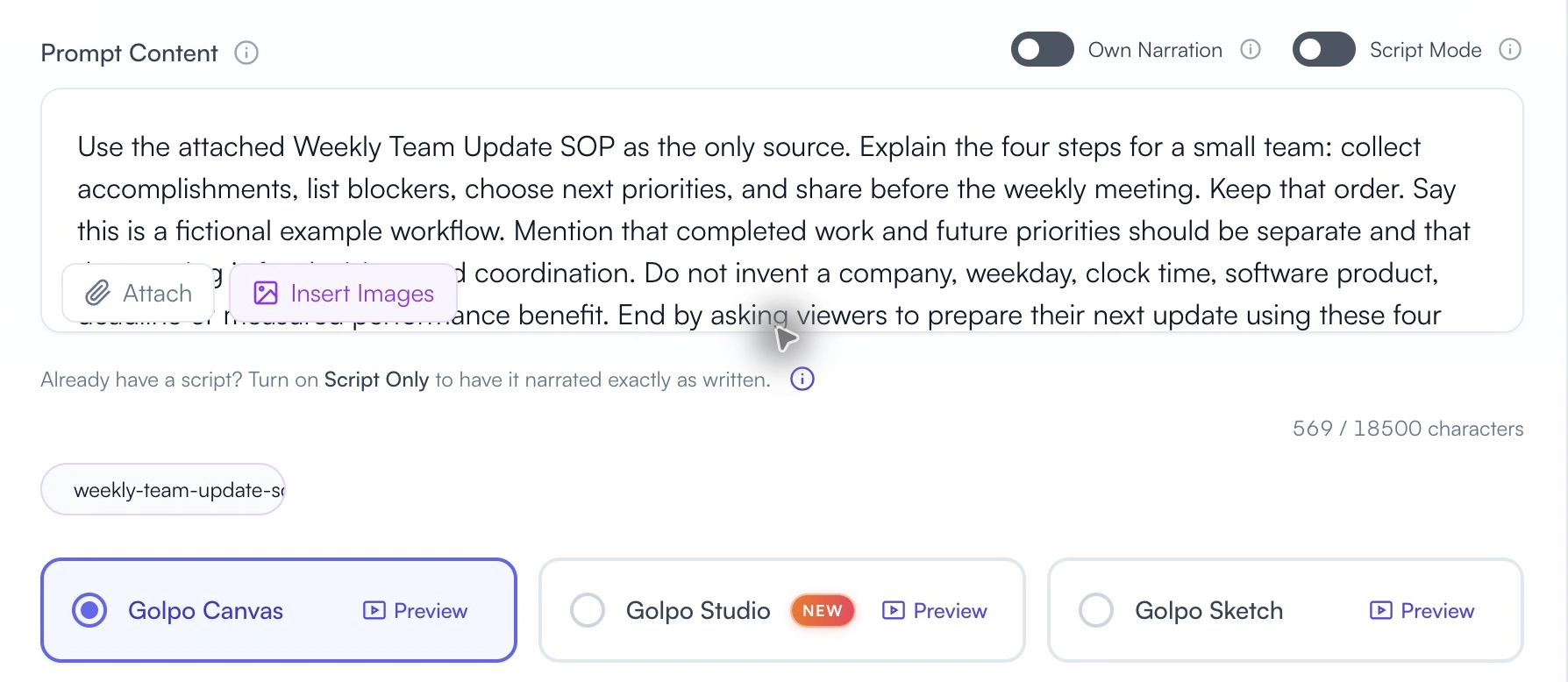
Stay in Prompt Mode for this document-based example. To reproduce the sample, open Add instructions (optional) in the upload control and paste the prompt below. It names the source, the required order, and the facts that should not be invented. You can also paste it in the playground.
Prompt
Use the attached Weekly Team Update SOP as the only source. Explain the four steps for a small team: collect accomplishments, list blockers, choose next priorities, and share before the weekly meeting. Keep that order. Say this is a fictional example workflow. Mention that completed work and future priorities should be separate and that the meeting is for decisions and coordination. Do not invent a company, weekday, clock time, software product, deadline or measured performance benefit. End by asking viewers to prepare their next update using these four headings.
4. Choose the style, voice, and length
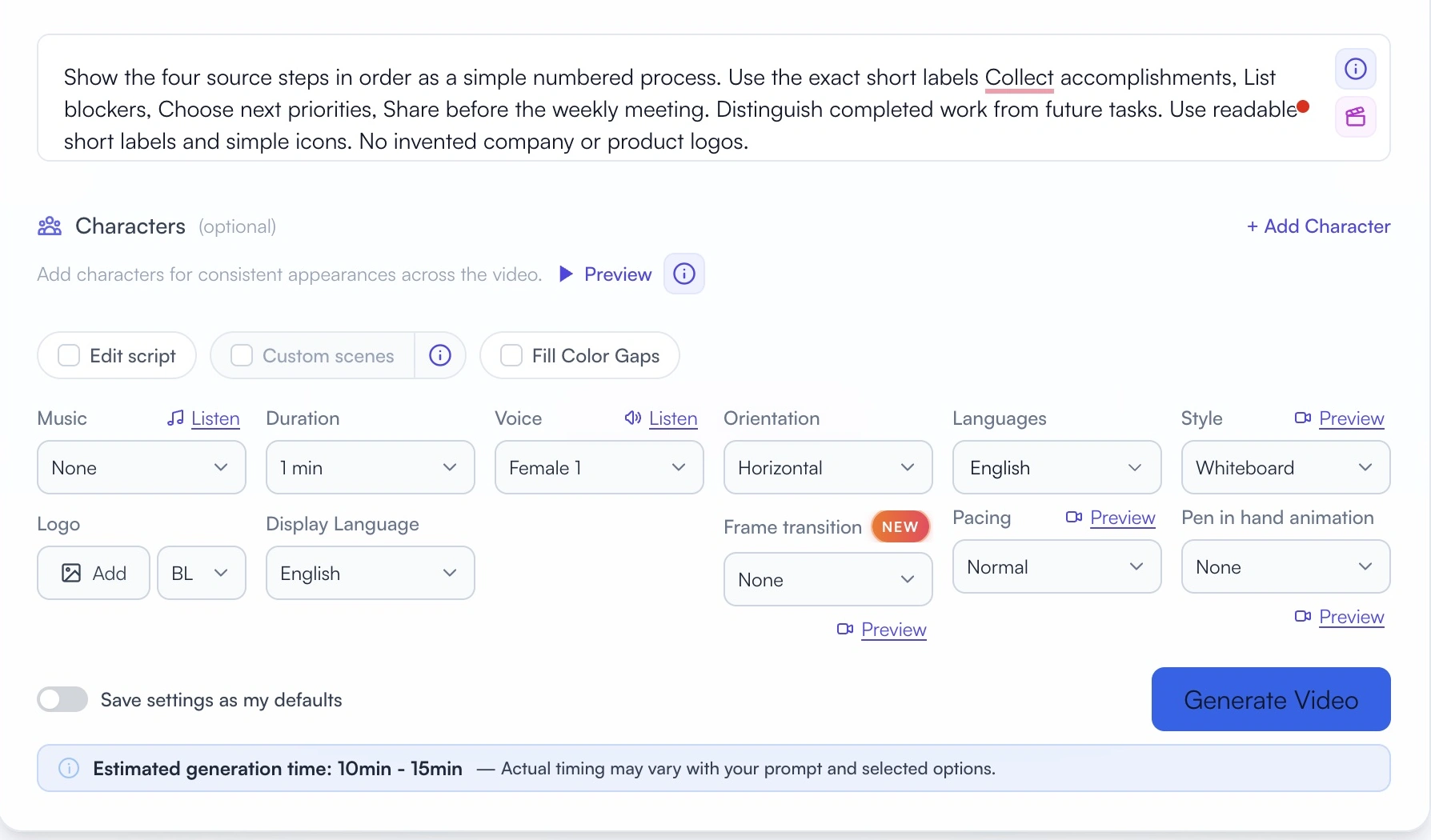
Choose Canvas Whiteboard and the settings below. Controls depend on your account; check current plan details if needed.
| Setting | Used for this example |
|---|---|
| Input | Prompt Mode with the Weekly Team Update SOP PDF |
| Engine and style | Golpo Canvas · Whiteboard · Expanded |
| Narrator | Female 1 |
| Narration language | English |
| Selected length | 1 minute |
| Format | Landscape, 16:9 |
| Use color | Off in the submitted settings |
| Pacing | Normal |
| Background music | None |
Video Instructions: what to draw
Paste this in Video Instructions, if that control is available in your account. These directions guide the pictures; they are separate from the spoken words.
Show the four source steps in order as a simple numbered process. Use the exact short labels Collect accomplishments, List blockers, Choose next priorities, Share before the weekly meeting. Distinguish completed work from future tasks. Use readable short labels and simple icons. No invented company or product logos.
Voice Instructions: how the narrator sounds
Keep delivery guidance in Voice Instructions, separate from the script.
Speak clearly and conversationally, with a calm neutral English delivery. Read only the narration. Do not add an introduction, tagline or sign-off.
5. Generate, then check the four steps against the PDF
Review your settings and start generation. When the result is ready, listen once with the source document beside you. Check the four headings in order, the distinction between accomplishments and priorities, and the instruction to share the update before the meeting. The meeting should remain a place for decisions and coordination.
6. Share the reviewed video with the source
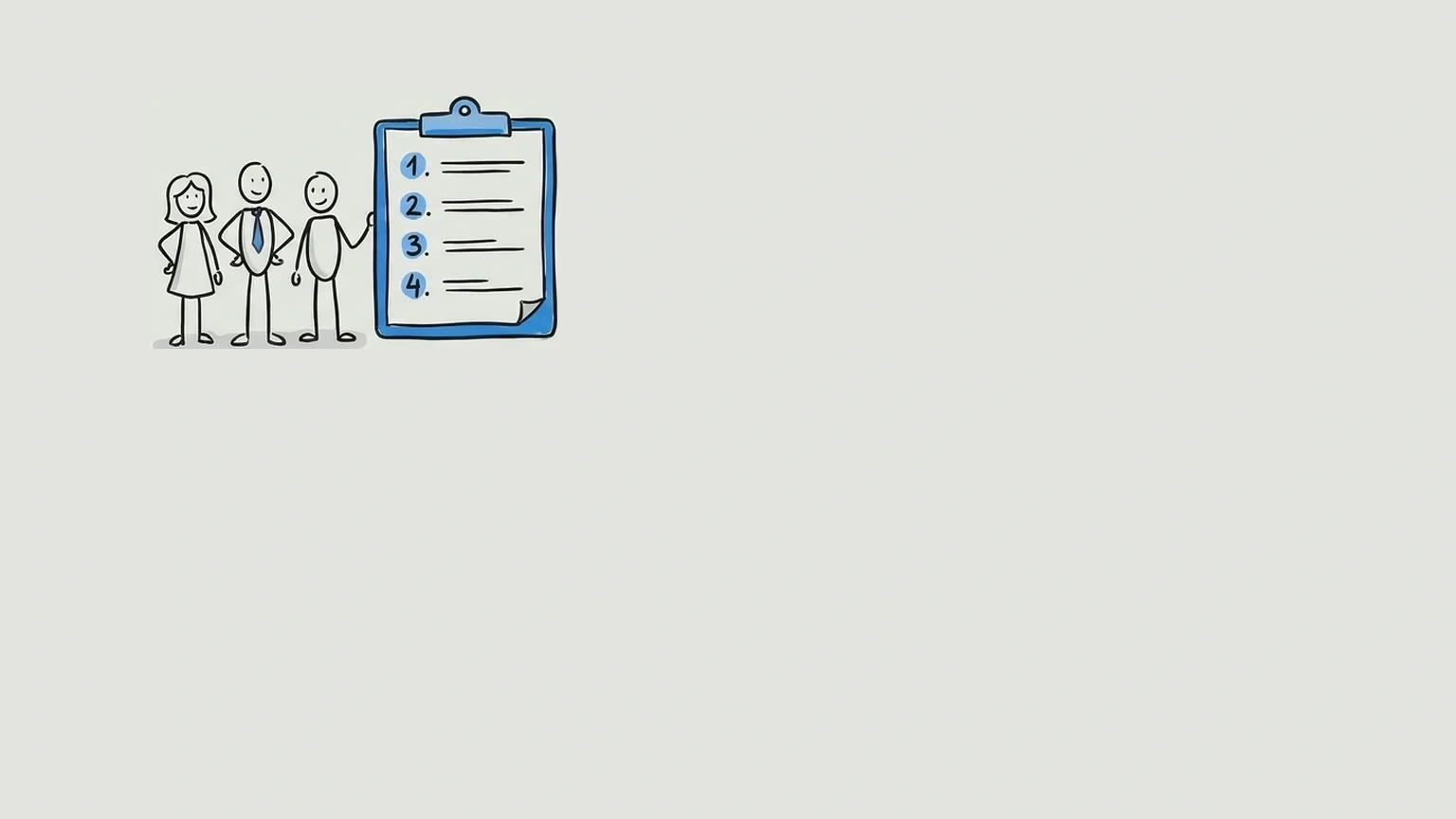
Keep the reviewed video beside its source PDF in your onboarding material. When the process changes, update the document before generating a replacement.
Watch the finished Golpo video
This is the actual Weekly Team Update SOP output from the inputs above. The selected length was one minute; the finished file runs 73.1 seconds.
Open the video in a separate tab. Compare what you hear with the narration and what you see with the visual directions before using the workflow for your own material.
Read the narration generated from the document
This fictional example workflow, based on the Weekly Team Update SOP, gives a small team four steps to follow each week. First, collect accomplishments. Record only work completed since the previous update, using short factual points about what changed or was delivered. Keep completed work separate from future priorities. Accomplishments show what is already done. Second, list blockers. Name anything preventing the next piece of work, and state the help or decision needed to move forward. If nothing is blocked, write, “No blockers.” Third, choose next priorities. List upcoming tasks in priority order, focused on work the team can address before the next update. Priorities are forward-looking, so do not mix them with accomplishments or blockers. Fourth, share before the weekly meeting. Post the update in the shared team channel and read other updates beforehand. The meeting is for decisions and coordination, not repeating every written bullet aloud. Please prepare your next update using these four headings: Collect accomplishments, List blockers, Choose next priorities, and Share before the weekly meeting.
Use this workflow for your own document
Replace the sample PDF with your own SOP, lesson handout, or product explanation. Name the audience and the action they should learn. Preserve required terminology in the source and the on-screen labels.
Frequently asked questions
How do I turn a document into a video with AI?
Attach your document in the upload control, optionally add instructions for the audience or sections to explain, choose a voice and visual style, then generate and review the result against the source. This guide uses a one-page Weekly Team Update SOP and shows the finished video after the walkthrough.
Can I use a PDF for document to video?
Yes. The worked example uses an uploaded PDF. A clear, selectable-text document makes it easier to check that the generated narration follows the source. Download the sample PDF on this page to repeat the example.
Does the document become the exact narration?
A document-based prompt asks Golpo to turn source information into narration. It does not mean that every sentence will be read verbatim. If you need fixed spoken wording, prepare and review the narration yourself, then use Script Mode.
Can I try document to video for free?
Golpo’s homepage offers one free one-minute video. The free video includes a watermark and cannot be downloaded. Check the current pricing page for the styles and features available in your account.
Related guides
- Make an AI explainer from an exact script
- Create a hand-drawn Sketch video
- Choose Prompt Mode or Script Mode
- Write useful Video Instructions
Attach your document and create a video using the upload control above. Add instructions only if you need them.
Tags


