make explainer videos with ai
Make a real checklist explainer with Golpo Canvas Sharpie. Copy the exact script, follow the illustrated workflow, and watch the finished output.

How a Checklist Prevents Skipped Steps is the real AI explainer made in this walkthrough. It follows one familiar task—sending a message with a file attached—and shows how a short checklist connects the first action to the final review. Below are the exact narration, the visual directions, step-by-step screenshots, and the finished Golpo video.
Jump to the real output · Preview an actual video frame · Copy the exact script
Make your explainer video
Engine: Golpo Canvas
Your prompt and choices open in the Golpo playground for review before generation. If you are signed out, choose Try Golpo for Free on the homepage to sign in, then continue to the playground. Your prompt is saved for that handoff.
How to make an explainer video with AI in Golpo
The sample on this page was generated with Golpo’s API using the exact script and settings below. The screenshots show the matching web inputs and settings.
1. Pick one audience and one useful idea
Our audience is someone completing a familiar task who wants a reliable sequence to follow. We deliberately use a small example: attach a file, confirm the recipient, and review the message. That gives the drawings something concrete to show instead of relying on an abstract claim about productivity.
Open Golpo from the creation box above. If you are still shaping your idea, keep the topic prompt and use Prompt Mode to draft it. To reproduce the video shown here, use the finished narration in the next step.
2. Use Script Mode for the exact narration
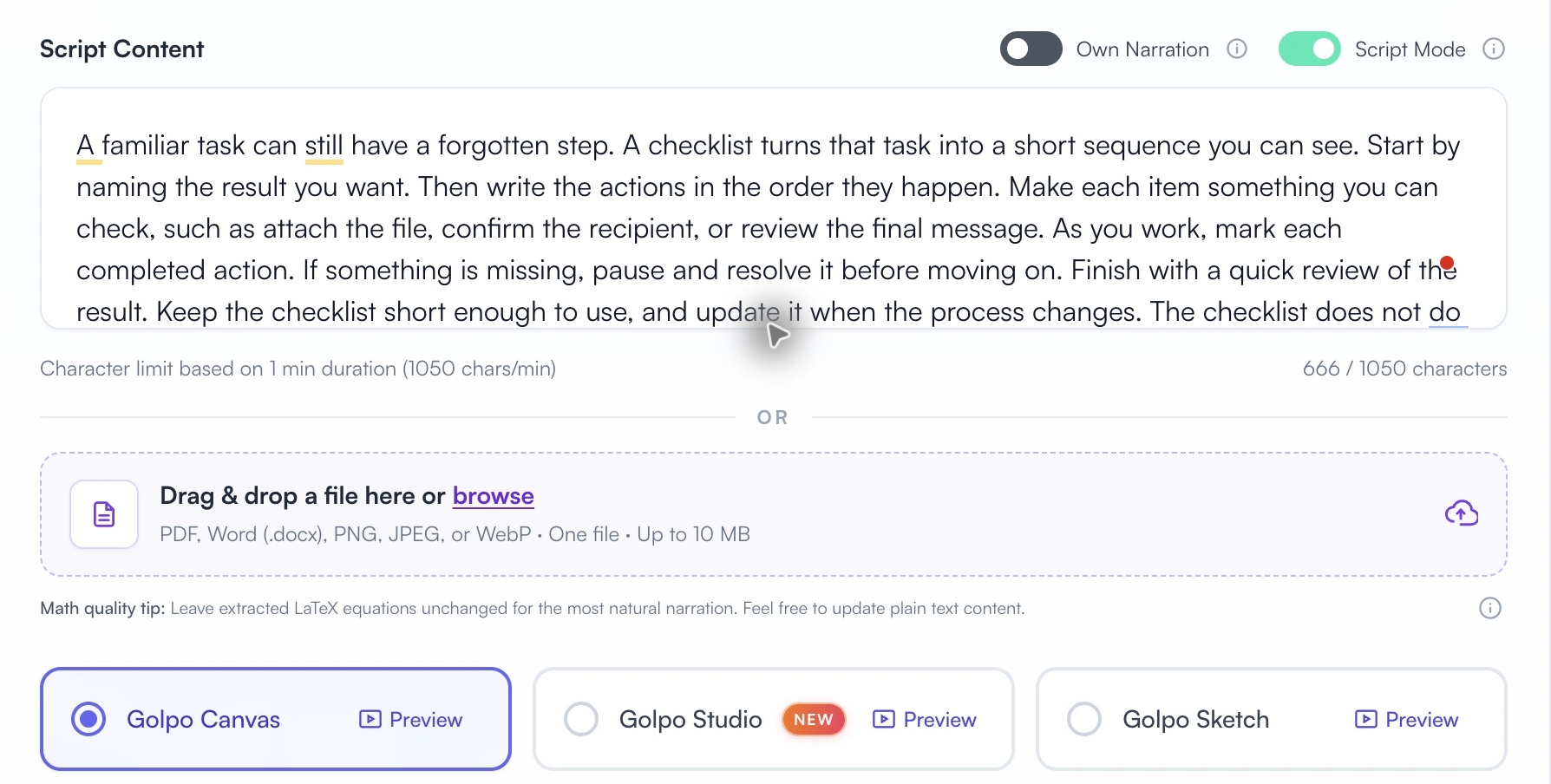
In the playground, switch to Script Mode and paste the following Script. These are the words supplied for the finished video. Keep picture directions out of this field so they do not become part of the narration.
Script: the spoken words
A familiar task can still have a forgotten step. A checklist turns that task into a short sequence you can see. Start by naming the result you want. Then write the actions in the order they happen. Make each item something you can check, such as attach the file, confirm the recipient, or review the final message. As you work, mark each completed action. If something is missing, pause and resolve it before moving on. Finish with a quick review of the result. Keep the checklist short enough to use, and update it when the process changes. The checklist does not do the thinking for you. It gives your attention a clear path from the first step to the final check.
3. Choose Canvas Sharpie and matching settings
The example uses Golpo Canvas with the Sharpie look. Select the Expanded version and keep the remaining choices simple so the checklist is easy to follow. The selected one-minute length is a generation setting; the finished file’s measured runtime is shown beneath the workflow.
| Setting | Used for this example |
|---|---|
| Input | Script Mode · exact checklist narration |
| Engine and style | Golpo Canvas · Sharpie · Expanded |
| Narrator | Female 1 |
| Narration language | English |
| Selected length | 1 minute |
| Format | Landscape, 16:9 |
| Use color | Off in the submitted settings |
| Script-only text | Off |
| Pacing | Normal |
| Background music | None |
4. Give the pictures and narrator separate directions
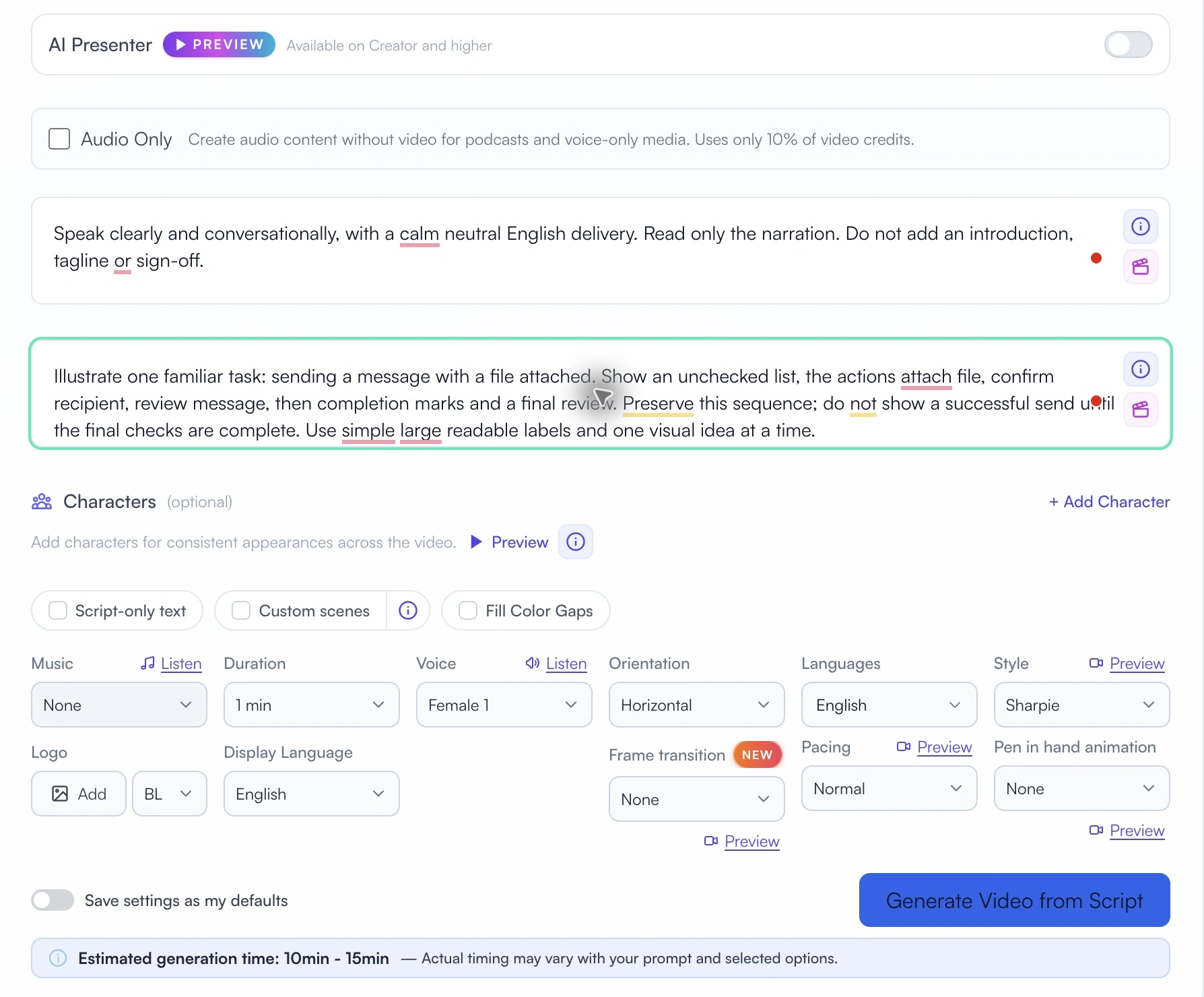
The checklist script explains a general process, while the drawings use one familiar message-and-file example. These directions help the pictures carry that example through the video. If your account exposes the instruction controls, paste each paragraph in its matching field.
Video Instructions: what to draw
Paste this in Video Instructions, if that control is available in your account. These directions guide the pictures; they are separate from the spoken words.
Illustrate one familiar task: sending a message with a file attached. Show an unchecked list, the actions attach file, confirm recipient, review message, then completion marks and a final review. Preserve this sequence; do not show a successful send until the final checks are complete. Use simple large readable labels and one visual idea at a time.
Voice Instructions: how the narrator sounds
Keep delivery guidance in Voice Instructions, separate from the script.
Speak clearly and conversationally, with a calm neutral English delivery. Read only the narration. Do not add an introduction, tagline or sign-off.
5. Generate and check the whole explanation
Review the script and settings, then start generation. Watch the completed video with sound. Check that the narration follows the supplied words, that the file example remains clear, and that the ending brings the viewer back to reviewing the result.
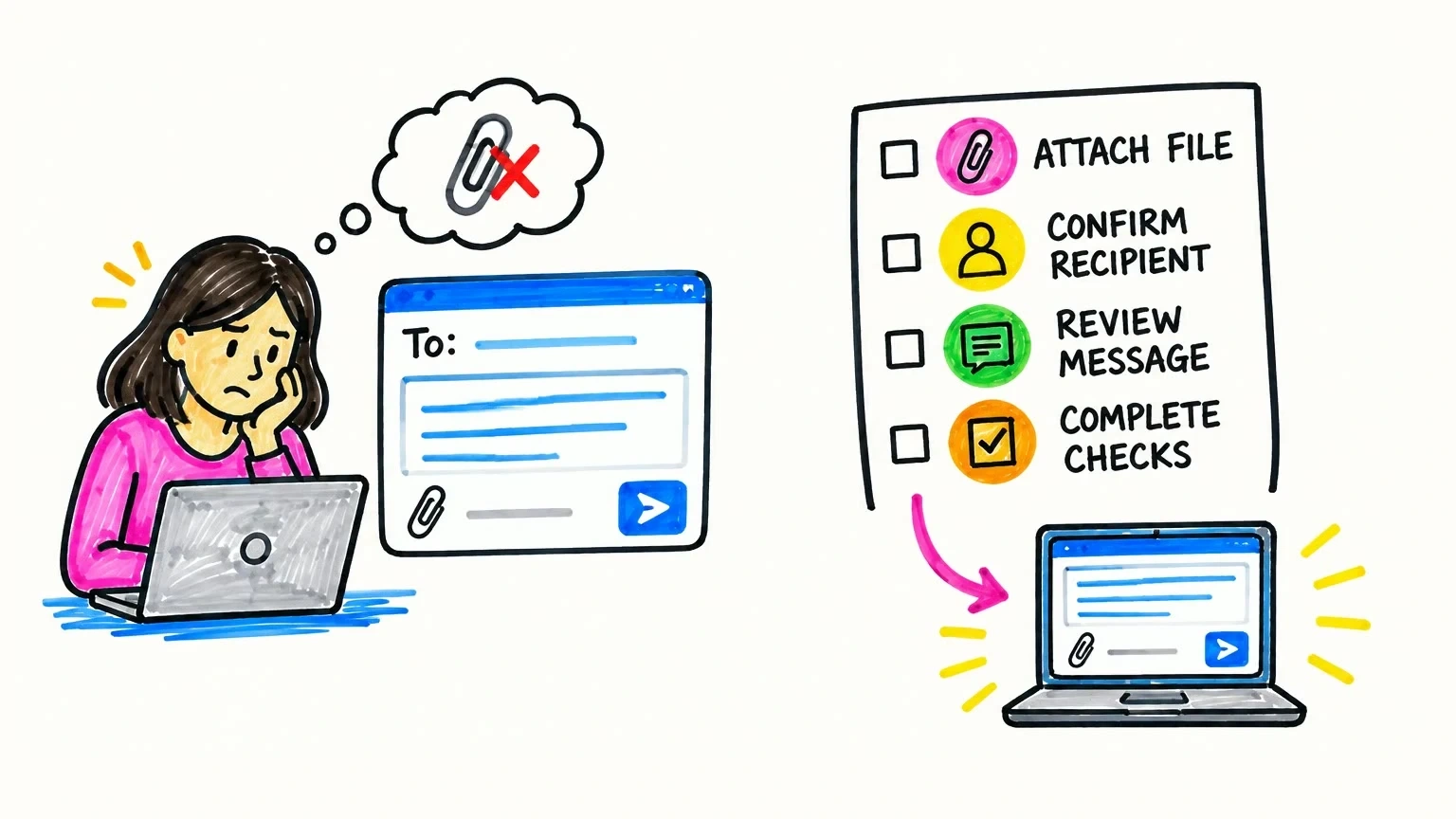
Then watch with the sound off. The pictures should still communicate a sequence instead of becoming a wall of text. Look for readable checklist labels, actions appearing in the correct order, and a final review before a successful handoff. If you change the narration for a different task, also update any visual directions that refer to the old example.
6. Publish the version your audience can use
Share or download the reviewed version using the options available in your Golpo account. Put the video beside the related written steps, such as a checklist template or help-center article. The explanation introduces the process; the written checklist remains useful while someone performs it.
Watch the finished Golpo video
This is the actual How a Checklist Prevents Skipped Steps output from the inputs above. The selected length was one minute; the finished file runs 46.2 seconds.
Open the video in a separate tab. Compare what you hear with the narration and what you see with the visual directions before using the workflow for your own material.
Adapt the example to another process
Keep the same structure when explaining an onboarding task, a product feature, or a lesson concept: name the desired result, show the important actions, and end with a useful check. Replace the message-and-file details with your actual example. A short explainer becomes more useful when the viewer recognizes the task in front of them.
Frequently asked questions
How do I make explainer videos with AI?
Choose one audience and one idea, write or generate a short narration, select a visual style and voice, then generate and review the video. This guide uses an exact checklist script, separate drawing directions, and a real Golpo Canvas output.
Do I need to write my own script?
No. Prompt Mode can draft a narration from your description. Use Script Mode when you already have wording you want the video to speak, as in the checklist example on this page.
Are Video Instructions spoken in the video?
No. Video Instructions tell Golpo what to draw. The Script contains the spoken words. Voice Instructions separately describe the narrator’s delivery, such as a calm conversational tone.
Can I make an AI explainer for free?
Golpo’s homepage offers one free one-minute video. It includes a watermark and cannot be downloaded. Paid-plan features and styles vary, so check the current pricing page before choosing your final settings.
Related guides
- Turn a source document into a narrated video
- Create a Sketch video with AI
- Understand Prompt Mode and Script Mode
- Guide the narrator with Voice Instructions
Start your explainer in the creation box. For the exact worked example, switch to Script Mode and paste the narration above.
Tags


