Golpo Canvas Frame Transitions: Every Slide, Zoom, and Hand Animation
Watch 13 fascinating Canvas videos covering every frame transition, four hand-assisted slides and mixed effects. All use Normal pacing. Includes exact settings.

Watch the Moon spin, astronauts fall around Earth, a star shrink to city size, and a blue sunset on Mars. These 13 real Golpo Canvas videos demonstrate every frame-transition option, all four hand-assisted slides, and two mixed selections.
Every video uses Normal pacing and the Sharpie Expanded Canvas style. Each transition gets a different curiosity-driven story. Open the cards below for the exact narration, Video Instructions, and transition settings.
CANVAS IN MOTION
A new frame. A different way to arrive.
Start with the seven base options. Add a hand to the four slides. Then try a random mix.
7 base options4 hand-assisted slides2 mixed selectionsSet it upAPI settingsOne setting to check first: Pacing must be Normal when you use a slide, a zoom, or Hand slide animation.
Watch all seven frame-transition options
The direction names describe where the current frame moves. For example, Slide left brings the next frame in from the right.
01 · None · Normal pace
The Moon spins. So why do we keep seeing the same face?
The clean baseline · 24.2s
A direct cut takes you from one completed frame to the next. Start here when the drawings themselves should carry the sequence.
Open the video · Topic source: NASA
Script & exact transition settings
Script
The Moon spins, even though we keep seeing nearly the same face. One rotation takes about the same time as one orbit around Earth. That matching rhythm keeps the near side facing us. The far side still gets sunlight, so calling it a permanently dark side gets the story wrong.
Video Instructions
Make exactly four sequential scenes, one scene for each narration sentence. 1: Earth and the cratered Moon with a clear rotation arrow. 2: Moon orbiting Earth, with one marked crater consistently facing Earth. 3: Close-up of the marked near-side crater pointing toward Earth. 4: Sun illuminating the far side during a new-moon configuration, clearly separated from the observer on Earth. Use clear, bold Sharpie outlines with attractive colored accents on clean white backgrounds. Keep one large central composition per scene, with readable labels, generous margins, and consistent visual design.
Transition settings — API v1
{
  "frame_transition": [
    "none"
  ],
  "transition_hand_animation": false,
  "pacing": "normal"
}
02 · Slide left · Normal pace
Venus spins more slowly than it goes around the Sun
Move the story forward · 22.9s
The next frame enters from the right and pushes the current frame out to the left. Watch the comparison change from rotation to orbit.
Open the video · Topic source: NASA
Script & exact transition settings
Script
Venus takes about two hundred forty-three Earth days to spin once. It goes around the Sun in only about two hundred twenty-five. One full rotation therefore lasts longer than its year. That does not mean sunrise takes two hundred forty-three days; rotation and the solar day are different clocks.
Video Instructions
Make exactly four sequential scenes, one scene for each narration sentence. 1: Venus with a single rotation arrow and the label Rotation: 243 Earth days. 2: Venus orbiting the Sun, labeled Orbit: 225 Earth days. 3: Two simple horizontal comparison bars showing 243 longer than 225. 4: Two clearly separate clock dials labeled Rotation and Solar day, with a small sunrise icon. Distinguish a full rotation from sunrise-to-sunrise. Use clear, bold Sharpie outlines with attractive colored accents on clean white backgrounds. Keep one large central composition per scene, with readable labels, generous margins, and consistent visual design.
Transition settings — API v1
{
  "frame_transition": [
    "left"
  ],
  "transition_hand_animation": false,
  "pacing": "normal"
}
03 · Slide right · Normal pace
The microscopic spring that helps your phone find down
Reveal the next explanation · 27.4s
The next frame enters from the left and pushes the current frame out to the right. The phone-to-sensor story gives the movement a clear destination.
Open the video · Topic source: STMicroelectronics
Script & exact transition settings
Script
Your phone can estimate which way is down using a tiny acceleration sensor. Inside a common MEMS accelerometer, a microscopic mass moves against springs. At rest, its measurements reveal gravity's direction along the chip's axes. Electronics read those signals to help estimate the phone's orientation and rotate its screen.
Video Instructions
Make exactly four sequential scenes, one scene for each narration sentence. 1: A smartphone rotating between portrait and landscape beside a gravity arrow. 2: Magnified microchip diagram with a proof mass suspended between two springs. 3: Three coordinate axes labeled X, Y, Z and one downward gravity vector. 4: Portrait screen becoming landscape, connected by a simple signal arrow to the chip. Keep the proof-mass schematic conceptual, not a branded product. Use clear, bold Sharpie outlines with attractive colored accents on clean white backgrounds. Keep one large central composition per scene, with readable labels, generous margins, and consistent visual design.
Transition settings — API v1
{
  "frame_transition": [
    "right"
  ],
  "transition_hand_animation": false,
  "pacing": "normal"
}
04 · Slide up · Normal pace
Astronauts float because they keep falling
Lift the next frame into view · 24.3s
The next frame enters from the bottom and pushes the current frame upward. Watch the astronaut explanation move between its diagrams.
Open the video · Topic source: NASA
Script & exact transition settings
Script
Astronauts float in orbit, but Earth's gravity has not switched off. The spacecraft and everything inside it are falling together. They also move sideways fast enough to keep missing Earth's curved surface. That continuous free fall creates the floating feeling we call microgravity.
Video Instructions
Make exactly four sequential scenes, one scene for each narration sentence. 1: Astronaut floating inside a space station, Earth visible outside. 2: Station, astronaut, and a loose pencil with equal downward gravity arrows. 3: Simple Earth diagram with a curved orbital path and a sideways velocity arrow. 4: Astronaut and pencil floating together inside the station, labeled Continuous free fall. The curved path remains outside Earth. Use clear, bold Sharpie outlines with attractive colored accents on clean white backgrounds. Keep one large central composition per scene, with readable labels, generous margins, and consistent visual design.
Transition settings — API v1
{
  "frame_transition": [
    "up"
  ],
  "transition_hand_animation": false,
  "pacing": "normal"
}
05 · Slide down · Normal pace
Why a black hole's neighborhood can look so bright
Bring the next frame down · 20.6s
The next frame enters from above and pushes the current frame downward. Follow the change from a dark horizon to the bright material around it.
Open the video · Topic source: NASA
Script & exact transition settings
Script
Nothing escapes from inside a black hole's event horizon. Yet its neighborhood can blaze with light. Gas spirals inward, heats up, and glows before crossing that boundary. What telescopes detect is often this surrounding material, not light escaping from inside the hole.
Video Instructions
Make exactly four sequential scenes, one scene for each narration sentence. 1: Dark circular black hole and a thin boundary labeled Event horizon. 2: A brilliant orange accretion disk surrounding the dark center. 3: Gas spiraling inward along a clear curved path, glowing outside the horizon. 4: A telescope observing the bright outer disk while the dark center stays dark. Keep emission outside the event horizon. Use clear, bold Sharpie outlines with attractive colored accents on clean white backgrounds. Keep one large central composition per scene, with readable labels, generous margins, and consistent visual design.
Transition settings — API v1
{
  "frame_transition": [
    "down"
  ],
  "transition_hand_animation": false,
  "pacing": "normal"
}
06 · Zoom in · Normal pace
A star heavier than the Sun, squeezed into a city
Move closer · 24.8s
The current frame zooms in as the next frame grows into place and blends in. Watch how the transition shifts attention between the star and the scale comparison.
Open the video · Topic source: NASA
Script & exact transition settings
Script
Imagine packing more mass than the Sun into a ball about as wide as a city. That is a neutron star, the collapsed core left by some exploding stars. Its matter is crushed to an extraordinary density. Measuring these tiny remnants helps astronomers investigate how matter behaves under extreme conditions.
Video Instructions
Make exactly four sequential scenes, one scene for each narration sentence. 1: The Sun beside a small bright sphere above a city skyline, with a simple more-mass comparison. 2: A massive star's outer layers expanding in a supernova, leaving a small core. 3: Conceptual dense particle dots packed inside a sphere; label Neutron star. 4: A telescope measuring a bright neutron star, with a conceptual city-width scale below it. Size comparison is illustrative; avoid drawing the star resting on Earth. Use clear, bold Sharpie outlines with attractive colored accents on clean white backgrounds. Keep one large central composition per scene, with readable labels, generous margins, and consistent visual design.
Transition settings — API v1
{
  "frame_transition": [
    "zoom_in"
  ],
  "transition_hand_animation": false,
  "pacing": "normal"
}
07 · Zoom out · Normal pace
The empty patch of sky that hid thousands of galaxies
Open the view · 26.6s
The current frame zooms out and fades, revealing the next frame. The Deep Field story makes the change in visual scale easy to look for.
Open the video · Topic source: NASA
Script & exact transition settings
Script
In nineteen ninety-five, Hubble stared at a seemingly empty patch of sky for ten days. The resulting Deep Field revealed thousands of galaxies. Many faint points were vast islands of stars, far beyond our own galaxy. A tiny dark window had opened onto a much bigger universe.
Video Instructions
Make exactly four sequential scenes, one scene for each narration sentence. 1: Hubble Space Telescope pointing toward a tiny, nearly empty marked patch in a dark sky. 2: A rectangular observation window filling with many small galaxies. 3: A small distant galaxy revealed as an island of stars. 4: A wide field of diverse galaxies, with the original tiny observation window marked. Use original schematic illustrations, not an imitation of a specific NASA photograph. Use clear, bold Sharpie outlines with attractive colored accents on clean white backgrounds. Keep one large central composition per scene, with readable labels, generous margins, and consistent visual design.
Transition settings — API v1
{
  "frame_transition": [
    "zoom_out"
  ],
  "transition_hand_animation": false,
  "pacing": "normal"
}
Watch all four slides with Hand slide animation
Turn on Hand slide animation to have an animated hand push the slide into the next frame. It works with Slide left, Slide right, Slide up, and Slide down. Choose slide directions only when the hand is enabled.
08 · Slide left + hand · Normal pace
Could 42 folds of paper reach the Moon?
Let a hand push the slide · 25.4s
Slide left with Hand slide animation enabled. Watch the scene boundary as the exponential-growth explanation changes frames.
Open the video · Topic source: NASA
Script & exact transition settings
Script
Could forty-two folds of paper reach the Moon? If a sheet starts one-tenth of a millimeter thick and doubles at each fold, forty-two doublings give about four hundred forty thousand kilometers. That is farther than the Moon's average distance from Earth. Real paper cannot be folded that way; the surprise is exponential growth.
The paper example is an idealized calculation: 0.1 mm × 242 ≈ 439,805 km. It is a mathematical thought experiment; real paper cannot be folded this way.
Video Instructions
Make exactly four sequential scenes, one scene for each narration sentence. 1: One paper sheet beside a tiny thickness ruler labeled 0.1 mm. 2: Four successively doubled paper stacks and the simple expression 0.1 mm × 2^42. 3: Earth and Moon with a comparison: Paper model ≈ 440,000 km; Moon average ≈ 384,400 km. 4: An exponential growth curve rising sharply beside a small sheet of paper. Treat this as a mathematical thought experiment, not a possible real folding task. Use clear, bold Sharpie outlines with attractive colored accents on clean white backgrounds. Keep one large central composition per scene, with readable labels, generous margins, and consistent visual design.
Transition settings — API v1
{
  "frame_transition": [
    "left"
  ],
  "transition_hand_animation": true,
  "pacing": "normal"
}
09 · Slide right + hand · Normal pace
Why a steel ship floats while a lump of steel sinks
Push toward the next idea · 24.9s
Slide right with Hand slide animation enabled. Watch for the hand as the steel-ship explanation moves from shape to buoyancy.
Open the video · Topic source: NOAA
Script & exact transition settings
Script
A solid lump of steel sinks, yet a giant steel ship can float. The ship's hollow shape pushes aside a much larger volume of water. That displaced water creates an upward buoyant force. The ship floats when it displaces water whose weight balances the weight of the ship and its cargo.
Video Instructions
Make exactly four sequential scenes, one scene for each narration sentence. 1: A solid steel lump sinking beside a floating hollow cargo ship. 2: Cutaway of the hollow ship, with air inside and blue water displaced outside the hull. 3: One upward Buoyancy arrow and one downward Weight arrow. 4: Balanced equal arrows at the ship's waterline with a small cargo stack. Do not draw a hole admitting water into the ship. Use clear, bold Sharpie outlines with attractive colored accents on clean white backgrounds. Keep one large central composition per scene, with readable labels, generous margins, and consistent visual design.
Transition settings — API v1
{
  "frame_transition": [
    "right"
  ],
  "transition_hand_animation": true,
  "pacing": "normal"
}
10 · Slide up + hand · Normal pace
The remarkable wiring inside an octopus arm
Push the next frame upward · 27.3s
Slide up with Hand slide animation enabled. Watch the boundary between the octopus and its arm-wiring explanation.
Open the video · Topic source: University of Chicago
Script & exact transition settings
Script
An octopus does not send every tiny arm movement through one central command. Large nerve cords inside its arms support local sensing and movement. Researchers have mapped repeating segments connected with the suckers. This distributed wiring helps explain how soft arms can bend, explore, and grasp with such remarkable control.
Video Instructions
Make exactly four sequential scenes, one scene for each narration sentence. 1: A friendly anatomically plausible octopus with exactly eight arms exploring a shell. 2: Close view of one arm with a highlighted axial nerve cord. 3: Repeating nerve segments connected to several suckers; label Local circuits. 4: One arm bending and another grasping while a small central-brain icon remains connected. Keep the arm wiring schematic; avoid suggesting eight completely separate brains. Use clear, bold Sharpie outlines with attractive colored accents on clean white backgrounds. Keep one large central composition per scene, with readable labels, generous margins, and consistent visual design.
Transition settings — API v1
{
  "frame_transition": [
    "up"
  ],
  "transition_hand_animation": true,
  "pacing": "normal"
}
11 · Slide down + hand · Normal pace
Your video call can cross the ocean as pulses of light
Push the next frame downward · 22.9s
Slide down with Hand slide animation enabled. Follow the connection from the video call to the cable under the ocean.
Open the video · Topic source: NOAA
Script & exact transition settings
Script
An international video call can cross an ocean without going through space. Much of that traffic travels through fiber-optic cables on the seabed. Pulses of light carry information through the glass fibers. Landing stations connect this underwater network to the networks on land.
Video Instructions
Make exactly four sequential scenes, one scene for each narration sentence. 1: Two people on a video call on opposite sides of an ocean. 2: Ocean cross-section with a protected cable running along the seabed. 3: Close-up of thin glass fibers carrying bright pulses of light. 4: Two coast-side landing stations connecting the undersea cable to the callers. Make the cable continuous between coasts. Use clear, bold Sharpie outlines with attractive colored accents on clean white backgrounds. Keep one large central composition per scene, with readable labels, generous margins, and consistent visual design.
Transition settings — API v1
{
  "frame_transition": [
    "down"
  ],
  "transition_hand_animation": true,
  "pacing": "normal"
}
Select several transitions for a random mix
The checkboxes let you select more than one effect. Golpo chooses one of your selected effects at random for each eligible frame change. A short video can repeat an effect or leave some selected effects unused.
12 · All six motion effects selected · Normal pace
The Red Planet can have blue sunsets
All six motion effects selected · 24.5s
Left, right, up, down, zoom in and zoom out are selected together. Golpo picks one at random for each eligible frame change; this short video need not show every selected effect.
Open the video · Topic source: NASA
Script & exact transition settings
Script
The Red Planet can have blue sunsets. Fine dust in the Martian atmosphere scatters sunlight differently from the air on Earth. Near the setting Sun, blue light becomes especially prominent. The surrounding sky can still look yellow or orange, making the blue glow even more surprising.
Video Instructions
Make exactly four sequential scenes, one scene for each narration sentence. 1: Rust-red Martian landscape under a sunset with a distinctly blue glow around the Sun. 2: A schematic of fine dust particles scattering sunlight. 3: A tighter view of the blue area close to the setting Sun. 4: Wide orange-yellow sky around the small blue sunset glow. Keep the Sun a bright white disk and make the nearby glow blue, not the entire Martian sky. Use clear, bold Sharpie outlines with attractive colored accents on clean white backgrounds. Keep one large central composition per scene, with readable labels, generous margins, and consistent visual design.
Transition settings — API v1
{
  "frame_transition": [
    "left",
    "right",
    "up",
    "down",
    "zoom_in",
    "zoom_out"
  ],
  "transition_hand_animation": false,
  "pacing": "normal"
}
13 · Mixed: four slide directions + hand · Normal pace
The real moth in a famous computer debugging story
Four directions, with a hand · 24.6s
All four slide directions are selected, with Hand slide animation on. Each eligible frame change gets a randomly selected slide direction; zooms are excluded from this combination.
Open the video · Topic source: Smithsonian
Script & exact transition settings
Script
In nineteen forty-seven, engineers found a moth trapped in Harvard's Mark Two computer. They taped it into a logbook as an actual bug. The word bug already existed in engineering. The famous moth helped popularize computer debugging, but it did not invent the term.
Video Instructions
Make exactly four sequential scenes, one scene for each narration sentence. 1: A room-size 1940s relay computer labeled Mark II, 1947. 2: A small moth caught in a relay, then represented as taped inside an open logbook. 3: An older engineering notebook labeled Engineering bugs, before computers. 4: A timeline from the earlier word bug to the 1947 moth and modern debugging. Use a generic original moth drawing and notebook, not a forged artifact photograph. Use clear, bold Sharpie outlines with attractive colored accents on clean white backgrounds. Keep one large central composition per scene, with readable labels, generous margins, and consistent visual design.
Transition settings — API v1
{
  "frame_transition": [
    "left",
    "right",
    "up",
    "down"
  ],
  "transition_hand_animation": true,
  "pacing": "normal"
}
Two combinations to keep separate: select all six motion effects with the hand off, or select any of the four slides with the hand on. None is used on its own.
Set a frame transition in Golpo Canvas
To reproduce a story from this page, use Script Mode and paste the card's Script as the narration. Put the drawing directions in Video Instructions and the delivery guidance in Voice Instructions.
- Choose Golpo Canvas and the visual style you want to use. The examples here use Sharpie Expanded.
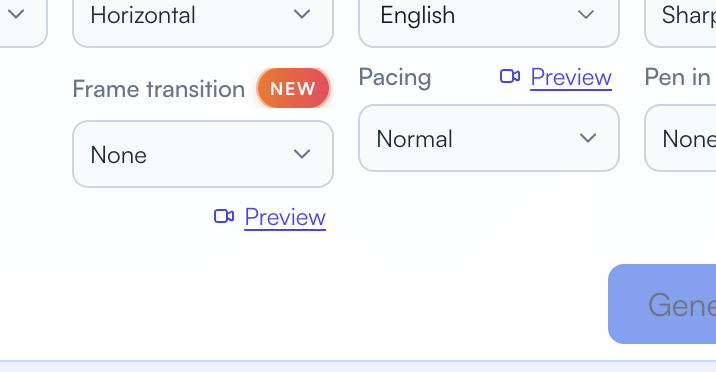
- Set Pacing to Normal.
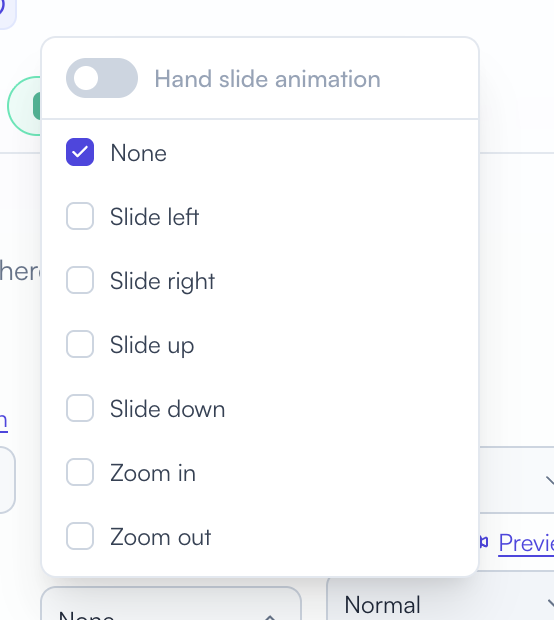
- Open the Frame transition dropdown.
- Select None for a hard cut, one effect for the same transition choice throughout, or several effects for a random selection at each eligible frame change.
- For a hand-assisted slide, select slide directions only and turn on Hand slide animation.
- Generate the video, then review the changes between frames.
Choose the movement your explanation needs
Use these as starting points for your own video, then watch the result. A transition is most useful when the next frame earns the movement.
| Option | What moves | Try it for |
|---|---|---|
| None | A direct cut | Clear changes of topic or a quiet baseline. |
| Slide left | Next frame enters from the right | A sequence of steps or a new point in a process. |
| Slide right | Next frame enters from the left | A reveal, return, or a deliberate change in direction. |
| Slide up | Next frame enters from below | Moving through a vertical sequence of ideas. |
| Slide down | Next frame enters from above | Introducing the next layer of an explanation. |
| Zoom in | Current frame enlarges as the next grows and blends in | Directing attention toward a closer view. |
| Zoom out | Current frame shrinks and fades to reveal the next | Opening up context or changing scale. |
Keep the movement consistent
Choose one transition when you want a steady visual rhythm. Select several when variation suits the story. If the explanation depends on a particular left-to-right or top-to-bottom relationship, review the rendered sequence before sharing it.
Look at the boundary between frames
A frame transition plays when one completed frame gives way to another. The last frame and the frames next to an inserted video clip use a hard cut. A short video can therefore contain a cut even when you selected a motion effect.
The settings behind these 13 examples
- Engine: Golpo Canvas.
- Visual style: Sharpie Expanded; API v1
image_style: "marker". - Pacing: Normal for every example.
- Orientation: Horizontal, 16:9.
- Requested duration: 30 seconds per video. The players show the actual rendered duration.
- Narration: English, supplied exact script, warm default female voice; API v1
solo-female-3. - Voice Instructions: “Clear, friendly classroom explanation. Natural and steady delivery.”
- Pen-in-Hand drawing cursor: off, so the hand-assisted examples use the separate transition-hand control.
- Background music: none supplied.
Download every exact generation request. Each video card also includes its full Script and Video Instructions. The downloads contain the generation settings, without an API key.
Choose a Canvas transition with the API
In API v2, keep scene_pacing at "normal". Put the transition choices in a frame_transition array and use the separate transition_hand_animation boolean for the hand.
{
  "prompt": "A star heavier than the Sun, squeezed into a city",
  "custom_script": "Imagine packing more mass than the Sun into a ball about as wide as a city. That is a neutron star, the collapsed core left by some exploding stars. Its matter is crushed to an extraordinary density. Measuring these tiny remnants helps astronomers investigate how matter behaves under extreme conditions.",
  "golpo_video_engine": "golpo_canvas",
  "canvas_style_variant": "sharpie",
  "video_orientation": "horizontal",
  "narration_language": "en",
  "timing": "0.5",
  "scene_pacing": "normal",
  "frame_transition": [
    "zoom_in"
  ],
  "transition_hand_animation": false
}
For all six motion effects, use ["left", "right", "up", "down", "zoom_in", "zoom_out"] with the hand off. For a hand-assisted mix, use ["left", "right", "up", "down"] and set transition_hand_animation to true.
Use ["none"] on its own for cuts. The hand needs a slide direction and cannot be combined with either zoom. Sending non-cut transitions or the hand with Fast pacing is rejected. See the official frame-transition reference for the complete validation rules.
Questions about Canvas frame transitions
Which frame transitions are available in Golpo Canvas?
The dropdown offers None, Slide left, Slide right, Slide up, Slide down, Zoom in, and Zoom out. Hand slide animation can be added to any of the four slide directions.
Do frame transitions work with Fast pacing?
Slides, zooms, and Hand slide animation require Normal pacing. Use None for a hard cut when you choose Fast pacing.
Can I select more than one transition?
Yes. Golpo randomly chooses one of your selected effects for each eligible frame change. None cannot be combined with other effects. A short video may not show every effect you selected.
Can the hand be used with Zoom in or Zoom out?
No. Hand slide animation needs at least one slide direction and cannot be combined with either zoom effect. Use slide directions only when you enable the hand.
Why do I still see a hard cut in a video with transitions?
The last frame and frames next to an inserted video clip use a hard cut. Review the full sequence to see which frame changes are eligible for motion.
Is Hand slide animation the same as Pen in Hand?
They are separate controls. Hand slide animation pushes a slide between frames. Pen in Hand controls the drawing cursor within a Canvas frame. The examples here have the drawing cursor off.
Build your next Canvas video
Give the next idea an entrance.
Choose a topic worth explaining, set Pacing to Normal, and select the transition you want to see.
Make a Canvas video →Tags


