How to Make Stickman Videos with AI: 3 Ways to Do It in Golpo
You can make a stickman video in Golpo three different ways: write a strict Video Instruction, upload one drawing as a reusable Custom Style, or define recurring characters with Character Consistency. This guide shows all three workflows with real Golpo outputs—including a stick-figure team video, a gardening tutorial inspired by one image, and a story starring Michael and Sarah.

There is more than one way to make a stickman video with AI. The right method depends on what you want to keep consistent.
If you only need every person to look like a simple stick figure, write that rule in Video Instructions. If you already have one drawing whose line work and colors you like, upload it as a Custom Style. If the audience must recognize the same named people from scene to scene, add them with Character Consistency.
We tested all three routes in Golpo. The examples below are real outputs: a five-person onboarding team rendered as black stick figures, an apple-tree tutorial inspired by a single gardening illustration, and a story in which Michael and Sarah keep their defining clothes and features across changing scenes.
Jump to: Video Instructions · Custom Style · Character Consistency · Which method should you use?
Three ways to make a stickman video in Golpo
| Method | What stays consistent | What you provide | Best for |
|---|---|---|---|
| Video Instructions | A general visual rule | One or two strict sentences | Fast, generic stick-figure explainers |
| Custom Style | Line work, color, texture, and art direction | An image, video, or style description | A reusable illustrated series |
| Character Consistency | Named character identity | Name, appearance description, and ideally a reference image | Recurring hosts, couples, teams, and story characters |
The distinction matters. A Custom Style can make a whole video feel like the same illustrator drew it, but it is not a promise that one person will keep the same face and outfit. Character Consistency is designed for that identity problem.
Method 1: Make every person a stick figure with Video Instructions
This is the quickest route because you do not need a reference image. You describe the subject in the main prompt, then use Video Instructions to set a hard visual rule for every human figure.
For our existing test, the subject was a practical business workflow:
Prompt: How a five-person team can produce fifty onboarding videos in a single quarter.
The exact instruction was:
Video Instructions: “Every human figure in every frame is a simple black stick figure. Thin single-line body, arms, and legs. Medium circular head. No caricatures, no cartoon faces, no illustrated characters.”
Settings used: Golpo Sketch / Classic, fast pace.
One instruction turns every human in the onboarding example into a simple black stick figure.
How to recreate it
- Open Golpo and enter a topic or paste your script.
- Select a Sketch style. Classic is the cleanest starting point for simple black stick figures.
- Paste the instruction above into Video Instructions.
- Generate the video and check several scenes—not only the opening frame—to confirm every human follows the rule.
Why the instruction works: it combines a positive specification (“thin single-line body”) with clear exclusions (“no caricatures, no cartoon faces”). In our broader Video Instructions test, strict negative constraints were more reliable than vague requests such as “keep it simple.”
Use this method when the people can be generic. It is perfect for diagrams, process explainers, onboarding, safety training, and any video where the action matters more than a character's identity.
Method 2: Upload one stickman image as a Custom Style
Custom Style is the better choice when you already have a drawing that captures the look you want. Golpo Canvas and Golpo Sketch can both use one image as visual inspiration, then apply that drawing language across a new video. Sketch can also take a written description instead of an image.
For this test, we uploaded the supplied gardening illustration: a smiling stickman in a blue shirt and black trousers, kneeling beside soil, a flower, a trowel, and a coral watering can. That single image supplied the line weight, selective-color treatment, rounded face, and friendly instructional tone.
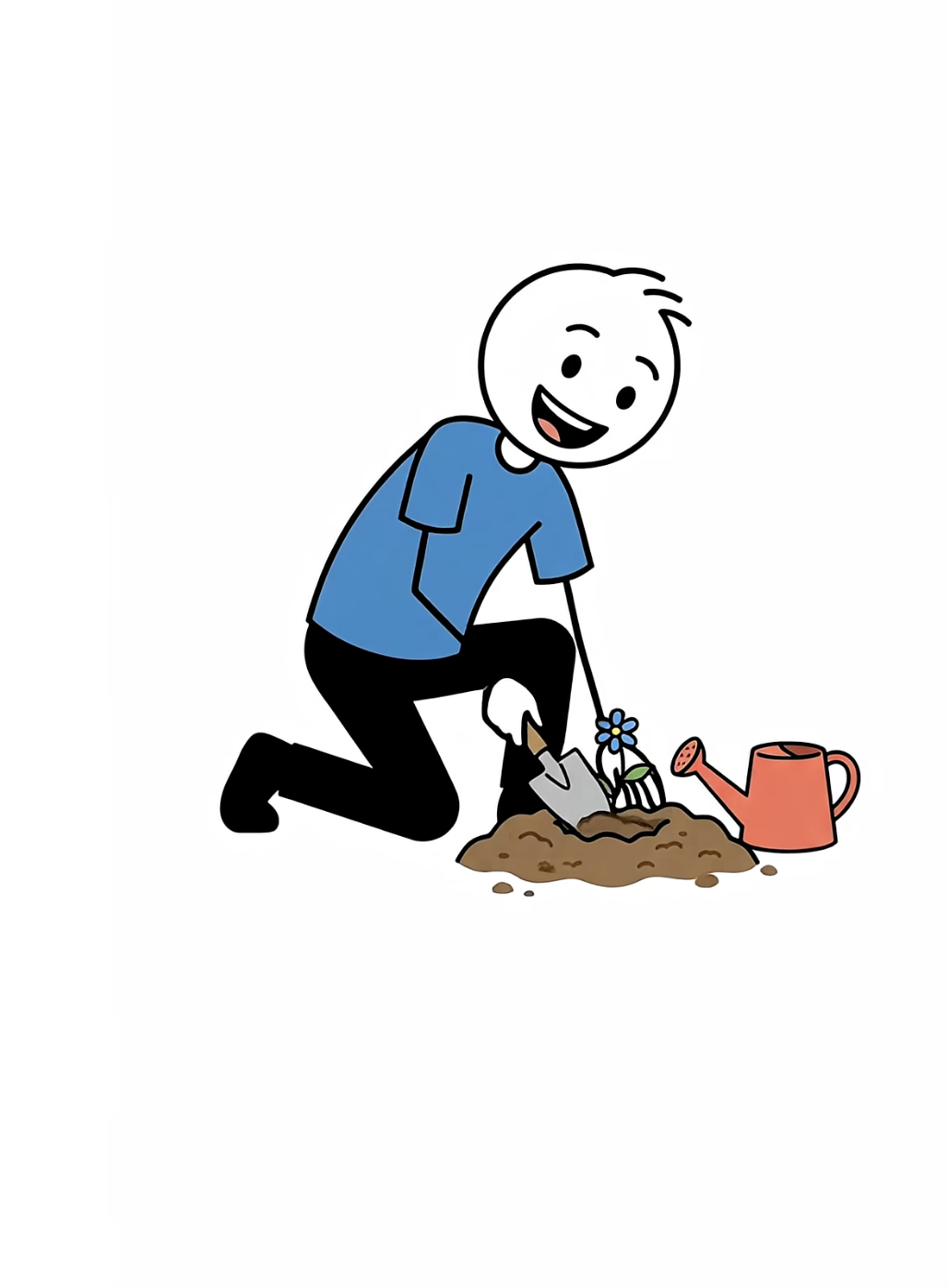
Prompt: How to plant apple trees in your backyard—what are the steps? Show a man doing it.
The finished 51-second video follows the same basic visual language: a white background, black outlines, a blue-shirt gardener, selective green and red accents, and sequential scenes of measuring, digging, planting, watering, mulching, and staking the apple tree.
A stored frame from the generated video appears as the poster. Select play to watch the complete result inline.
Sketch Custom Style from a description
You do not always need an image. In Golpo Sketch, a two-sentence Custom Style description can set different rules for people and for objects:
Use stickman figures for characters. For all other objects, use realistic images with solid colors filled in.
Love Triangle follows that split: stick-figure people beside solidly colored props such as an anatomical heart and a doorway.
Watch the Sketch description example →
How to recreate it
- Start a new video and select Golpo Canvas or Golpo Sketch.
- Open the Style menu and choose + Custom Style.
- Name the style for its visual system—for example, Friendly Selective-Color Stickman.
- Choose Image or Video and upload the reference image. Custom Style accepts an image or video up to 10 MB.
- Select Add Style, choose the new style under My Styles, and generate the video.
What Custom Style copies: the overall visual system—palette, outline treatment, texture, composition, and illustration mood. It does not need to reproduce the exact pose or garden scene. The new prompt decides the content; the uploaded image guides how that content is drawn.
Choose a clean source image with one coherent style. A focused character on a plain background usually gives Golpo a clearer signal than a collage with several unrelated drawing styles. You can learn more in the full Custom Style guide.
Method 3: Keep Michael and Sarah recognizable with Character Consistency
A story needs more than a consistent art style. Viewers must know that the man in scene one is still Michael in scene seven, and that the woman beside him is still Sarah. This is what Character Consistency is for.
We added the two supplied full-body references separately:

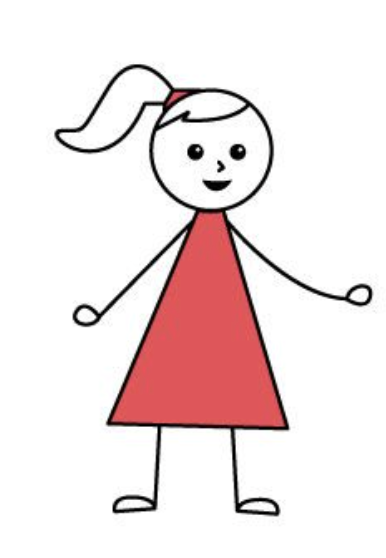
- Michael: round white head, short side-parted black hair, small black eyes and smile, green short-sleeve collared shirt, blue knee-length shorts, thin black line arms and legs.
- Sarah: round white head, high side ponytail with a red tie, small black eyes and smile, red triangular dress, thin black line arms and legs.
Those descriptions reinforce the details already visible in the uploaded images. They give the model two forms of the same identity signal: a visual reference and a literal checklist.
The script follows the couple from hardship to hope:
Michael and Sarah faced years of hardship. Michael lost his job, their savings disappeared, and every new plan seemed to fail. Feeling helpless, they went to a quiet church and prayed for strength, guidance, and courage. They began each morning with gratitude, trusting that divine power would lead them forward. Slowly, their fear turned into determination. Sarah started a small home business, while Michael learned new skills and found better work. Together, they worked honestly, saved carefully, and helped others whenever possible. Years later, they built a successful life, always remembering that faith had given them hope when they needed it most.
Across the generated scenes, Michael keeps the green shirt and blue shorts; Sarah keeps the red dress and ponytail. Their poses and environments change as the story moves through lost plans, prayer, determination, work, a new home, and financial growth, but they remain recognizable as the same pair.
A stored frame from the final scene appears as the poster. Select play to watch Michael and Sarah's full story inline.
How to recreate it
- Open a new video and find Characters (BETA) below Video Instructions.
- Select + Add Character and name the first character Michael.
- Write the appearance description above and upload Michael's reference image.
- Add Sarah as a second character, with her own description and reference image.
- Use both names in the prompt or script. This helps Golpo map actions to the right character.
- Optionally choose Save for later so Michael and Sarah remain available in My Characters for the next episode.
- Generate, then review scenes from the beginning, middle, and end for clothing, hair, and silhouette drift.
Reference images work best when each file shows one full-body character, front-facing, on a plain background. PNG, JPG, and WebP files up to 10 MB are supported. The two supplied drawings are effective references precisely because they are isolated, readable, and visually simple.
For more detail on naming, appearance descriptions, and reusable character libraries, see the complete Character Consistency guide.
Which method should you choose?
- Choose Video Instructions when you want a general “stick figures only” rule and do not care whether the same person returns.
- Choose Custom Style when one image already captures your preferred line work, colors, and mood.
- Choose Character Consistency when the same named people must remain recognizable across scenes or episodes.
- Combine controls carefully when you need both identity and art direction. Keep the Video Instruction short so it supports the character references instead of fighting them.
A useful combined instruction for Michael and Sarah would be:
Clean stickman story on a warm white background. Thin black outlines with restrained green, blue, red, and yellow accents. Keep Michael and Sarah's saved character designs unchanged. No realistic faces, no 3D rendering, and no outfit changes.
The key is division of labor: let the character references define who appears, and let the short instruction define how the world around them looks.
Five tips for cleaner stickman videos
- Describe visible traits. “Friendly” is subjective; “round white head, thin black limbs, green collared shirt” is drawable.
- Use negative constraints. State what should not appear: no realistic faces, no 3D bodies, no outfit changes.
- Keep references simple. One character, full body, plain background, clear silhouette.
- Name characters in the script. “Michael opens the letter while Sarah stands beside him” is clearer than “the couple reacts.”
- Review the whole video. Identity and style can look perfect in the opening and drift later. Check the middle and final scenes before publishing.
Frequently asked questions
Do I need to draw a stickman before using Golpo?
No. Use Video Instructions when you want Golpo to create generic stick figures from words alone. Upload a drawing when you want a particular style or character.
What is the difference between Custom Style and Character Consistency?
Custom Style carries an overall visual language across a video. Character Consistency keeps a named person recognizable. Think same illustrator versus same actor.
Can I combine the three methods?
Yes, when the controls are available in the selected workflow. For example, use Character Consistency for Michael and Sarah and add a short Video Instruction for the background, line weight, and color limits. Avoid instructions that contradict the reference images.
Which method should I use for a recurring series?
Use Character Consistency if the same hosts or story characters return in every episode. Add a saved Custom Style when the whole series should also share one visual world.
Make your first stickman video
Start with the lightest control that solves your problem. Try the Video Instruction example if you need a generic stick-figure explainer today. Upload one drawing as a Custom Style when the visual look matters. Define named characters when the audience needs to follow the same people through a story.
Open Golpo and make a stickman video →


