How to Connect Golpo to Gemini with MCP: A Step-by-Step Guide
Connect Golpo to Gemini with annotated MCP setup screenshots, a narrated video walkthrough, and prompts for your first explainer video.

Connect Golpo to Gemini, then create explainer videos by describing what you want in a chat. This guide follows the real setup from Golpo’s MCP page: open the Gemini instructions, add Golpo as a custom app, finish sign-in, and select Golpo in your conversation. Every screenshot below includes numbered red markers and arrows showing the relevant fields and buttons.
Watch the annotated video walkthrough
The walkthrough was created with the Golpo API using the seven annotated screenshots in this guide. Open the video in a separate tab to follow along beside Gemini.
The connection flow at a glance
- 01Open MCPGolpo homepage
- 02Add GolpoGemini Connected Apps
- 03Sign inOAuth + Google
- 04Create a videoA new conversation
The MCP server address you will enter:
https://mcp.golpoai.com/mcp
MCP stands for Model Context Protocol. It lets Gemini use Golpo’s connected tools to create videos, check their progress, and retrieve share links.
Before you start
Use the Gemini web app and a personal Google account. Google currently lists custom apps as an English-language feature for adults aged 18 or over in the US, with Keep Activity on. Work and school Google accounts do not support this custom-app flow. Check Google’s current custom-app requirements if the option is missing from your account.
Have your Golpo account ready for sign-in. The account you connect is the one Gemini will use when you ask Golpo to create or retrieve a video.
Step 1: Click MCP on Golpo, then choose Gemini
Open the Golpo homepage. Follow the three markers in the screenshot:
- Click MCP in the top navigation, between API and Guides.
- Select the Gemini tab.
- Click How to connect? beside Add Golpo in Gemini.
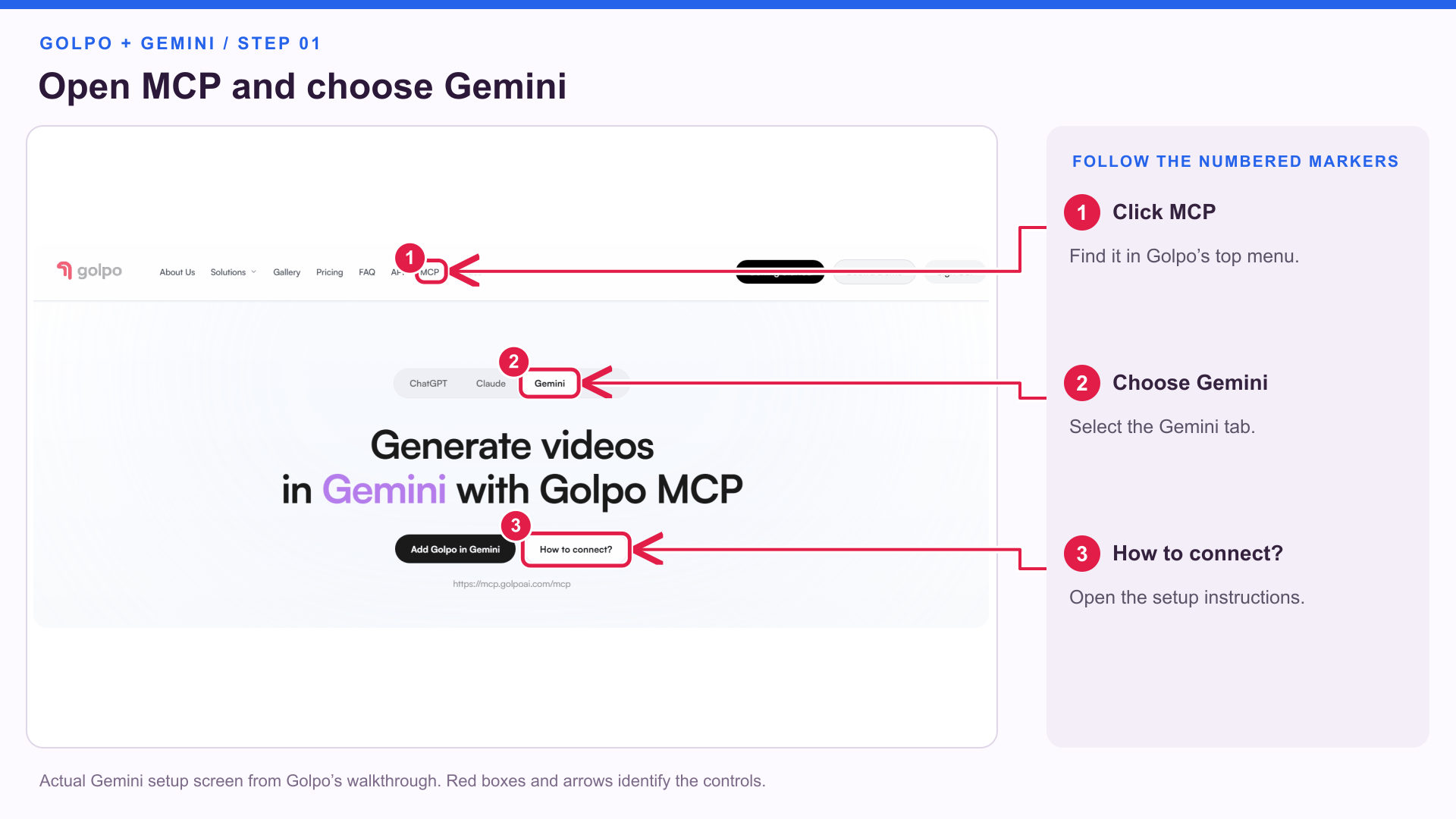
The Golpo MCP page gives Gemini-specific instructions. Keep it open while completing the setup in another tab. Add Golpo in Gemini opens Gemini so you can continue there.
Step 2: Open Connected Apps in Gemini
In Gemini, open Settings → Connected Apps. If your layout first opens Personal Intelligence, choose Connected Apps from that page.
The screenshot shows the Personal Intelligence route. The red box and arrow point to the Connected Apps card.
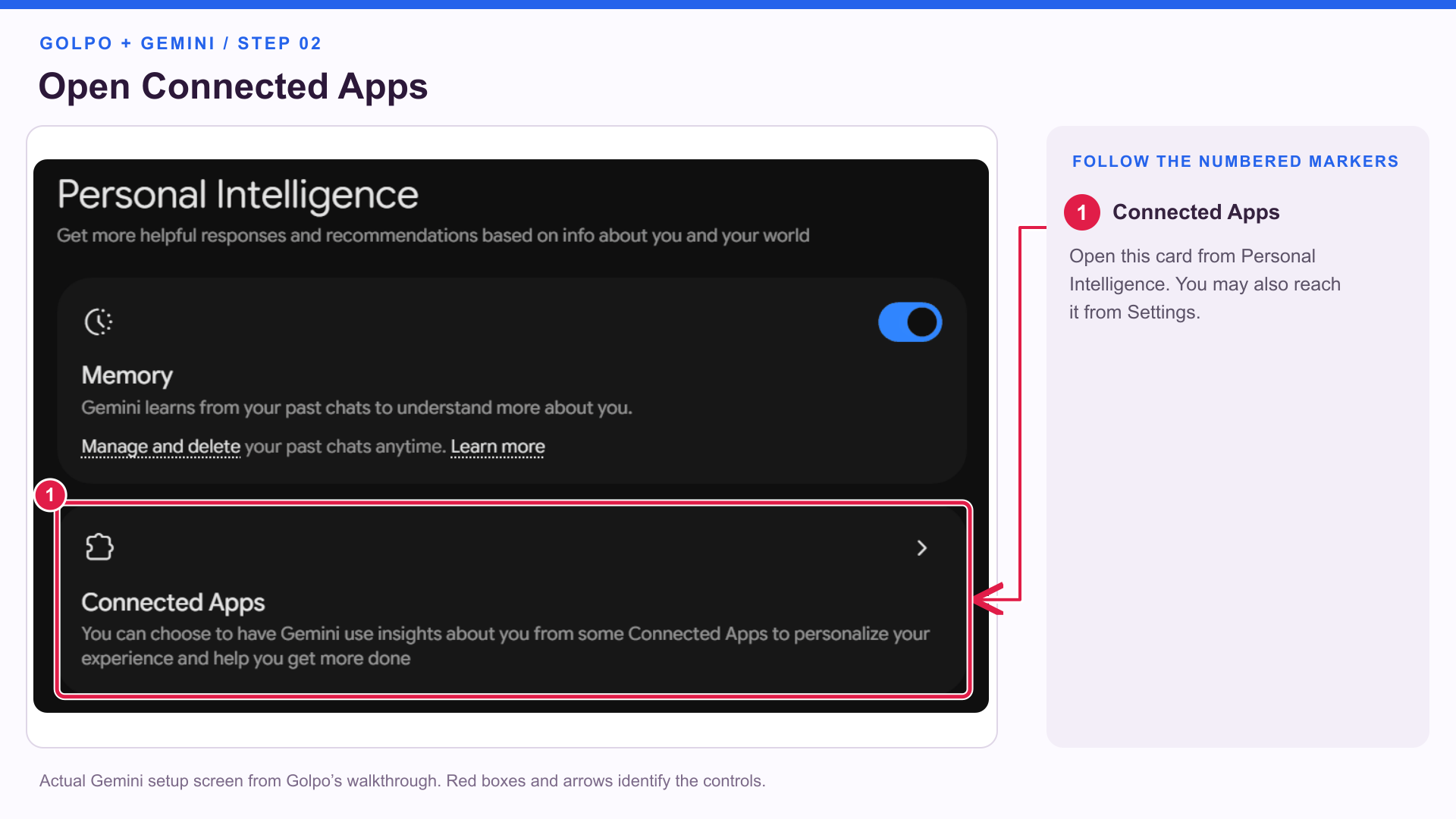
You should arrive on the page for managing connected apps. The recorded interface also labels this area Connectors within Customize.
Step 3: Add a custom app
On Connected Apps, click + Custom in the top-right area, as marked below. In other layouts, look for Add a custom app under Custom apps.
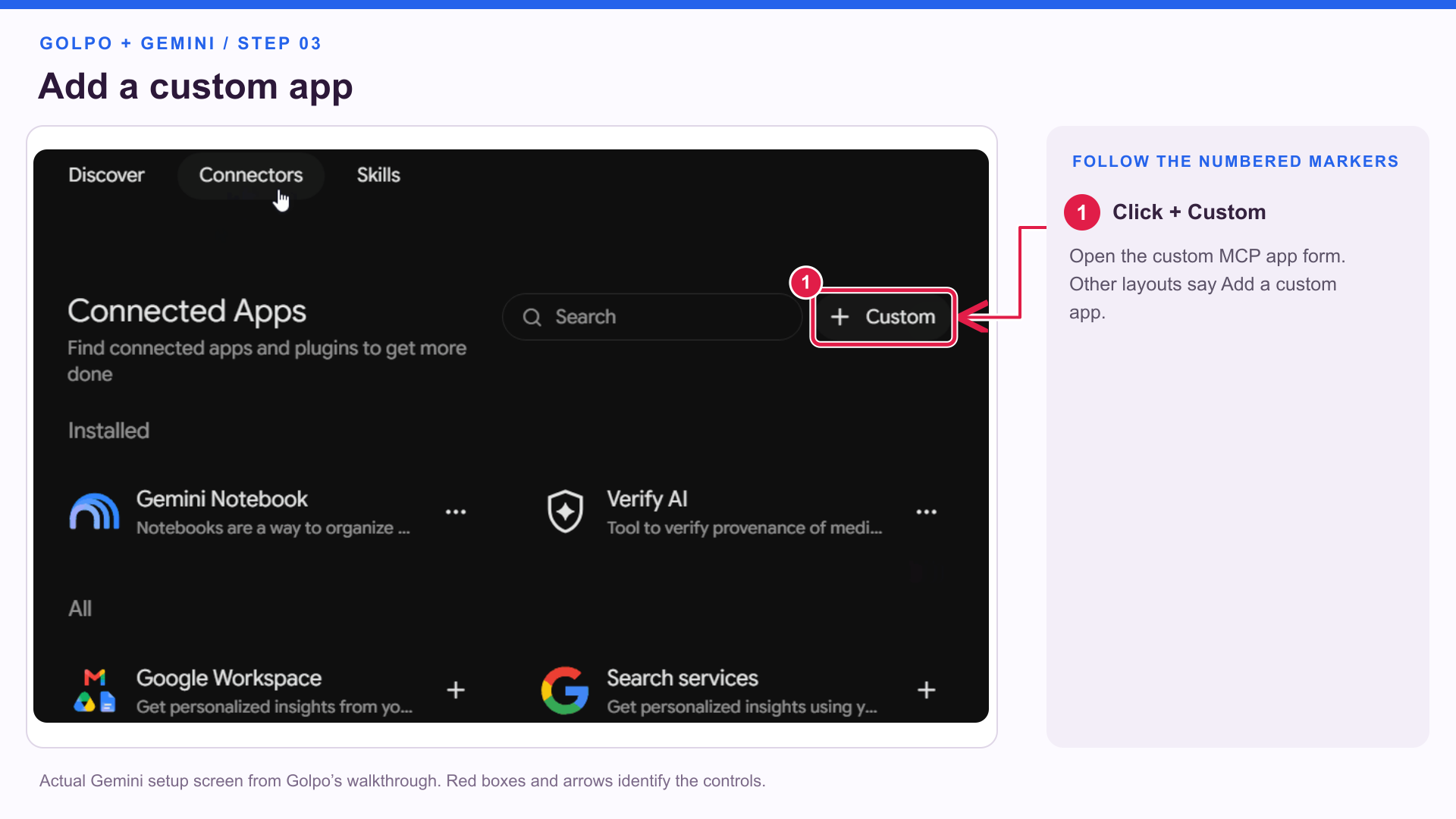
This opens the form for connecting an MCP server.
Step 4: Paste Golpo’s server URL and click Next
Follow the two numbered markers:
- Paste
https://mcp.golpoai.com/mcpinto MCP Server URL. - Click Next.
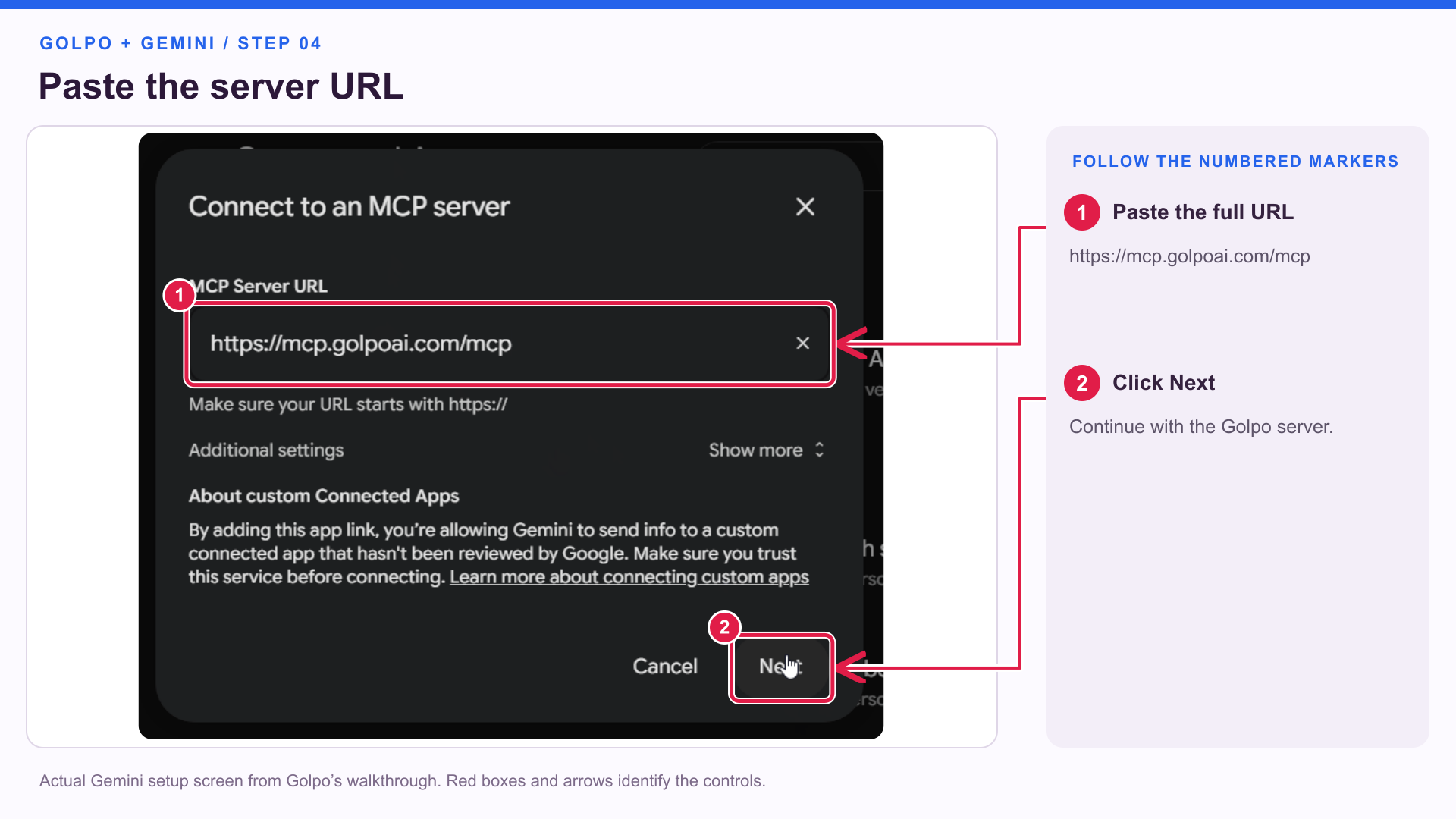
Keep the complete address, including the final /mcp. The setup page, https://video.golpoai.com/mcp, is a different URL from the server address you enter here.
The illustrated Golpo setup continues through the detected sign-in flow. You can keep the form’s detected settings for this connection.
Step 5: Review the notice and complete sign-in
Read Gemini’s custom-app notice. When you are ready to connect Golpo:
- Select the acknowledgement checkbox shown by marker 1.
- Click Connect, shown by marker 2.
- Follow the Google account-linking prompts.
- Sign in to your Golpo account and complete the requested authorization, including Allow when shown.
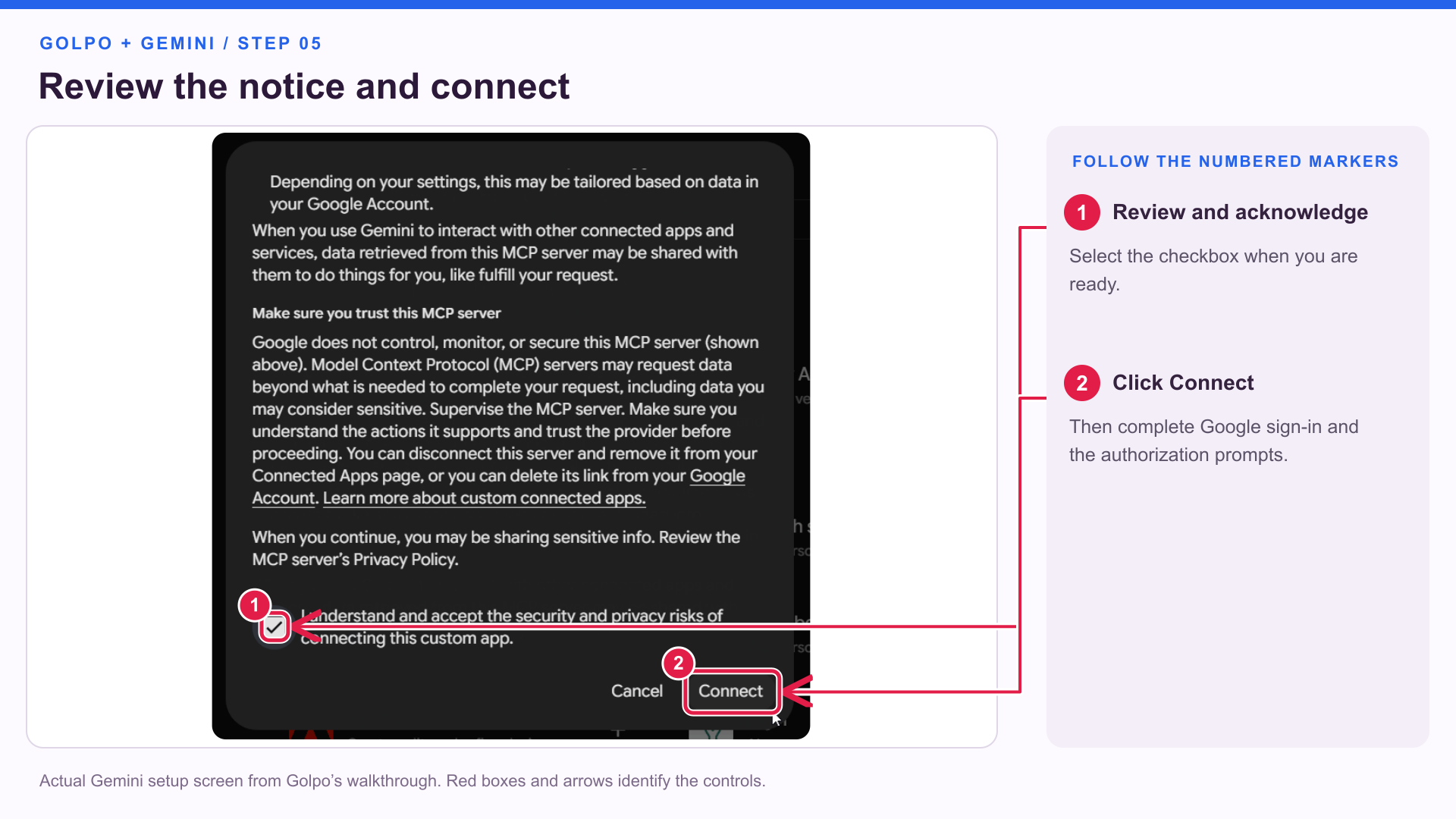
The screenshot marks the acknowledgement and Connect controls in the recorded Gemini flow. The sign-in prompts that follow can vary depending on whether you are already signed in.
Step 6: Save the Golpo custom app
When Save your custom app appears, confirm that the app is named Golpo. The screen lists its available actions, including video generation, status checks, and retrieving videos.
Click Connect at the bottom-right to finish saving the app.
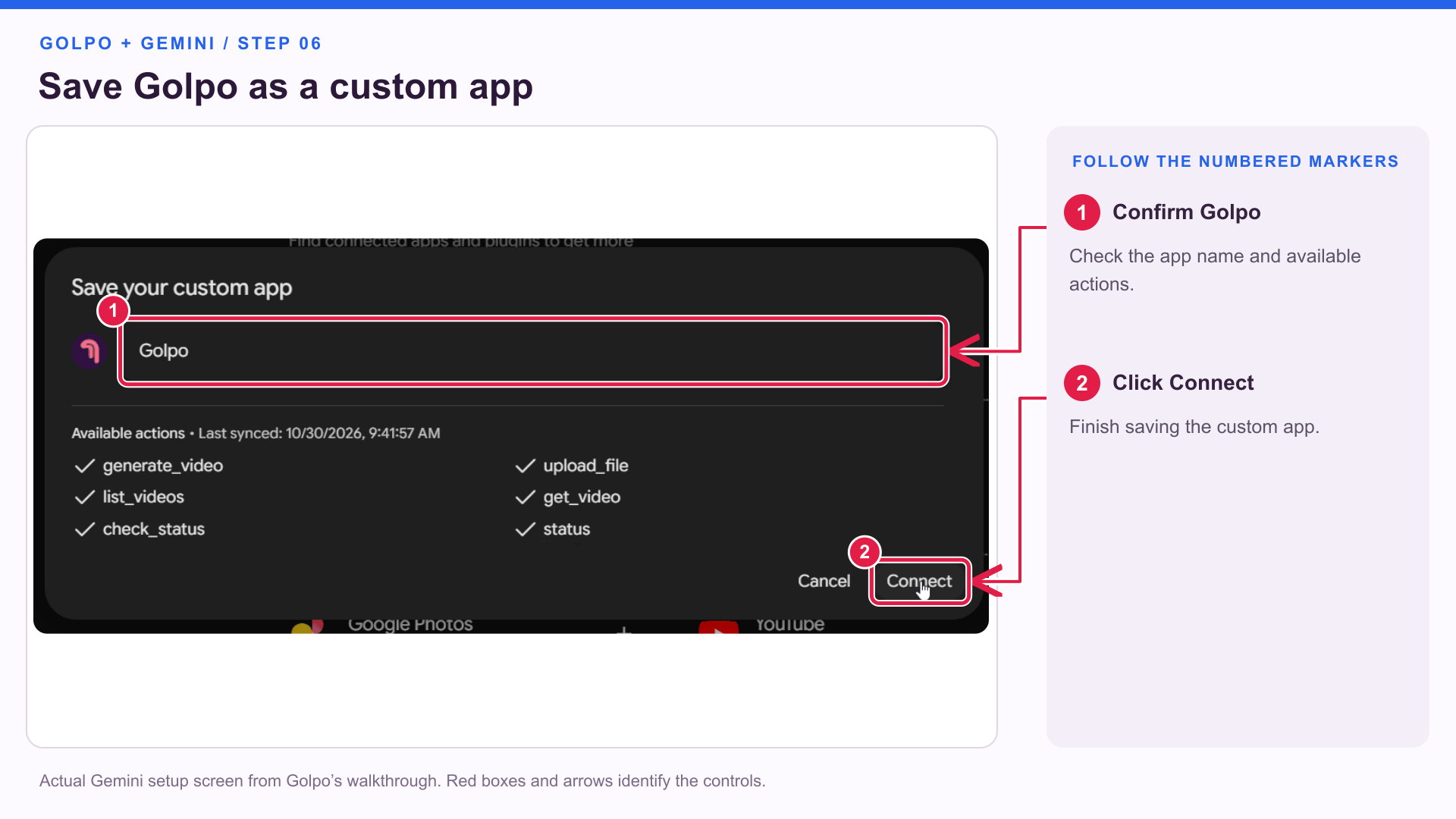
This is the final save step in the recorded setup. The app should now be available for use in a new Gemini conversation.
Step 7: Select Golpo in a new chat and try a prompt
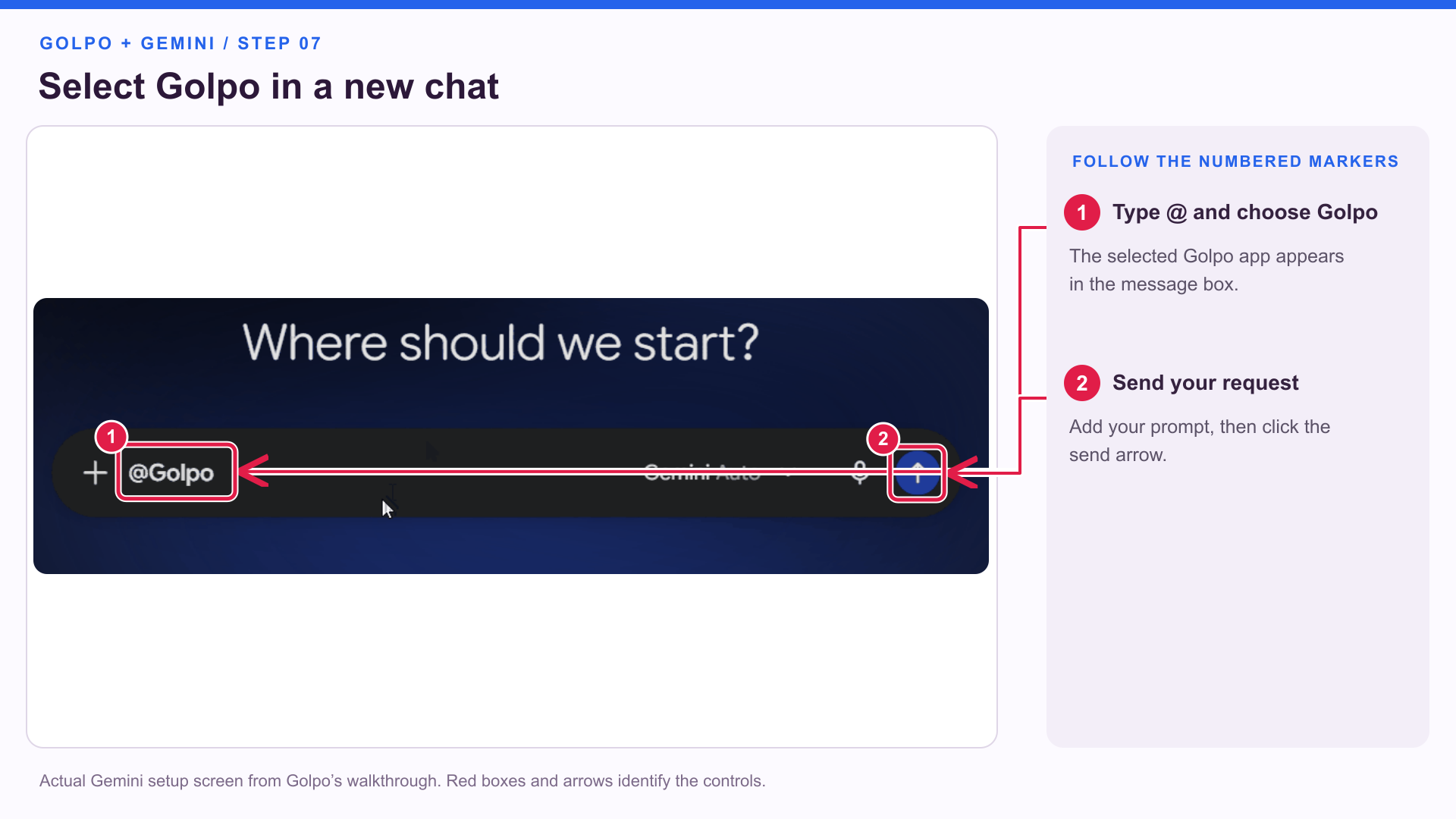
Open a new Gemini conversation. Type @ and select Golpo from the available apps. This explicitly directs your request to the connected Golpo app.
In the screenshot, marker 1 shows the Golpo selection in the message box. Marker 2 points to the send arrow. Add your request before sending it.
Start with a connection check:
Check whether the Golpo connector is signed in and ready to use.
Or try a read-only request:
Show my five most recent Golpo videos with their titles and share links.
Once the connection is working, try this video prompt with Golpo selected:
Create a 10-minute explainer video about how rainbows form with Golpo.
Use a friendly whiteboard style, English narration, and a female voice.
Explain it for a curious 10-year-old, with simple visual examples.
Choose a duration supported by your Golpo account. You can replace 10-minute with a shorter length for your first test.
Review any action confirmation before generation begins. After it starts, ask:
Check the status of the Golpo video we just created.
If it is complete, give me its share link.
Open the returned link and review the finished video. If generation is still running, ask for another status check on that same video later.
What can Gemini do with the Golpo connection?
The MCP page and recorded app setup show six Golpo tools:
| What you want | Example request |
|---|---|
| Create a video | “Create a one-minute product introduction with Golpo.” |
| Upload a file | “Upload my logo from this public HTTPS link to Golpo for use in a video.” |
| List videos | “Show my latest five Golpo videos and their share links.” |
| Retrieve a video | “Get this Golpo video by its ID and include the script if available.” |
| Check progress | “Is the Golpo video we just started complete?” |
| Check sign-in | “Check whether the Golpo connector is connected.” |
The current tool list on Golpo’s MCP page describes the available actions. Keep Golpo selected when making these requests in Gemini.
Troubleshooting the connection
I cannot find Connected Apps
Look in Gemini’s Settings. If the first page is Personal Intelligence, open Connected Apps there, as shown in Step 2. The recorded interface also shows this area under Customize → Connectors.
I cannot find Add a custom app
Look for + Custom or Add a custom app on Connected Apps. If neither appears, check Google’s eligibility and account requirements, including personal-account access, region, language, and Keep Activity.
The server URL is rejected
Use exactly https://mcp.golpoai.com/mcp. Check the https:// prefix and the final /mcp, then try Next again.
Gemini says it cannot use Golpo
Start a new conversation, type @, and select Golpo. Then run the connection-check prompt. If Golpo asks you to connect or sign in, complete that flow before requesting a video.
I finished sign-in but the custom app was not saved
Return to Connected Apps and check whether Save your custom app is still waiting for confirmation. In the recorded flow, you finish by clicking Connect, as shown in Step 6.
My video is still processing
Ask for the existing video’s status. Request the share link once Golpo reports that the generation is complete.
Frequently asked questions
What is the Golpo MCP server URL for Gemini?
Use https://mcp.golpoai.com/mcp in the MCP Server URL field.
Can I connect with a work or school Google account?
Google’s current custom-app documentation specifies a personal Google account. Check the linked requirements before starting if you normally use a work or school account.
How do I make sure Gemini uses Golpo?
Type @ in a new chat and select Golpo, then enter your request. The app selection is marked in Step 7.
Which button saves the custom app?
In the recorded setup, the final Save your custom app screen has a Connect button. Confirm Golpo’s name and actions, then use that button.
Can I create a video and retrieve its link in Gemini?
Yes. The Golpo connection provides generation, status-checking, and video-retrieval tools. Ask for the share link once the requested video is complete.
Are there guides for the other assistants?
Yes. See the guides for ChatGPT, Claude, and Grok.
Walkthrough script and video settings
View the exact narration and video settings
Script
Here is how to connect Golpo to Gemini using a custom MCP app. Follow the numbered red markers to see exactly where to click.
Start on the Golpo homepage and click MCP in the top menu. Choose Gemini, then click How to connect for the setup instructions.
Sign in to Gemini with a personal Google account. Open Settings and Connected Apps. If your layout takes you through Personal Intelligence, click the Connected Apps card highlighted here. Custom app availability depends on Google's account and regional requirements.
On the Connected Apps page, click plus Custom. In other layouts, this option is called Add a custom app.
Paste the complete Golpo MCP server address shown on screen. Keep the final slash mcp. Then click Next, marked with the second arrow.
Read the custom app notice. Select the acknowledgement checkbox when you are ready, then click Connect. Complete the Google account-linking prompts, sign in to your Golpo account, and allow the connection.
When Save your custom app appears, confirm the name Golpo and review the available actions. Click Connect to finish saving the app.
Start a new Gemini conversation. Type the at sign and select Golpo so Gemini knows which connected app to use. The first marker shows the Golpo selection in the message box; the second shows the send arrow.
First, ask Golpo to check whether the connector is signed in, or to show your five most recent videos with their links.
Then try a prompt such as: Use Golpo to create a ten-minute explainer video about how rainbows form, with a friendly whiteboard style and English narration. Choose a duration supported by your Golpo account.
Review any action confirmation before generation starts. Ask Gemini to check the existing video's status, then request its share link when it is complete.
That is the full flow: open MCP on Golpo, add the custom app in Gemini, sign in, then select Golpo in your chat.
Video settings
Created with the Golpo API using English narration, voice solo-female-3, Golpo Canvas Sharpie, Normal pacing, and seven distinct annotated screenshots inserted as static images. The requested duration was Auto; the finished length is 2 min 31 sec.
{
  "timing": "auto",
  "video_type": "long",
  "language": "en",
  "style": "solo-female-3",
  "use_2_0_style": true,
  "image_style": "marker",
  "pacing": "normal",
  "script_only_text": true,
  "use_as_is": [
    true,
    true,
    true,
    true,
    true,
    true,
    true
  ],
  "skip_animation": [
    true,
    true,
    true,
    true,
    true,
    true,
    true
  ]
}
Keep going with Golpo
- Golpo’s complete tutorial: Explore the creation workflow.
- Prompt Mode vs. Script Mode: Choose how to supply your narration.
- Video Instructions: Describe what you want the video to show.
- The Golpo MCP server guide: Explore the broader integration workflow.
The underlying screens come from the Gemini walkthrough on Golpo’s MCP page. Numbered boxes, arrows, and instruction panels were added to make the click targets clear. Google’s custom-app documentation provides the current account requirements and general connection steps.
Tags


