AI Presenter and Golpo Avatars: Put a Face Beside the Explainer
Upload a photo and present beside the explainer, or choose a ready-made Golpo Avatar. See how AI Presenter works, watch current examples, and follow four use cases.

A Golpo explainer can now have a person in the frame. The presenter speaks. Beside them, Golpo draws the whiteboard, sketch, or canvas that makes the idea visible.
There are two ways to add that presenter. AI Presenter starts with a photo you upload. Golpo Avatars are 20 ready-made presenters you can use immediately. Either one can teach a lesson, introduce a product, welcome a new customer, or carry a founder update.
You present. Golpo brings the idea to life.
Two ways to put a presenter in the video
Both options live in Talking AI Avatars. The choice is whose face is on screen, and what that video costs in credits.
| AI Presenter | Golpo Avatars | |
|---|---|---|
| What you start with | A portrait or selfie you upload | One of 20 ready-made presenters |
| Where to find it | Create Avatar, then My Avatars | Golpo Avatars |
| Best fit | A founder, instructor, advisor, or brand face people should recognize | A lesson, product tour, or update when you want a presenter right away |
| Video rate | 5 credits per minute | 3 credits per minute |
| Voice | A built-in voice, or your cloned voice | A built-in voice you choose separately |
The photo, or the Golpo Avatar you select, sets the face. The script sets the message. The voice is its own setting. Canvas or Sketch sets the look of the explainer beside the presenter.
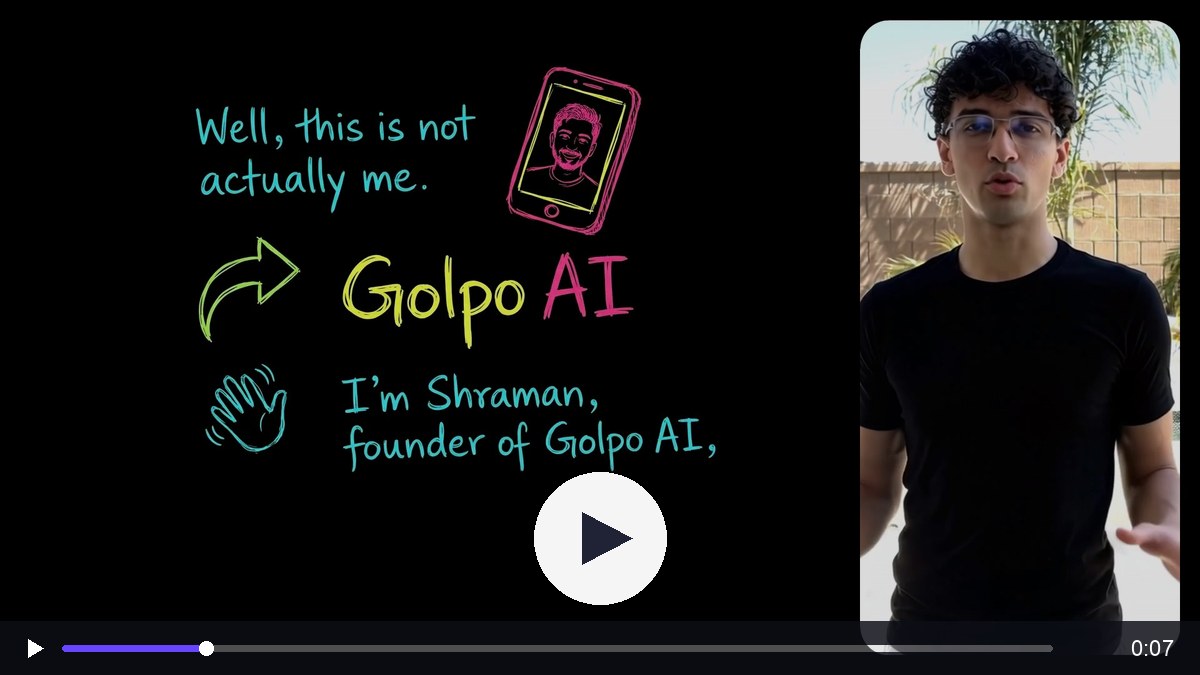
AI Presenter: upload a photo and present the video
AI Presenter is the path for putting yourself, a teammate, or another authorized person on screen. Upload one clear portrait, review how it sits in the frame, and save it. The next video can use that same presenter again.
With voice cloning, the presenter can speak in your own voice and tone. A built-in voice works too, and it is a separate choice from the photo.
1. Upload and frame a clear portrait
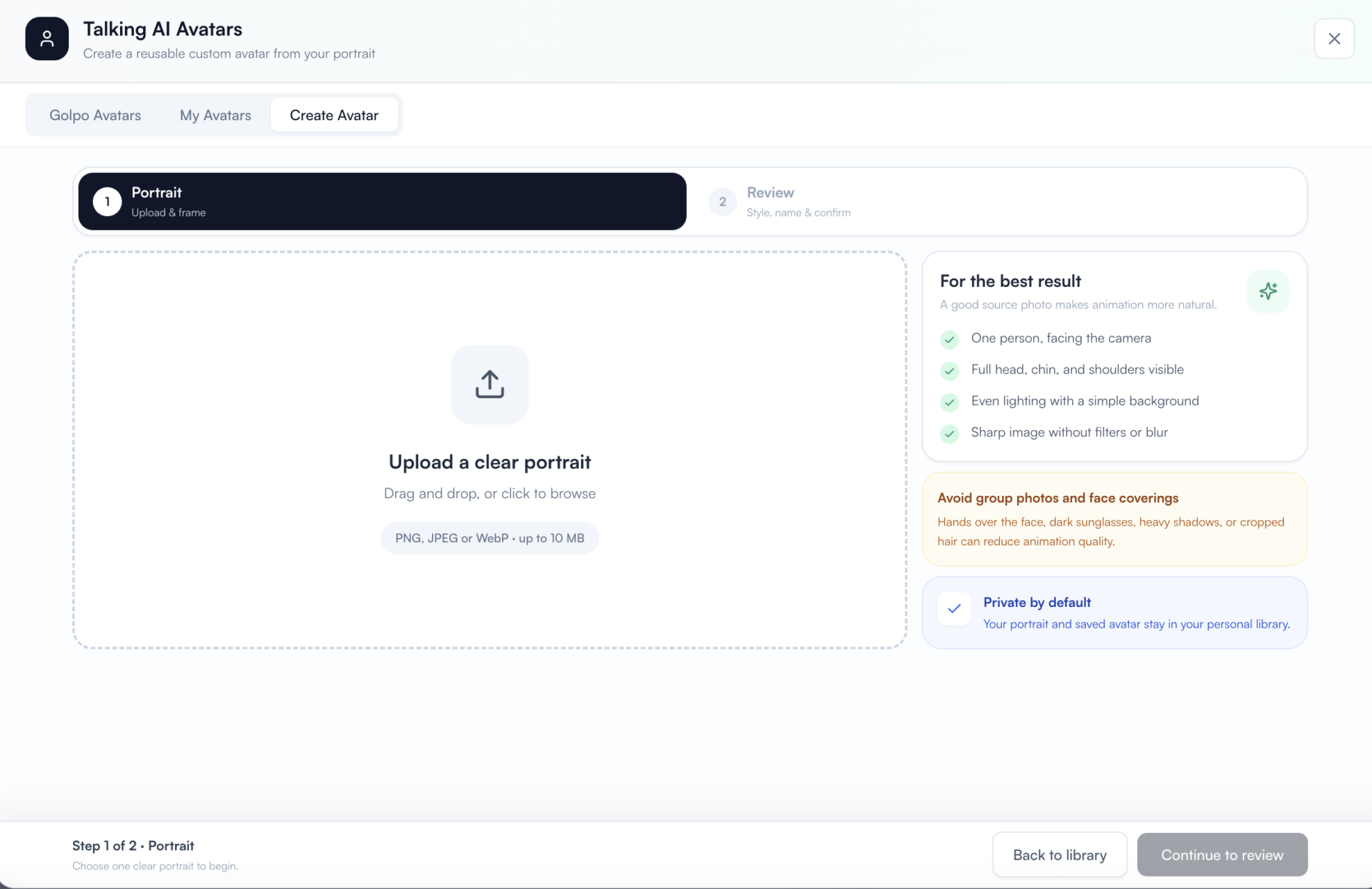
Open Talking AI Avatars → Create Avatar. Drag in a PNG, JPEG, or WebP up to 10 MB, or click to browse.
Use one person, facing the camera, with the full head, chin, and shoulders visible. Even lighting, a simple background, and a sharp image give the animation a clean start. Group photos, hands over the face, dark sunglasses, heavy shadows, blur, and cropped hair make a weaker presenter.
Frame the portrait, then choose Continue to review. The creation screen says your portrait and saved presenter stay in your personal library by default.
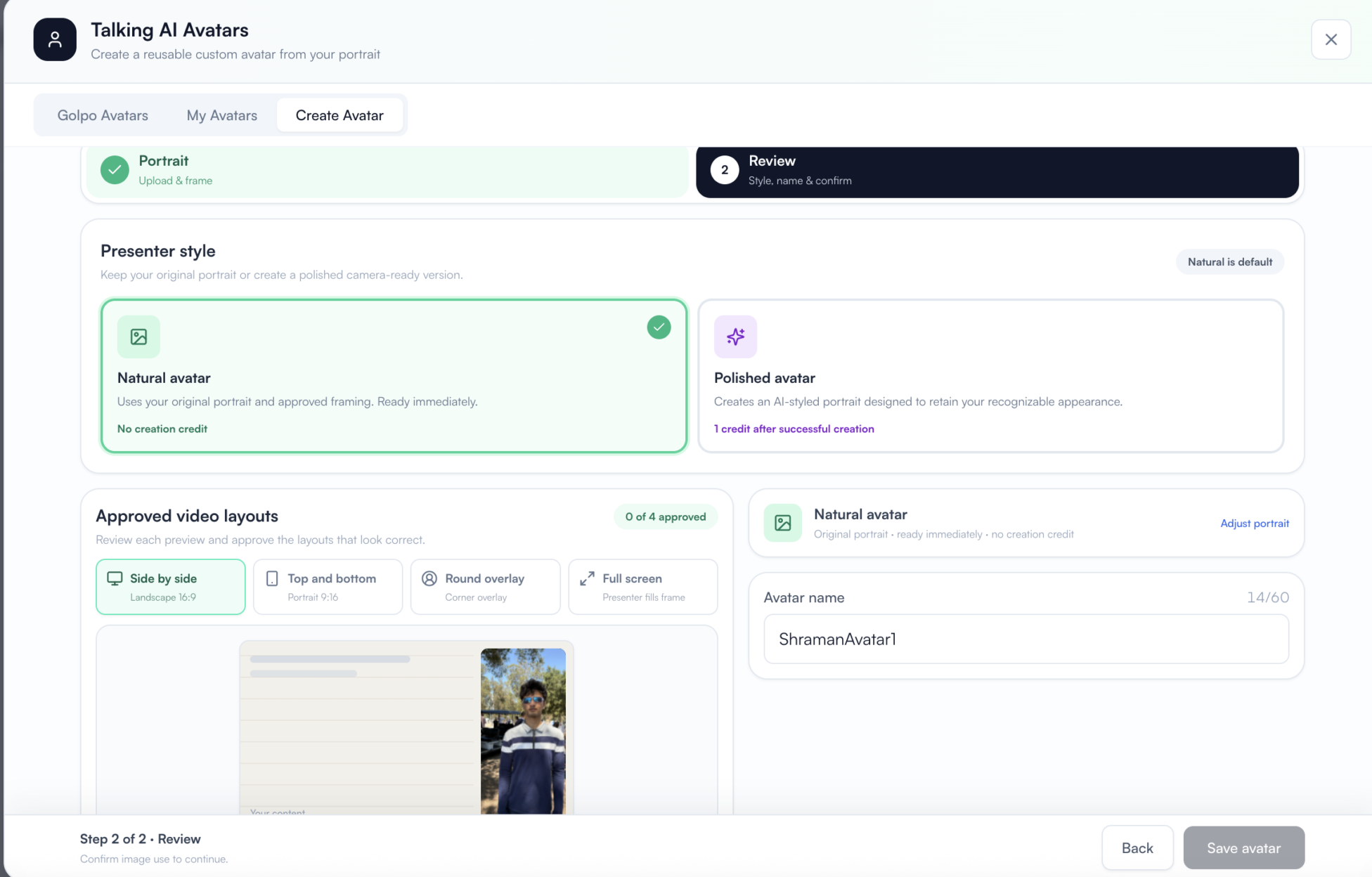
2. Choose Natural or Polished
- Natural uses your original portrait and the framing you approved. It is ready immediately, with no creation credit charge.
- Polished creates an AI-styled portrait designed to keep you recognizable. It costs 1 credit after successful creation.
That creation charge is separate from the 5 credits per minute used when you generate a video with an AI Presenter.
3. Approve layouts, name it, and save
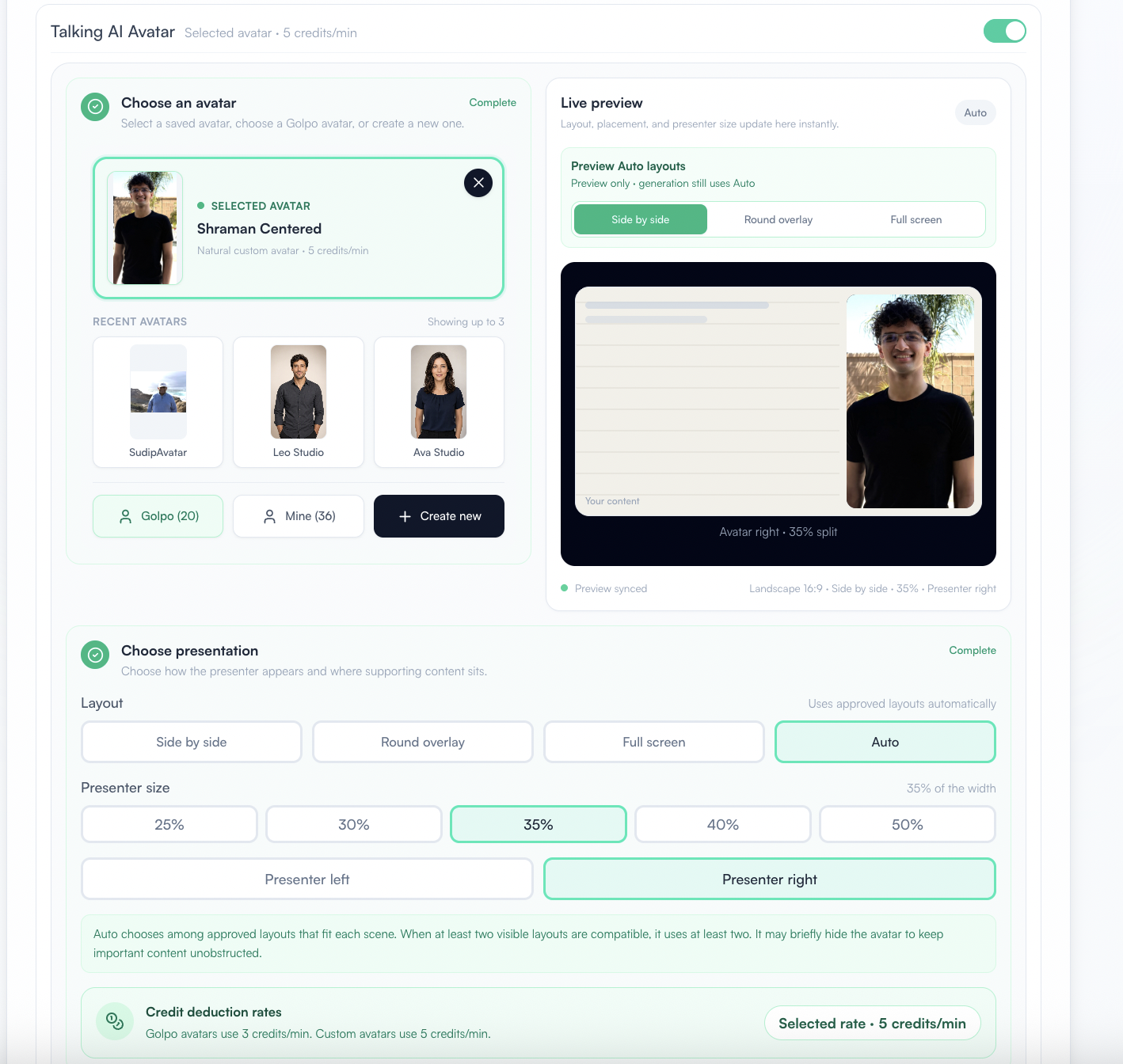
Preview Side by side, Top and bottom, Round overlay, and Full screen. Approve the layouts that look right, enter a name, confirm image use, and save. The presenter then lives in My Avatars.
One selfie, many layouts
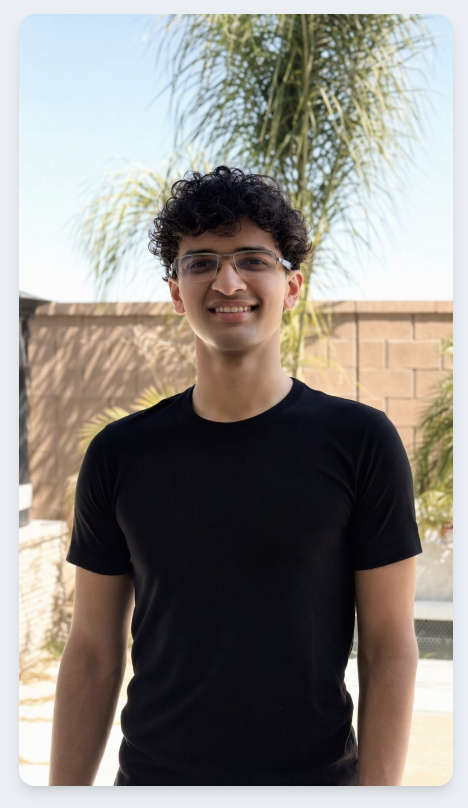
The examples below use Shraman's selfie. The same AI Presenter appears on the left, on the right, in a 50/50 split, in a smaller presenter column, in a round overlay, and in vertical videos.
This one pairs the presenter with Auto layout and whiteboard visuals. Auto chooses among the layouts you approved, and it can step the presenter aside for a moment when the drawing needs the full frame.
Watch this AI Presenter example on YouTube
The same portrait also covers these layouts. Each one plays in the AI Presenter layout guide:
- Side by side, presenter on the left, with Formal Sketch
- Side by side, presenter on the right, with Playful Canvas
- 50/50 landscape split for a founder-style update
- A smaller presenter so Dry Erase visuals have more room
- Round overlay for a demo where the content stays large
- Vertical 50/50 and a vertical 35% presenter for Shorts and Reels
- Vertical Auto with Chalkboard Sketch
Golpo Avatars: 20 presenters, ready to use
Golpo Avatars are for the video you want to make before you have a photo, or for a series that should use a consistent guide who is not a specific person on your team. Open Talking AI Avatars → Golpo Avatars, pick a presenter by name, and choose a built-in voice.
Videos that use a Golpo Avatar cost 3 credits per minute.
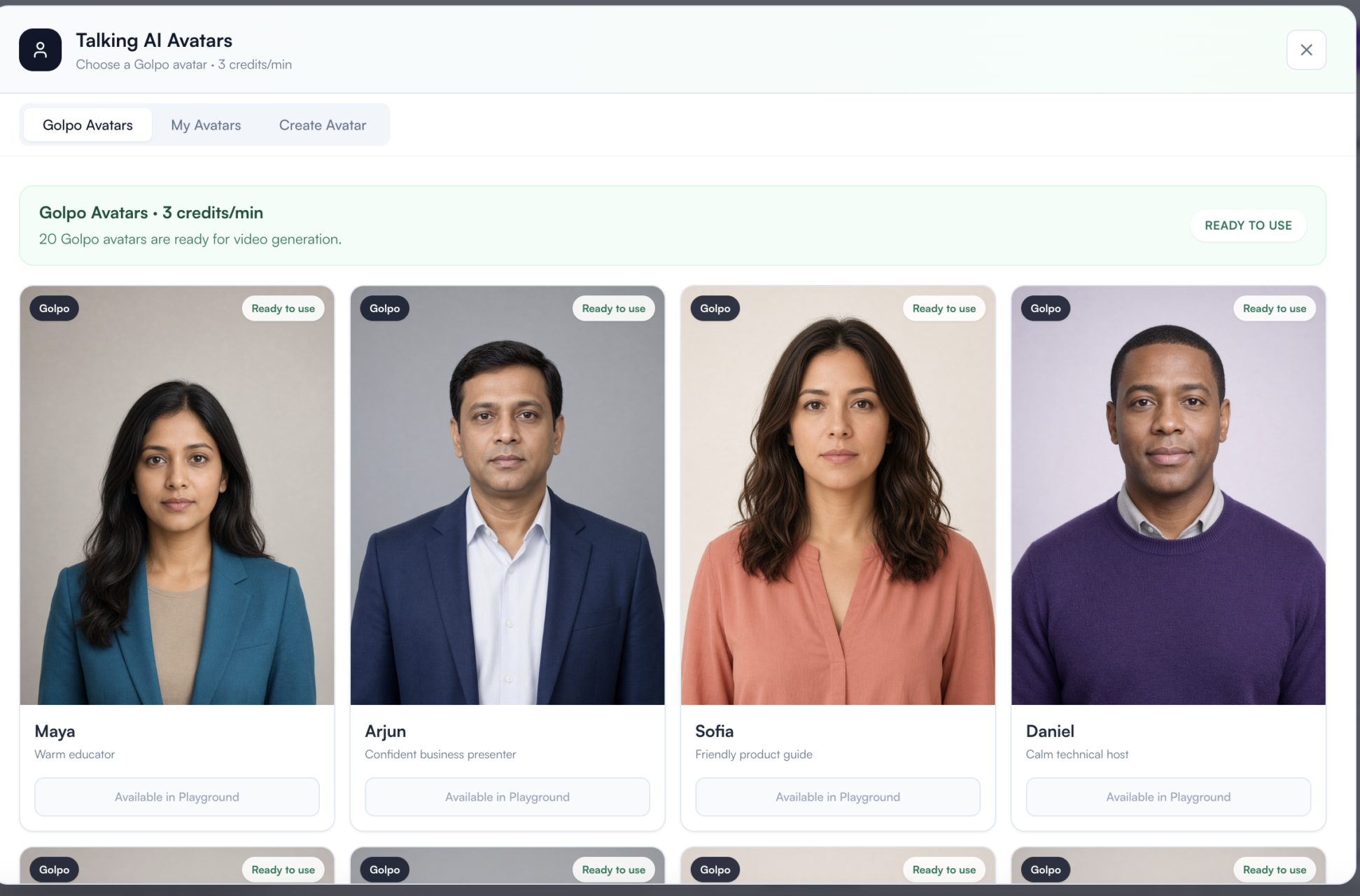
Maya, the warm educator, opens the library with a short story in Canvas Illustration. Her video uses the built-in Female 3 voice, Auto layout, and horizontal 16:9.
Watch Maya's Golpo Avatar example on YouTube
Each Golpo Avatar in the library has a matching example, with its voice, visual engine, and style listed beside the player. A few useful starting points:
- Arjun, confident business presenter: The Two Clocks Behind Every Decision
- Sofia, friendly product guide: The Button Nobody Wanted to Click
- Daniel, calm technical host: How the Internet Delivers a Single Click
- Mei, science guide: What If You Could Enter an Atom
The full set is Maya, Arjun, Sofia, Daniel, Amina, Mei, Sari, Layla, Elena, Camila, Leilani, Naya, Kofi, Hiro, Minh, Omar, Mateo, Tane, Noah, and Lukas. Watch all 20 Golpo Avatar examples, or browse the presenter playlist.
Choose how the presenter shares the screen
The presenter brings a face to the story. The layout decides how much of the frame that face gets, and how much stays with the drawing.
| Layout | What you see | A useful starting point |
|---|---|---|
| Side by side | Presenter and explainer share a landscape 16:9 frame. | Lessons, product explainers, founder updates |
| Top and bottom | Presenter and explainer share a portrait 9:16 frame. | Shorts, Reels, and other vertical videos |
| Round overlay | The presenter sits in a round corner while the content stays large. | Demos and step-by-step explanations |
| Full screen | The presenter fills the frame. | A direct introduction or a short message |
| Auto | Golpo chooses among the layouts you approved, scene by scene. | A video that should change presentation as the idea changes |
On a landscape split, the presenter can take 25%, 30%, 35%, 40%, or 50% of the width, on the left or the right. A 50/50 split gives the face and the drawing equal room. A 35% presenter leaves more space for diagrams and labels.
Auto uses the approved layouts that fit each scene. When at least two visible layouts are compatible, it uses at least two. It may briefly hide the presenter so an important drawing stays readable. The preview tabs let you inspect Side by side, Round overlay, and Full screen. Switching those tabs still leaves generation set to Auto.
Four ways to use a presenter
The useful pattern is the same in each case. One approved explanation. One recognizable presenter. Visuals that carry the idea. A person still handles the judgment, the questions, and the parts that depend on the individual in front of them.
1. Founder updates, with your own AI Presenter
A release update has a simple job: what changed, why it matters, and what to do next. An AI Presenter lets an authorized founder deliver that update from a saved portrait, so the next release does not need another recording session. Each update still needs an approved script, a voice choice, accurate product visuals, and a final review.
In this example, Shraman's Natural AI Presenter walks through the portrait-or-Golpo-Avatar choice, separate narration, layouts, and the real credit rates. It is a release-style explanation you can adapt for your own product news.
Read the founder updates guide
2. Sales explainers, with a Golpo Avatar
The explanation your best seller already gives should be available before the meeting, after the meeting, and for the stakeholder who could not attend. A Golpo Avatar can deliver that pre-call story beside a clear diagram, so the live conversation can start from the buyer's situation.
Arjun introduces a product explanation meant to help a buyer bring their own problem into the call. The video shows the structure of a reusable sales explainer. It is an example of the format, and it does not report a close rate.
Read the sales explainers guide
3. Product onboarding, with a consistent guide
A welcome video earns its place when a new account reaches a first useful result. Sofia, a Golpo Avatar, walks through that first task: choose one explanation, use a script, pick the presenter and voice, review the layout, then generate and check the result. Customer-success managers can then spend their time on the accounts that need judgment.
Watch the onboarding walkthrough
Read the product onboarding guide
4. A lesson people can replay
An explanation worth teaching twice is worth saving. Put a presenter beside a worked example, give the learner something to try, and use live time for feedback. Mei teaches contribution margin with a worked example and a practice question. The lesson is a model for a reusable library. Learning gains still depend on the subject matter and the practice you design around it.
More situations the same setup fits
- Support answers for one repeated task at a time
- Employee onboarding when every location needs the same welcome
- Consulting, when an original framework should travel ahead of the first call
- Agency packages that use Golpo Avatars for speed and an AI Presenter when the client should be recognizable
- Property explainers that leave room for the listing itself
- Localized explainers that reuse a presenter while reviewers protect the meaning
Credits and plans
The rate follows the presenter you select.
| Video length | Golpo Avatar: 3 credits/min | AI Presenter: 5 credits/min |
|---|---|---|
| 1 minute | 3 credits | 5 credits |
| 2 minutes | 6 credits | 10 credits |
| 4 minutes | 12 credits | 20 credits |
Natural has no creation charge. Polished adds 1 credit after the portrait is created successfully, on top of the video rate. A two-minute video with an AI Presenter you already saved uses 10 credits. Creating a new Polished presenter first adds that 1 credit, then the same 10 for the video.
AI Presenter is included on every Golpo plan, including Pay As You Go. Free, Starter, and the API plan are the exceptions. API access is coming soon. Golpo Avatars use the same presenter controls.
The selected presenter card and the credit panel show the rate before you generate. For the wider credit rules, see the credit deduction guide.
Frequently asked questions
What is the difference between AI Presenter and Golpo Avatars?
AI Presenter is a presenter you create from a portrait or selfie. Golpo Avatars are 20 ready-made presenters. AI Presenter videos use 5 credits per minute. Golpo Avatar videos use 3 credits per minute.
Do I need my own photo?
Only for an AI Presenter. For a Golpo Avatar, open the library and select a presenter. No upload required.
What is the difference between Natural and Polished?
Natural keeps your original portrait and approved framing, with no creation credit charge. Polished makes an AI-styled portrait designed to stay recognizable, and it uses 1 credit after successful creation. Videos from either style use the AI Presenter rate of 5 credits per minute.
Does the photo clone my voice?
The photo sets appearance. Choose the narration voice on its own. The Golpo Avatar examples use built-in voices. To have an AI Presenter speak in your tone, follow how to clone your voice for AI video.
Can I reuse an AI Presenter?
Yes. Save it in My Avatars and select it on the next video.
Can I make vertical videos?
Yes. Use Top and bottom for a portrait 9:16 frame, or Auto when you want Golpo to choose. The layout guide includes vertical 50/50, vertical 35%, and vertical Auto examples.
Will the presenter stay on screen for the whole Auto video?
Auto may hide the presenter briefly so important content stays unobstructed. It chooses among the layouts you approved that fit the scene.
Which plans include this?
AI Presenter is included on every Golpo plan, including Pay As You Go. Free, Starter, and the API plan are the exceptions. API access is coming soon.
Make the next explainer with a presenter
Upload a photo when the face should be yours. Choose a Golpo Avatar when you want a ready-made presenter and a lower credit rate. Then pick a layout, preview how the face and the drawing share the frame, and generate.
Open Golpo and create a presenter video
Keep going
Tags


